Let me say it plainly. ChatGPT Ads is OpenAI's advertising platform inside ChatGPT: your business shows ads to people at the moment they compare options and make decisions. You launch it yourself, through the Ads Manager dashboard.
Below is the full path as a single route: account → verification → billing → campaign → ad group with context hints → the ad → review → monitoring → conversion tracking through GTM. The self-service path only, every step with its fields, limits and checks.
A note on the platform's scale. On October 21, 2026, OpenAI expanded ChatGPT Ads to 26 more countries. Total availability now stands at 89 countries worldwide. OpenAI announced it in its own post: OpenAI — ChatGPT Ads expands to 26 new countries. The expansion was also covered by Reuters and PPC Land.
You are in good company, by the way. Over 100,000 advertisers have run campaigns on ChatGPT since ads launched. That is a cumulative figure for the whole life of the platform — exactly how OpenAI presents it in the announcement — and the company keeps the country-by-country breakdown closed for now. Sources: OpenAI — ChatGPT Ads expands to 26 new countries, Reuters.
What these ads are and who sees them
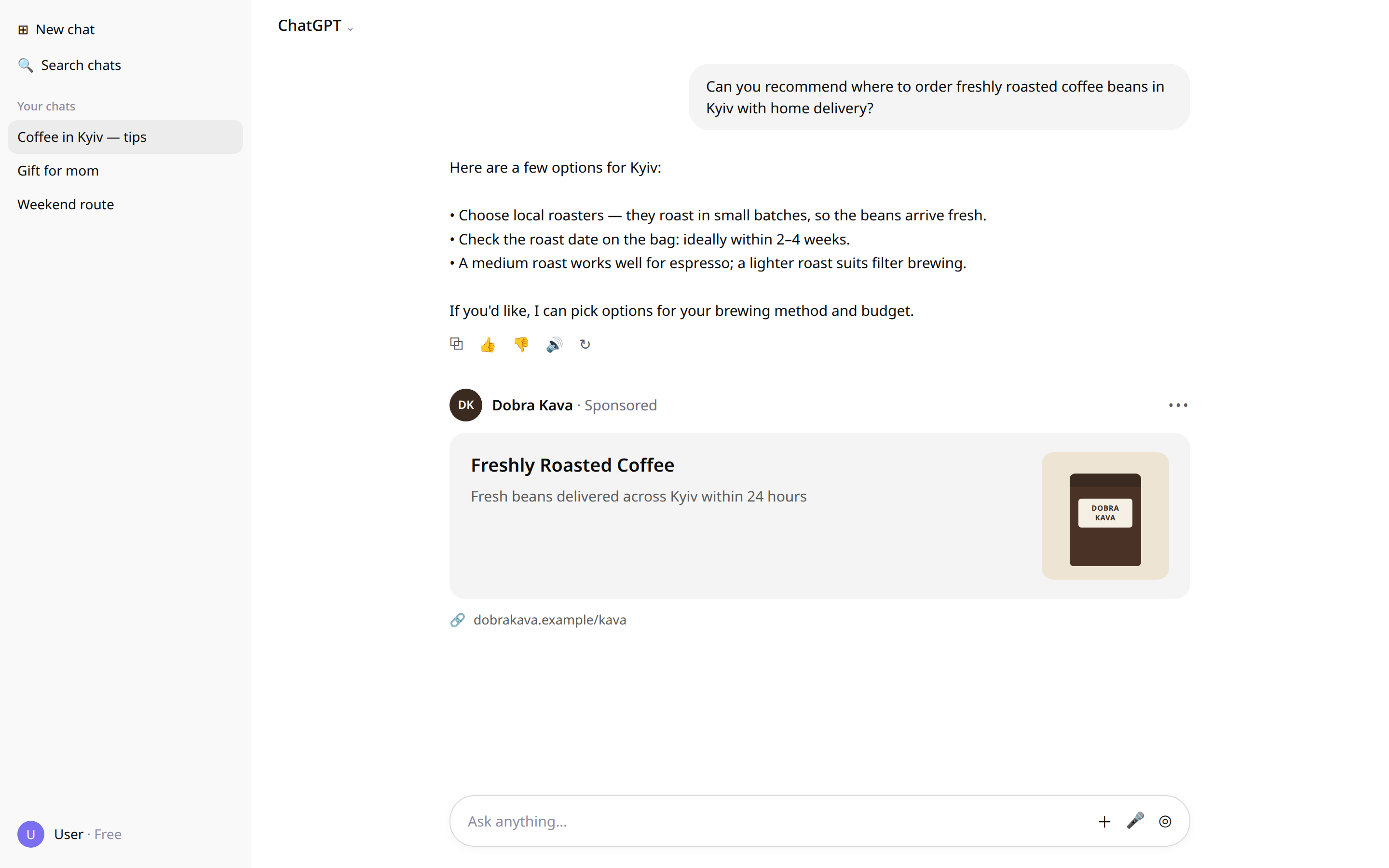
A ChatGPT ad is a separate block below the answer.
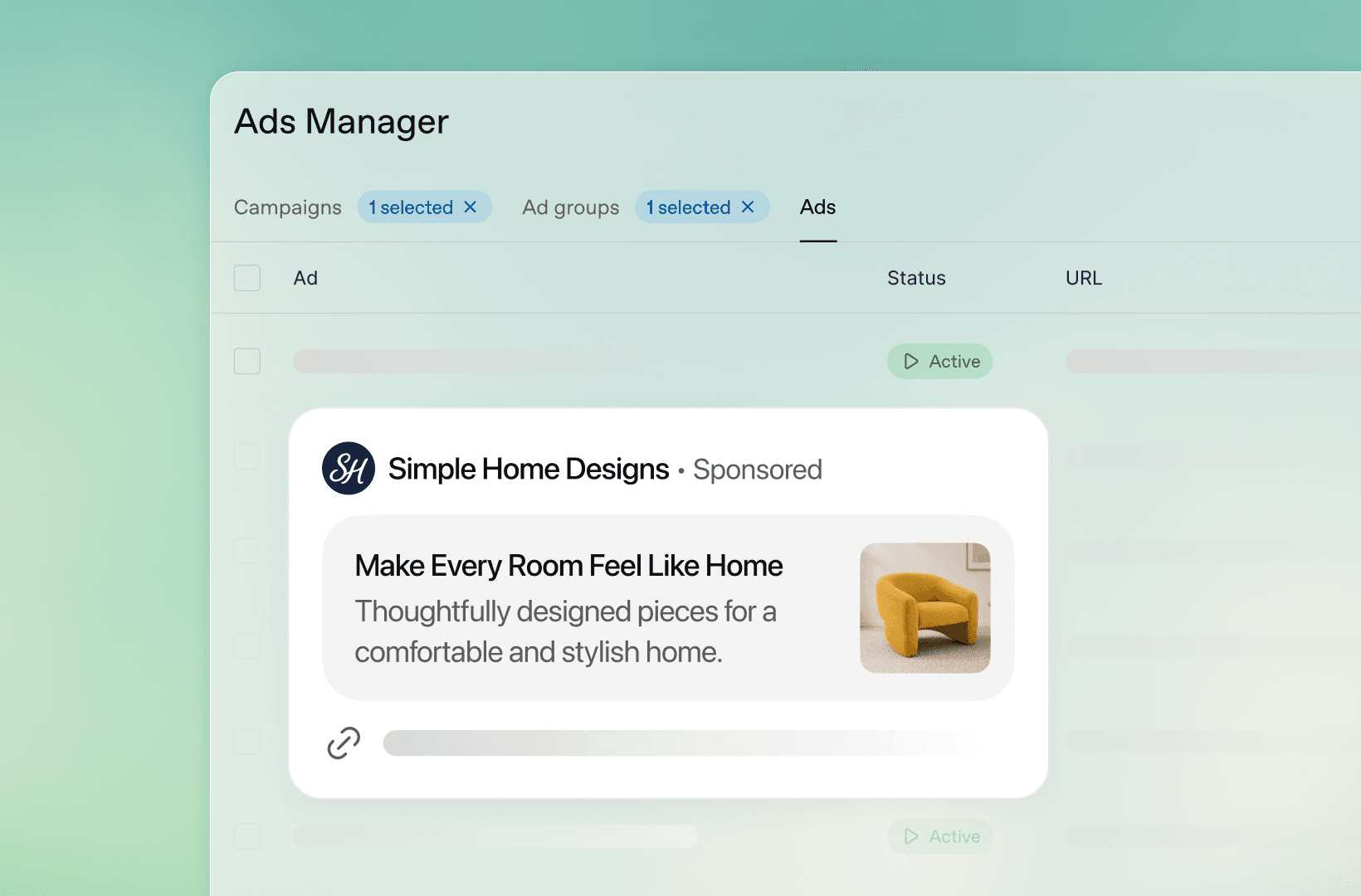
A user asks a question. ChatGPT answers. Below the answer, your ad appears: your business name, your favicon as the logo, a headline, a short description, an image and a link to your website. The block carries a clear Sponsored label and is visually separated from the answer itself. That is how OpenAI itself describes the format — see the announcement and the operator guide by Castle.
ChatGPT's answers run separately from the ads. The advertising system lives in its own circuit, the language model in its own. An advertiser receives aggregated reporting only, and user conversations stay private. That is an OpenAI principle, stated in the October 21 announcement and in OpenAI — Building advertising for the way people use AI.
Who sees the ads. Only signed-in adult users on the Free and Go plans. OpenAI keeps the Plus, Pro and Enterprise plans ad-free. The announcement says it word for word: ads will appear only on the Free and Go plans. Sources: OpenAI — ChatGPT Ads expands to 26 new countries, Reuters. The summary table in OpenAI's documentation confirms the same picture: AI Rank Lab.
On scale — honestly, with one caveat. OpenAI states that more than 1.2 billion people use ChatGPT every week. Source: OpenAI — ChatGPT Ads expands to 26 new countries. That is the entire ChatGPT audience. The ads are seen by one part of it — adult Free and Go users in countries where ads already run. OpenAI keeps the exact advertising reach figure closed for now.
One more piece of context, so you see the trajectory. In August 2026, OpenAI's ads business reached a $1 billion annualized revenue run rate. A run rate is a projection from a single month — roughly $83 million a month. The original source of the figure is Digiday, via the PPC Land breakdown, confirmed by Reuters. The platform is growing fast, and the early-entry window into a new channel is still open.
Before you start: a checklist
Work through this list before you register. Every item saves you one extra round of emails with support.
1. A legal entity in a country where self-service is available. The key self-service condition reads word for word: "To use self-service Ads Manager, the legal entity that will advertise and be billed must be based in a country listed as available below." In other words, the legal entity or sole proprietor that advertises and gets billed is based in one of the countries in OpenAI's official availability table. Check your market against the table before you register: OpenAI Help Center — Ads Manager Availability. The same condition is quoted by the operator guides AirOps and ContextHints.
2. A website or landing page ready for inspection. The ad link leads to a page that opens fast, is publicly reachable and is open to OpenAI's crawlers. The official launch guide requires the landing page URL to be valid, reachable and not blocked for OpenAI crawlers. Source: OpenAI Help Center — Launch Campaigns. Check the page before you submit: open it in a private browser window and look at your site's robots.txt file.
3. Brand name, logo and favicon. The advertiser name and the favicon are exactly what people see inside the ad itself. The official guide lists a set-up advertiser account — name and favicon — among the launch prerequisites. Source: OpenAI Help Center — Launch Campaigns.
4. A square image for the ad. PNG or JPG, square, up to 1200×1200, hosted at a public direct link. The full specifications are below, in the ad step.
5. A payment card for billing. A billing profile and a payment method are a mandatory launch prerequisite under the official guide: OpenAI Help Center — Launch Campaigns. The payment model and the currency get their own discussion below — there is one important nuance about the billing currency.
6. One person — one account. According to operator guides, duplicate accounts from one business are the most common onboarding problem. Decide up front who on your team creates the account and passes verification. Secondary source: ContextHints.
And the main warning of this section. Write it down separately.
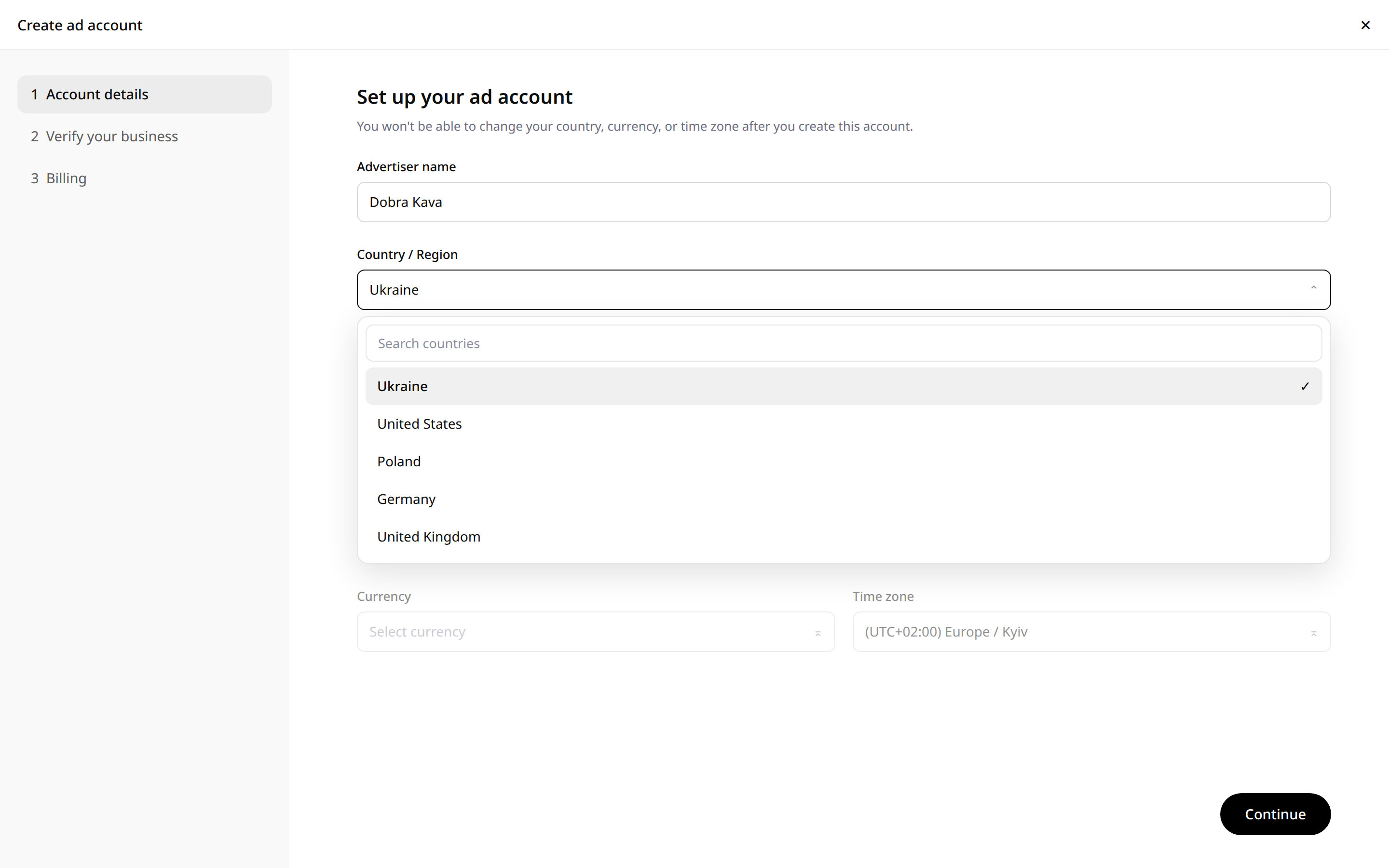
You choose the account's country, billing currency and time zone once, at creation. After that, these three settings live with the account permanently — and the currency is what determines your minimum daily budget, while the time zone sets the boundaries of your reporting days. Both major operator guides state this: ContextHints and AirOps. Marking it honestly: this is secondary data, the official Launch Campaigns guide does not cover the point. The practical conclusion is simple: before you press the create-account button, triple-check the country, the currency and the time zone. A mistake on that screen is fixed only with a new account.
On currency — one honest paragraph of its own.
The billing currency depends on the country of your legal entity, and OpenAI does not publish it in advance for every market: not every currency appears in the published minimum-budget tables, and the October 21 post passes over currencies for the new countries entirely — PPC Land notes this explicitly. So your move is this: you will see the currency inside your own account at the moment you create it. See it, check it against this warning, and only then move on.
Step 1. Register at ads.openai.com and create the account
Open ads.openai.com and create an Ads Manager account. The platform currently runs in Beta status — that is what the official OpenAI guide calls it.
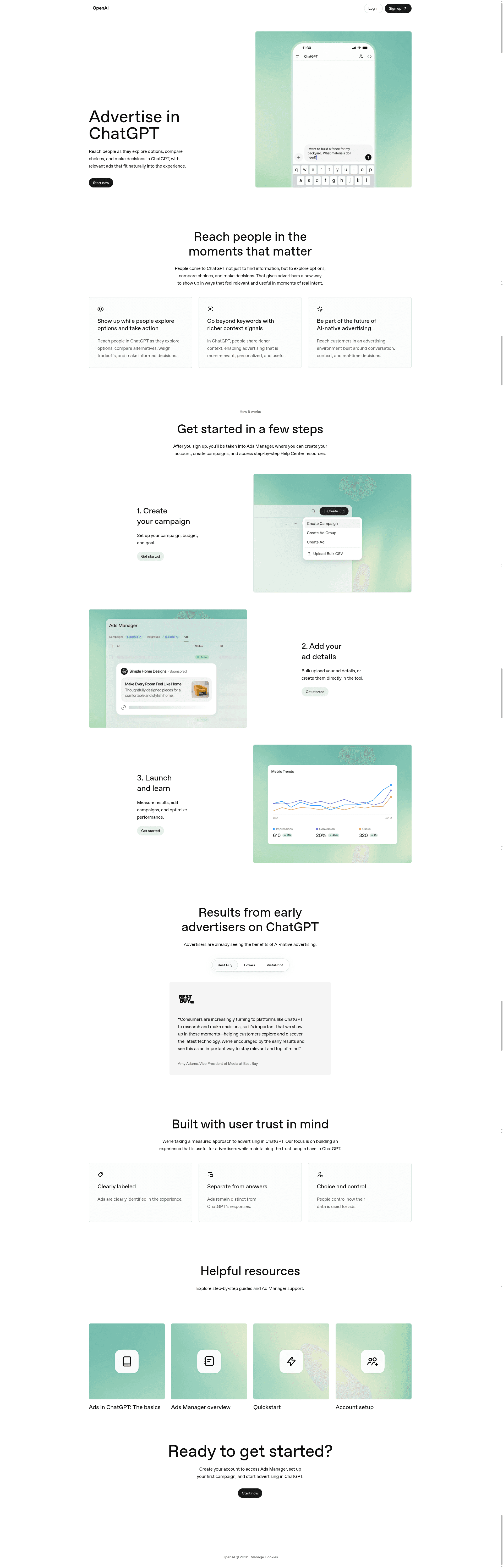
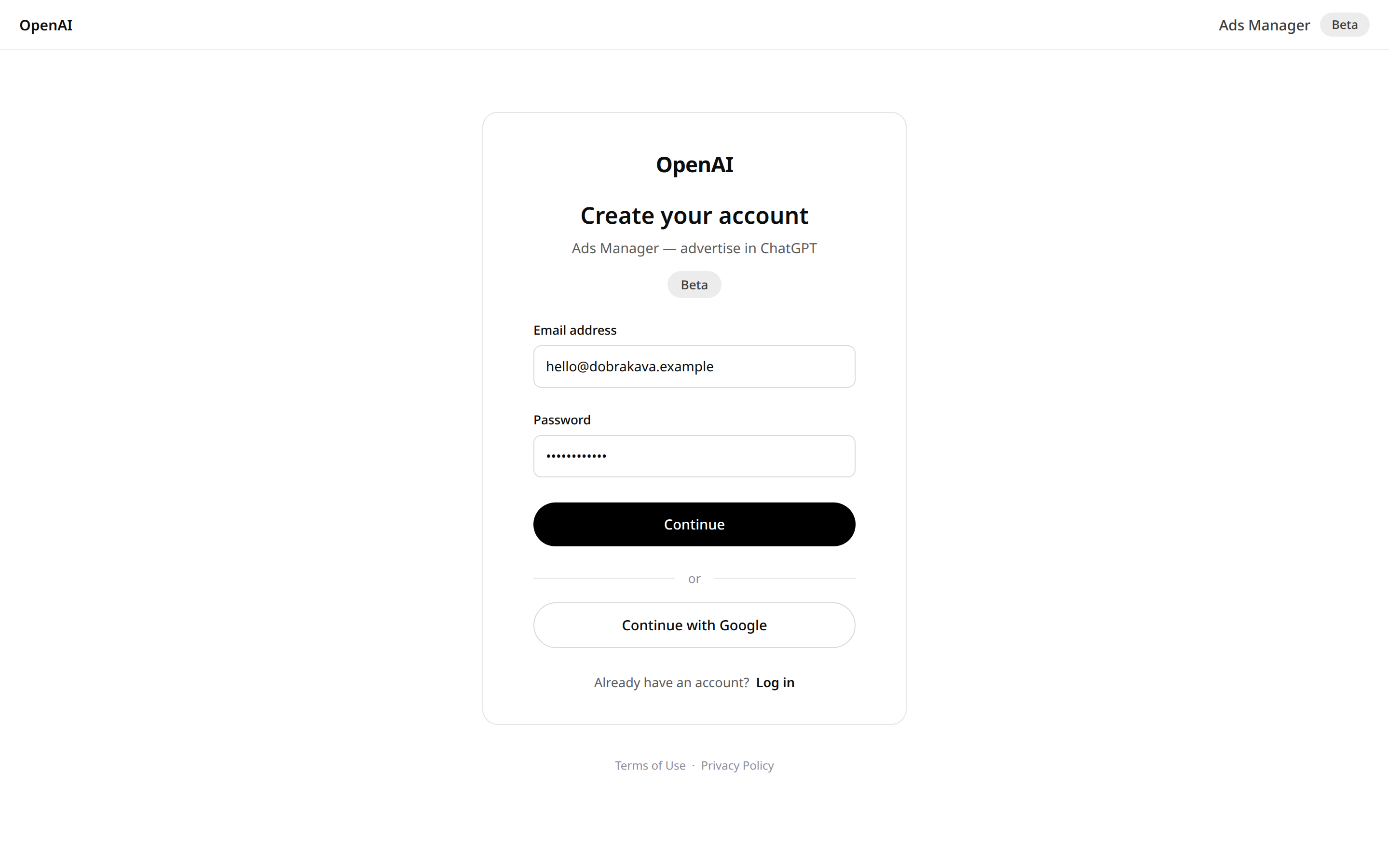
If your country is still missing from the list or carries a Coming Soon status, you can still create an account: OpenAI will notify you when the country opens. Source: OpenAI Help Center — Ads Manager Availability.
There is a separate route for larger advertisers with complex needs: contacting the Ads team through the form on ads.openai.com for sales support. Source: OpenAI Help Center — Ads Manager Availability. From here on, this guide walks you down the self-service path — the one open to small and mid-sized businesses whose legal entity is based in a country on the availability list.
Step 2. Advertiser profile: name and favicon
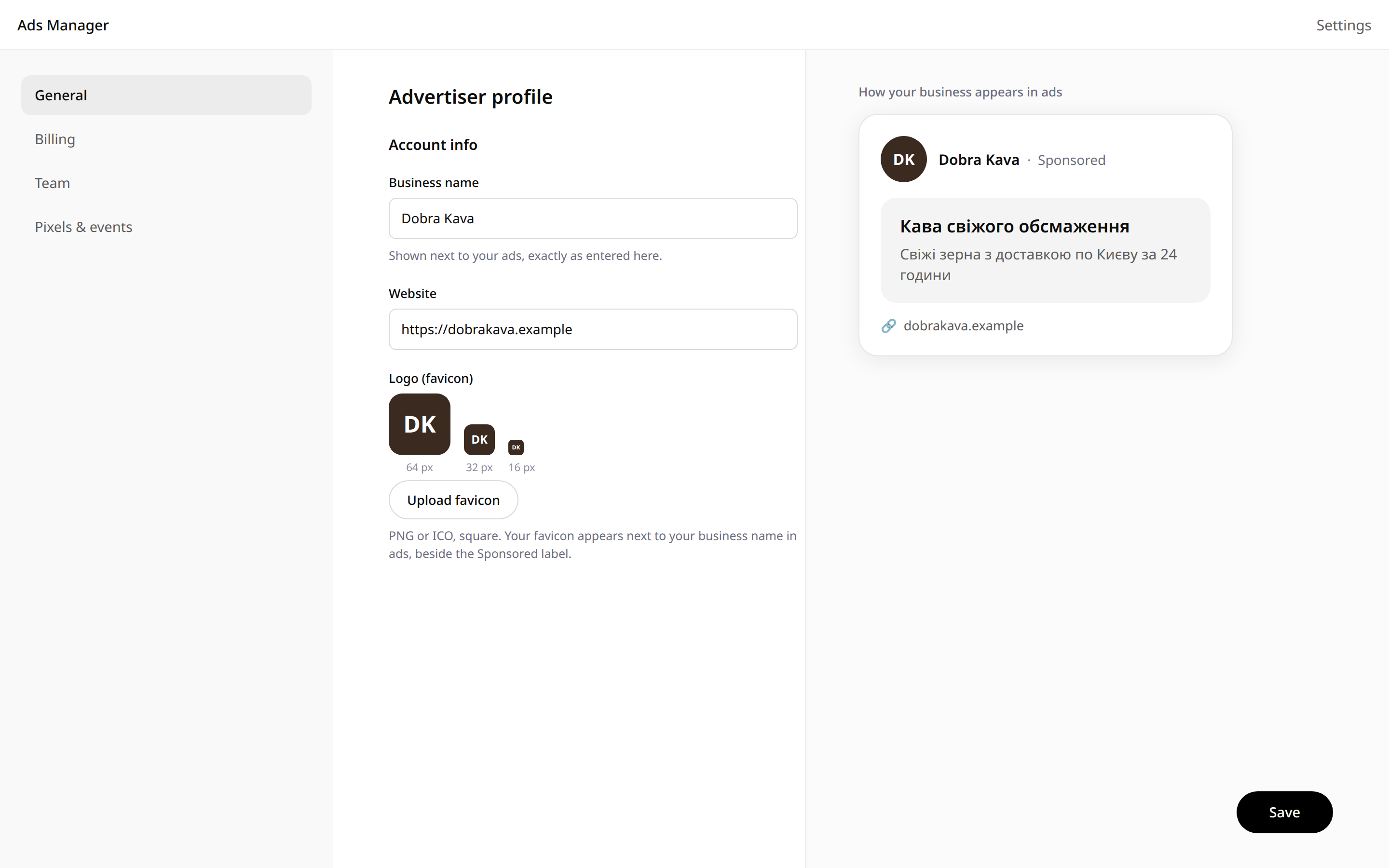
Fill in the account info: your business name and a logo in favicon format.
Treat this step as your shop window. The name and the favicon are literally your face in the ad: a ChatGPT user sees exactly those two things next to the Sponsored label. According to the operator guide ContextHints, a completed profile is a condition for ad delivery, and the official OpenAI guide lists the name and favicon among the launch prerequisites: OpenAI Help Center — Launch Campaigns.
A practical tip from other platforms. The name in the account, the name on your website and the name of your legal entity should match word for word. A mismatch between names is one of the frequent causes of delays at the next step — verification. Secondary source: HyperFX walkthrough.
Step 3. Verification through Persona
I mark the sources in this step with extra care. The official Launch Campaigns guide passes over the verification details. Everything in this step is secondary data — advertiser experience and operator guides. I present it exactly as that.
According to ContextHints and AirOps, onboarding runs like this: account creation, then identity verification through Persona — a third-party identity and business verification service used by OpenAI — then the profile, billing and team invitations.
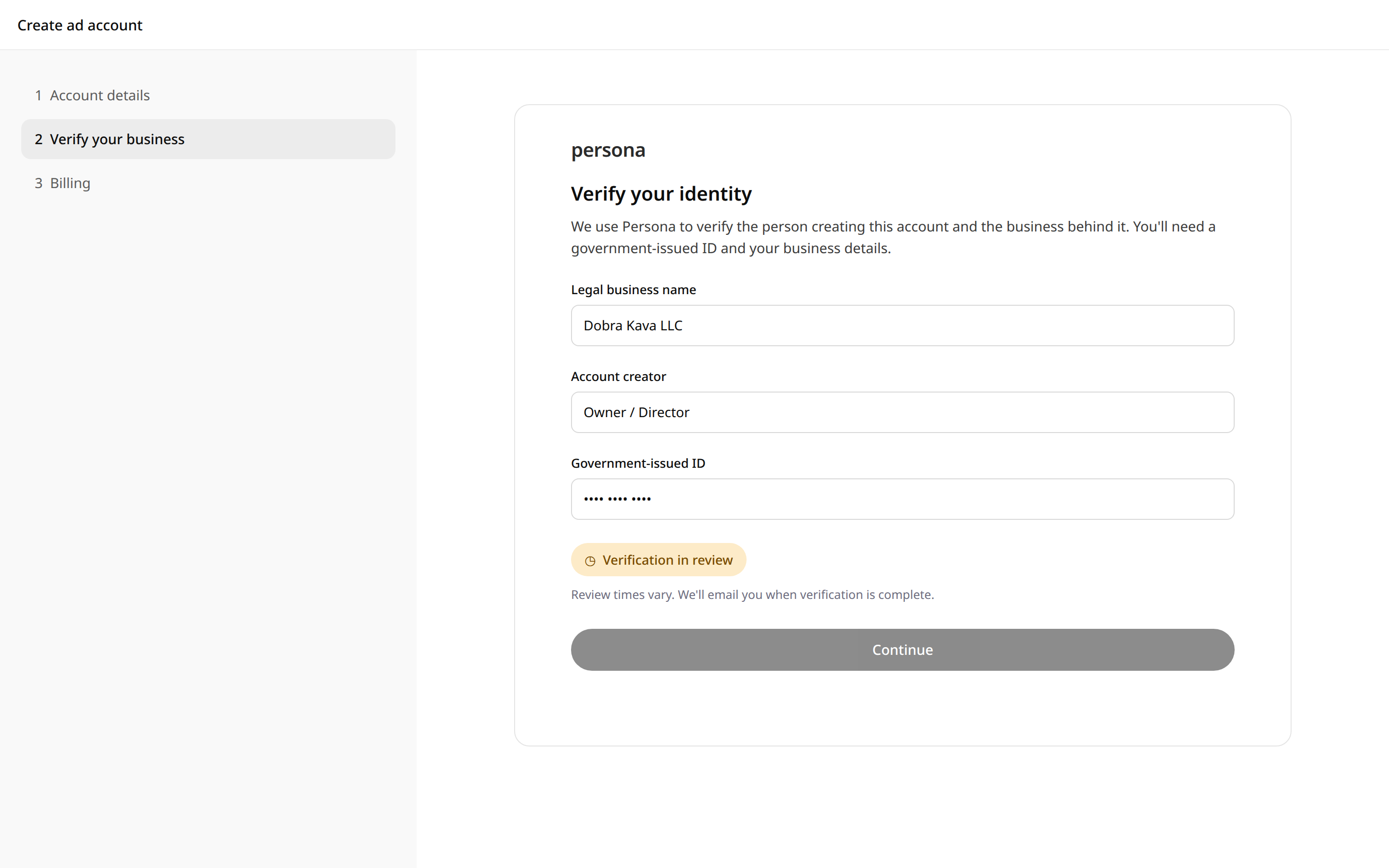
The guides name different review timelines, and that is normal for a young platform. ContextHints gives a range from the same day to a couple of weeks. HyperFX, drawing on early advertisers' experience in May 2026, names 5–15 business days as typical: simple businesses pass in 5–7, complex structures in 10–15. OpenAI keeps an official timeline SLA closed for now. Plan for the wide range and start verification on day one, in parallel with preparing your creatives.
The most frequent reasons for a second verification round, per HyperFX: your industry classification is missing, the business name in the application differs from the name on your website, or the Persona verification is only partially completed. All three points are closed by the preparation in the checklist above.
After verification, invite your team. Roles per ContextHints: Owner, Marketer, Analyst, Finance. The AirOps guide names a set of Admin, Member, Viewer. Check the role names inside your own account — the Beta interface moves fast.
Step 4. Billing
Add the billing profile and a payment method: Settings, the Billing section. Enter the legal entity's details, an address and an email for invoices, and attach a card.
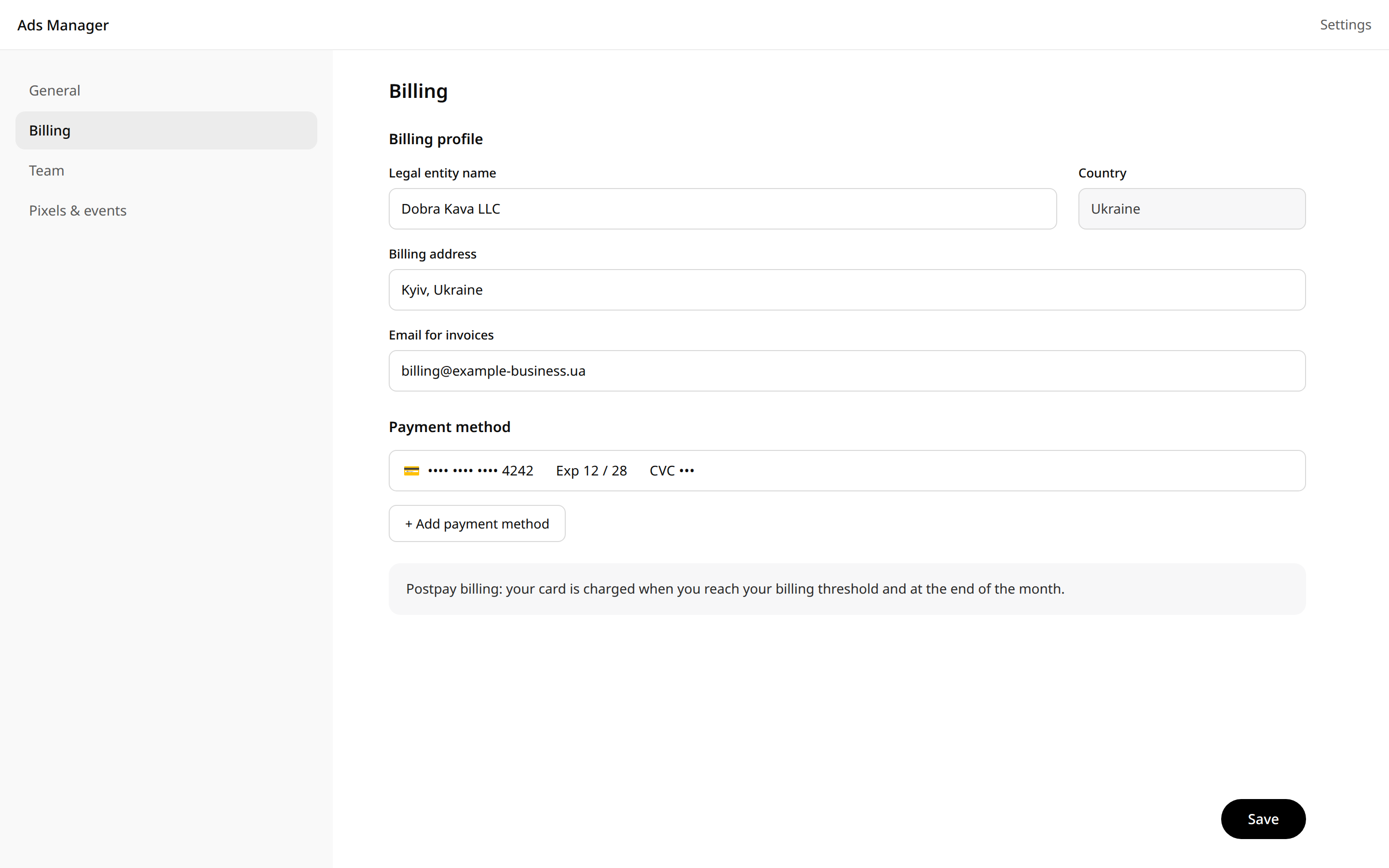
The payment model, per operator guides, is postpay. The card is charged when a payment threshold is reached and at the end of the month. OpenAI offers invoicing terms to sales-managed advertisers. The daily budget then works as an average across a 7-day week, and daily spend stays within twice the daily budget. Secondary sources: AirOps, ContextHints.
And back to currency once more, because this is where it becomes practice. The billing currency depends on your account's country, and OpenAI does not publish it in advance for every market. Watch that screen carefully to see which currency your account offers you: your campaign's minimum daily budget depends on it. The minimums table for other currencies is below, in the budgets section, with its sources marked honestly.
Step 5. The campaign: objective, budget, dates, country
Memorize the platform's three-level structure once: a Campaign sets the objective and the budget, an Ad Group sets themes and intents, and an Ad is the creative itself. Source: OpenAI Help Center — Launch Campaigns.
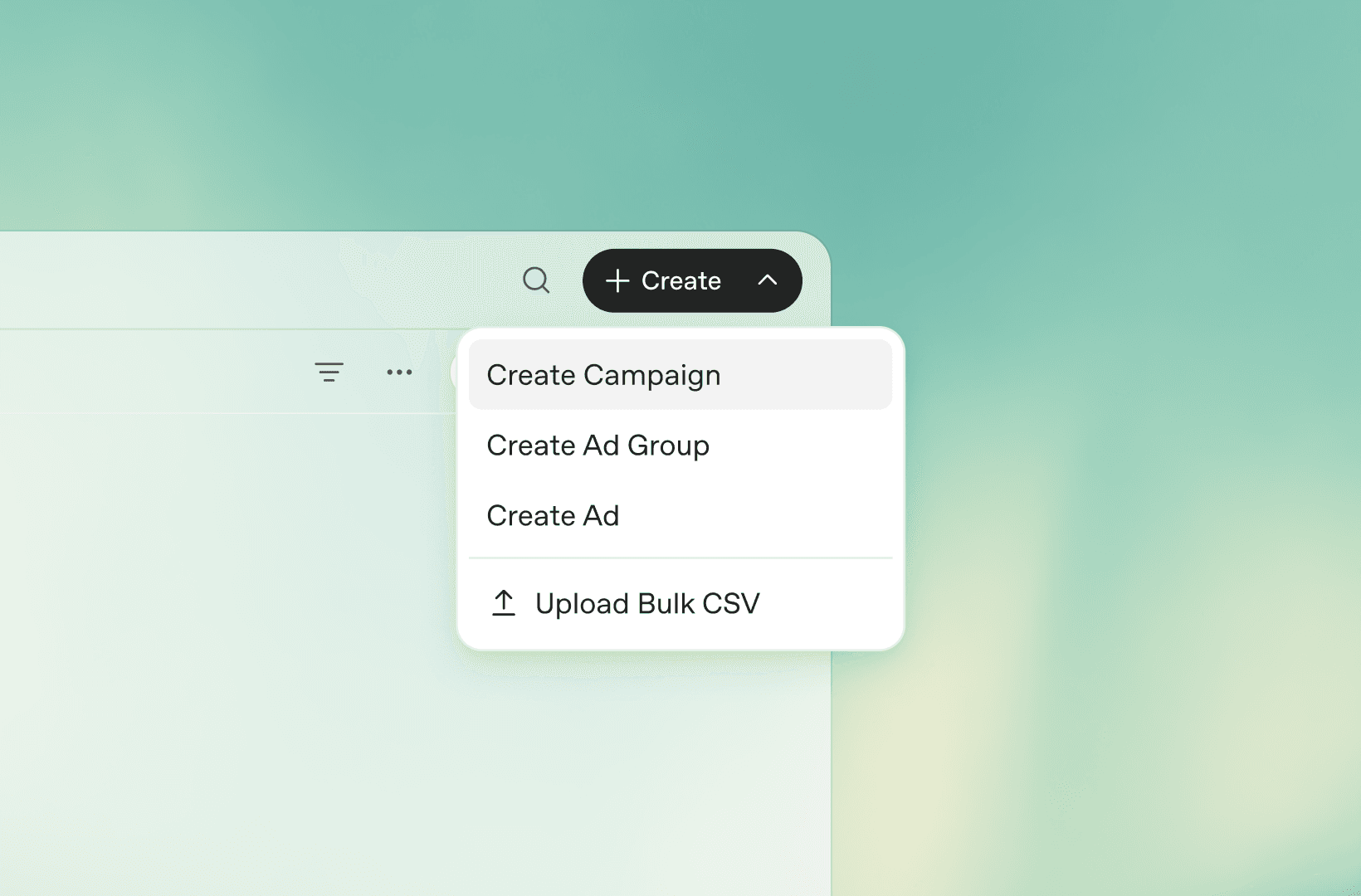
In the dashboard the path is this: the Create button, then Create campaign, fill in the required fields, save.
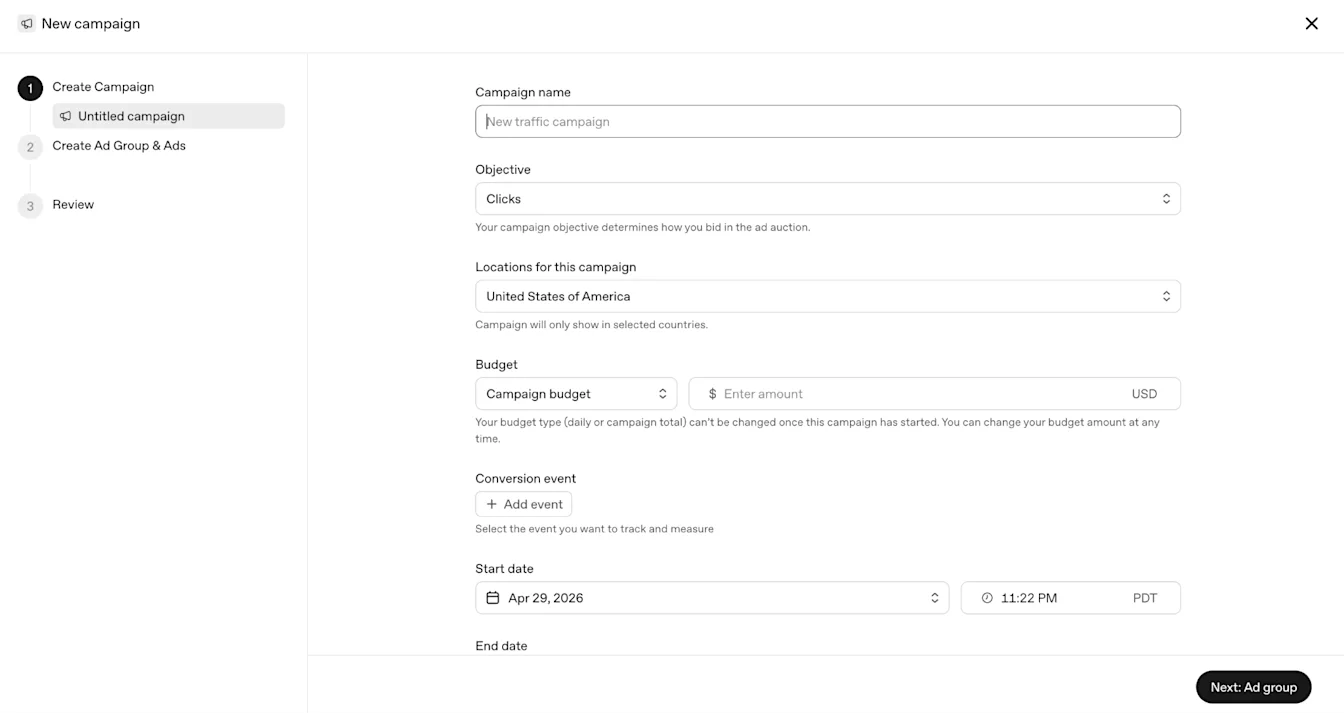
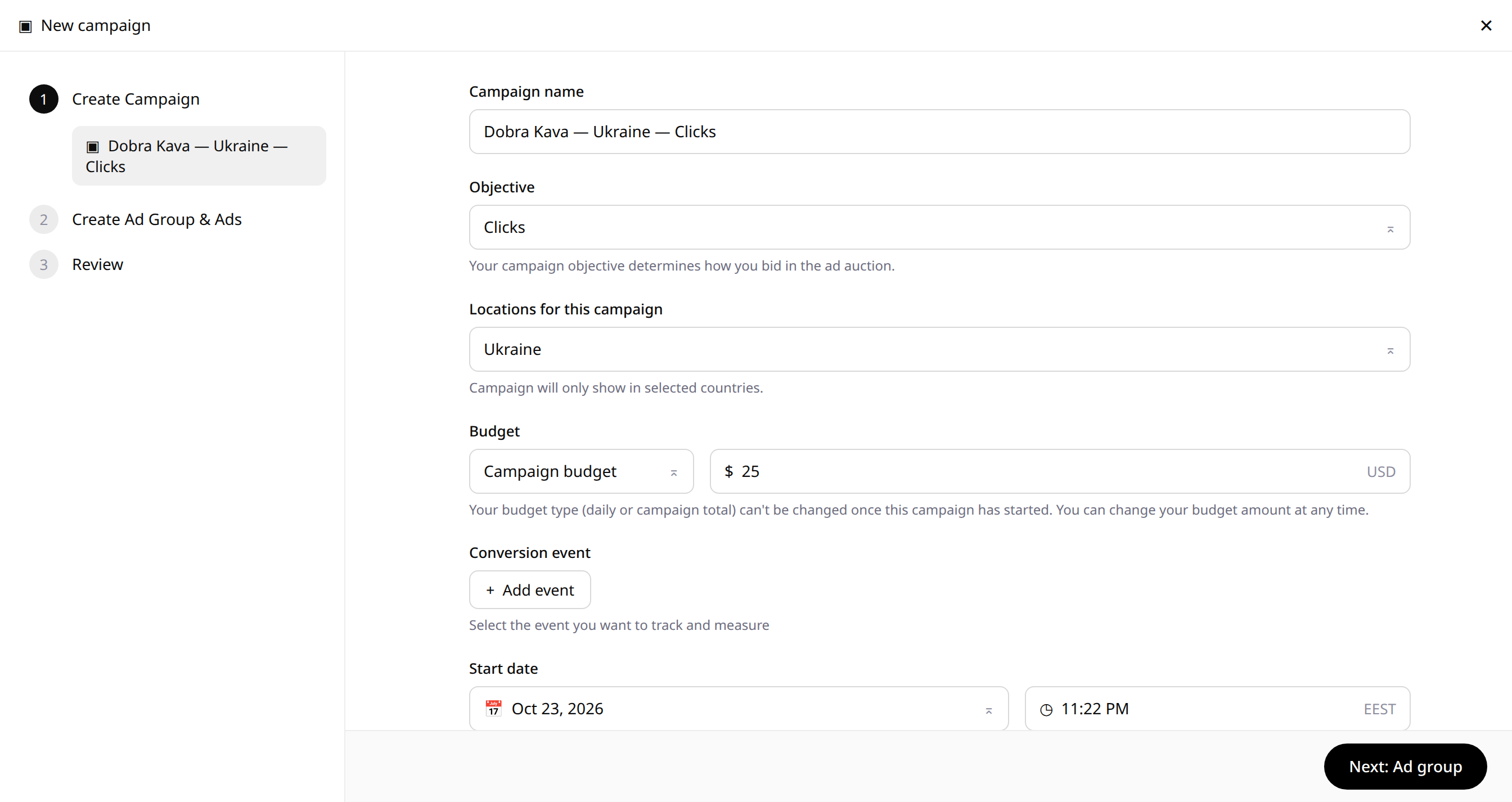
The campaign fields, per the official guide:
- Name. Unique and descriptive. Write it so that a month from now you can read the product, the objective and the country straight from the name: for example,
Clicks_Service_October. - Objective. Views or Clicks. Views is reach, paid per impression. Clicks is traffic, paid per click.
- Budget. The campaign's maximum spend — max spend per campaign.
- Dates. Start and end, in YYYY-MM-DD format.
- Targeting country. The country where your business operates and your audience lives. This field decides in which country people see your ad.
Field source: OpenAI Help Center — Launch Campaigns.
A tip for the first launch. Start with one campaign and one objective. Clicks gives you faster feedback on landing page quality, Views gives you wider reach across the Free and Go audience. You connect the second format after the first numbers arrive.
Step 6. The ad group: bid and context hints
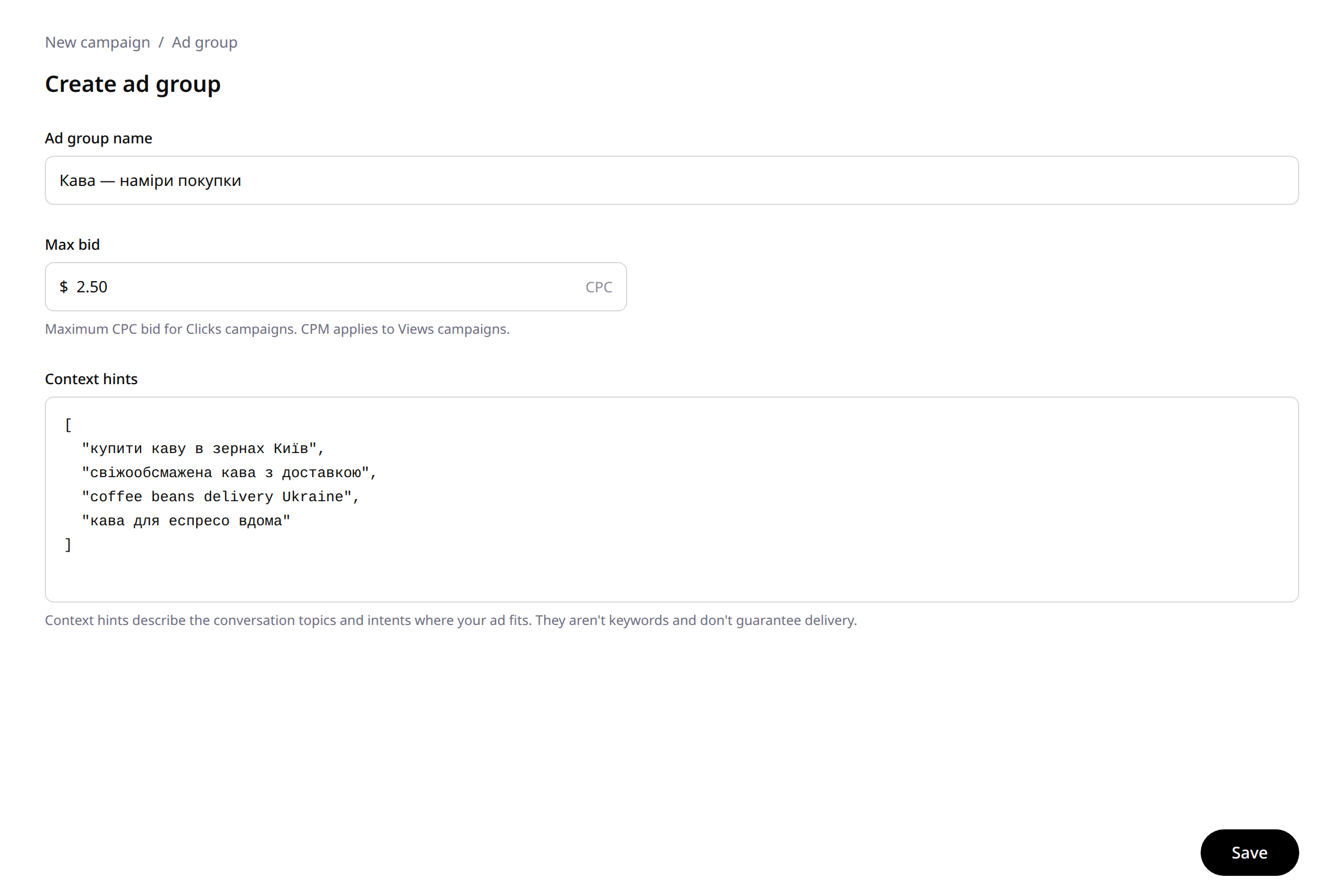
An Ad Group is created inside a campaign: select the campaign, add a group, save. The group's required fields are the group name, the max bid and the context hints. Source: OpenAI Help Center — Launch Campaigns.
Max bid — your maximum bid. For Views campaigns the bid is set as CPM, the price per thousand impressions. For Clicks campaigns — as CPC, the price per click. Source: OpenAI Help Center — Launch Campaigns; the billing models are confirmed by AirOps.
Context hints — the platform's main difference. Let me explain in plain words.
Context hints are context prompts. You describe the topics and intents of conversations where your ad belongs. A person asks ChatGPT about choosing a product, comparing services, solving their task — and next to such a conversation the platform shows your ad.
It works differently from keywords in familiar search advertising. The platform expects less exact phrase match from you and more semantic closeness to the conversation. And only practice guarantees delivery of your hints: the AirOps guide quotes OpenAI's position directly — hints set the context, the delivery system decides the showing.
In the Bulk schema, hints are written as a JSON array of strings. In the group interface you fill in the same field with topics. Format source: OpenAI Help Center — Launch Campaigns.
An example. Picture a store that delivers drinking water to homes and offices in a large city. Its hints, for example, look like this (written in Ukrainian, in the customers' own words):
["доставка питної води додому", "яку воду замовити для офісу", "порівняння служб доставки води", "вода для кавомашини", "здорове пиття щодня"]In English, those read as: "drinking water delivery to my home", "which water to order for the office", "comparing water delivery services", "water for a coffee machine", "healthy drinking every day".
See the logic. Every hint is a situation from a customer's life, phrased in their words. Five to ten precise situations work better than fifty broad topics. Per secondary data from AirOps, a group holds up to 2,000 hints through the API — and your working range at the start is far smaller: the quality of the phrasing weighs more here than the quantity.
An honest nuance about language. As of now, OpenAI keeps closed how exactly moderation and context matching work with each specific language in ads and hints. PPC Land names language an open question of the October 21 expansion directly. The practical move: prepare your hints in your audience's language — Ukrainian in our example — and keep English duplicates of the key topics nearby for testing. Your account's first real data will answer the question faster than any guide.
Step 7. The ad: headline, copy, image, link
An Ad is created inside a group: select the group, add an ad, save. The ad's composition, per the official guide: brand name, logo, title, copy, landing page and image. Source: OpenAI Help Center — Launch Campaigns.
Specifications — official and current only:
- Title: 16–24 characters recommended, 50 maximum.
- Copy: 32–48 characters recommended, 100 maximum.
- Image: PNG or JPG, square, up to 1200×1200, a public URL leading straight to the image file. The practical 1080×1080 standard is recommended by secondary guides, for example Addesu.
- Landing URL: valid, reachable, open to OpenAI's crawlers.
Limits and requirements source: OpenAI Help Center — Launch Campaigns; the title limits are confirmed by the field guide by Davide Cosmai.
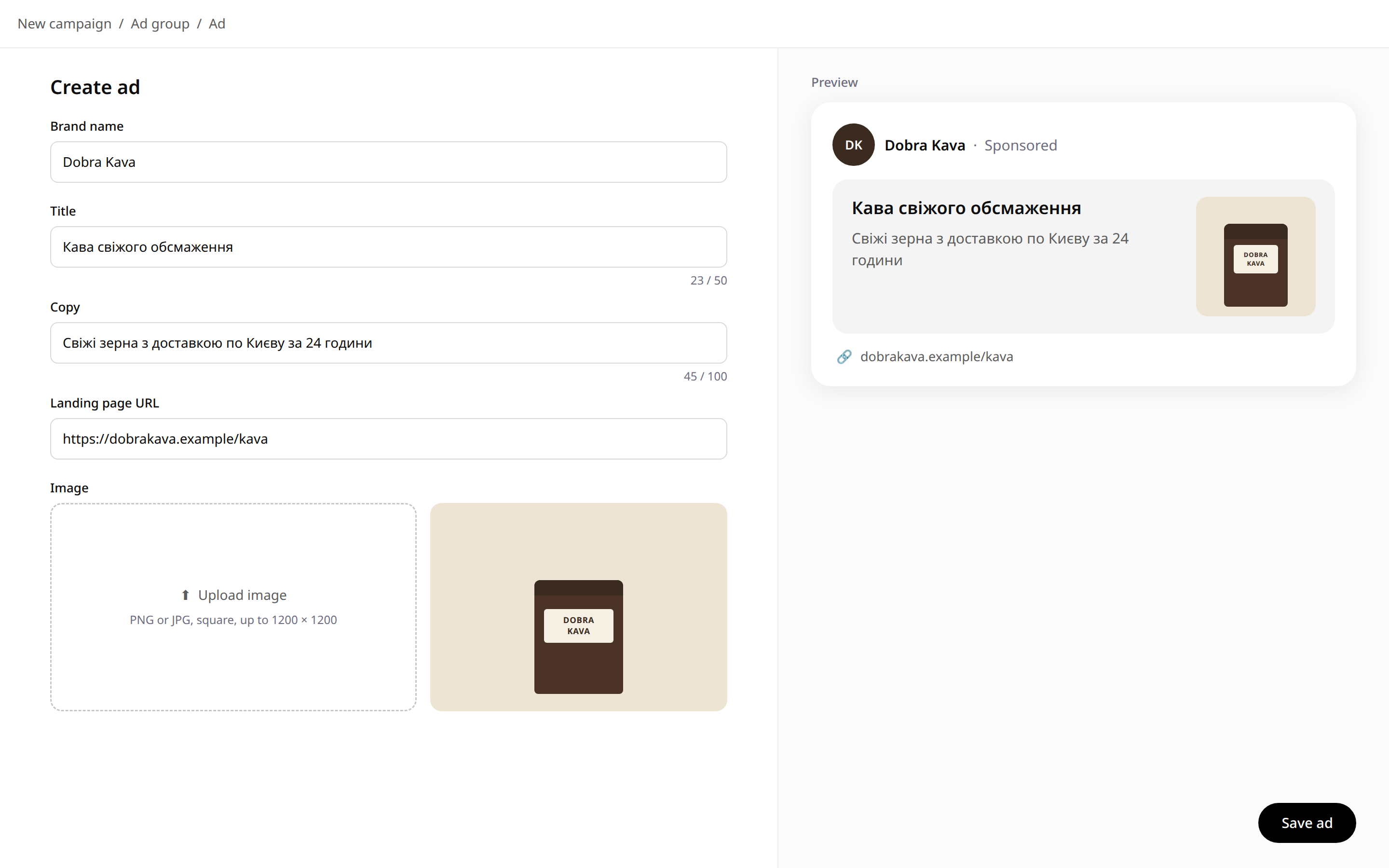
Now an example of a filled ad. The same illustrative water delivery store, with the ad written in Ukrainian as an example:
- Brand: your store's name, word for word as in the advertiser profile.
- Title, 22 characters: «Вода додому — сьогодні» ("Water home — today")
- Copy, 48 characters: «Доставка води додому й в офіс. Замовляйте онлайн» ("Water delivery to your home and office. Order online")
- Image: square 1080×1080, your product in close-up, a clean background, the file at a direct public link.
- Landing URL: a dedicated page for this exact service, with the order form in the first screen.
Notice how the limits work. The recommended title range is one short sentence of benefit. The recommended copy range is one clarification and one action. The platform simply holds long advertising texts worse, physically — so write tight from the first draft.
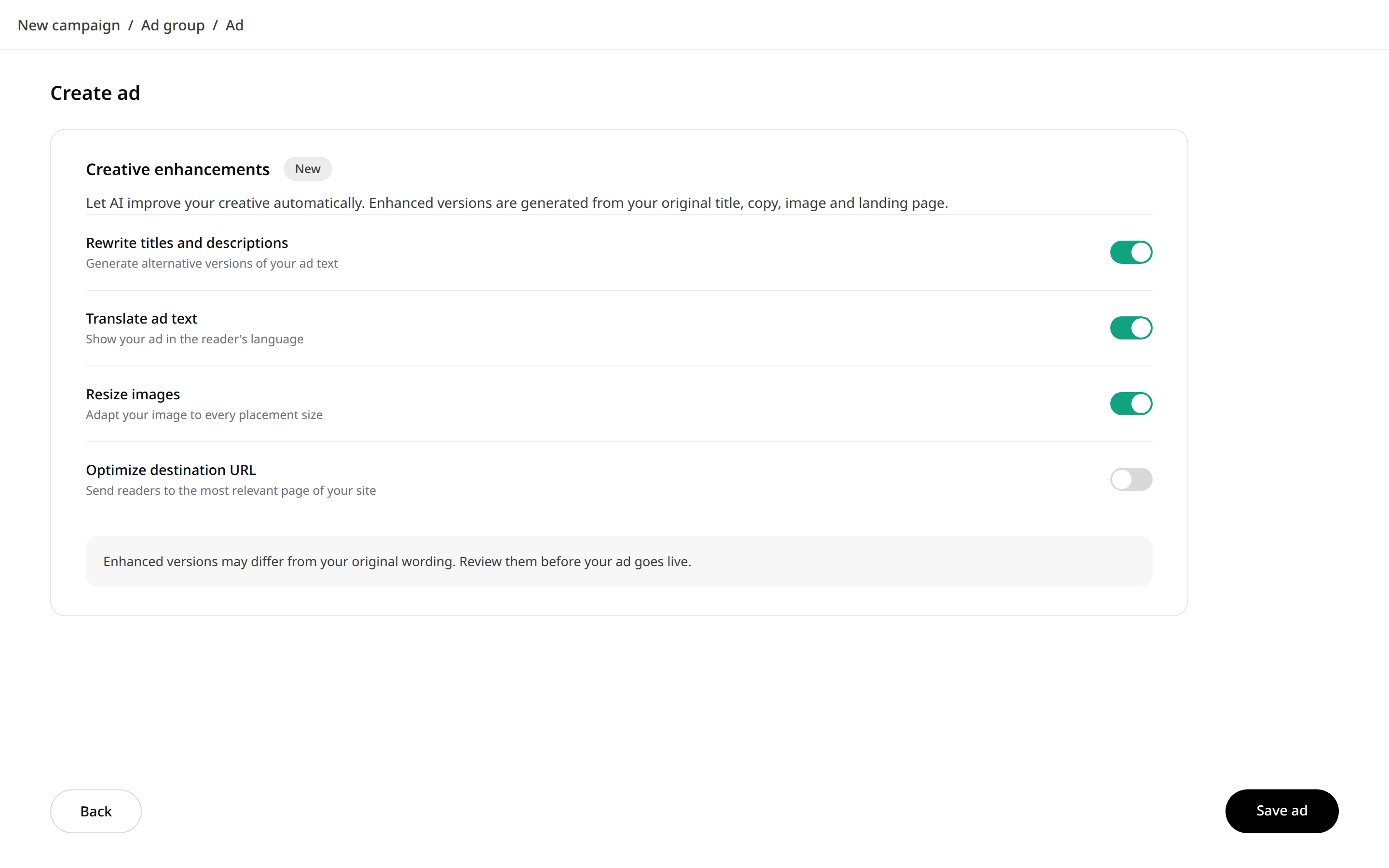
Separately, check the creative enhancements settings in your account. Per fresh secondary data from October 20–21, 2026, OpenAI switches on AI enhancements of creatives for self-service campaigns: headline and description rewriting, text translation, image resizing, destination URL optimization. Sources at OpenAI date this feature's start to October 29 and 30 — the sources themselves differ by one day. Source: Maccus / Search Engine Roundtable. The practical conclusion: after launch, look at which exact versions of your texts the platform shows, and keep the final wording under your own control.
Step 8. Validation and review
Before you submit, walk the validation checklist from the official guide:
- every required field is filled in;
- campaign and ad group names match exactly everywhere, and every name exists in a single copy;
- context hints are valid JSON if you work through Bulk;
- title and copy are within the limits;
- landing page URLs are valid and reachable;
- image URLs are publicly accessible and lead straight to files;
- images meet the format and size requirements.
Source: OpenAI Help Center — Launch Campaigns.
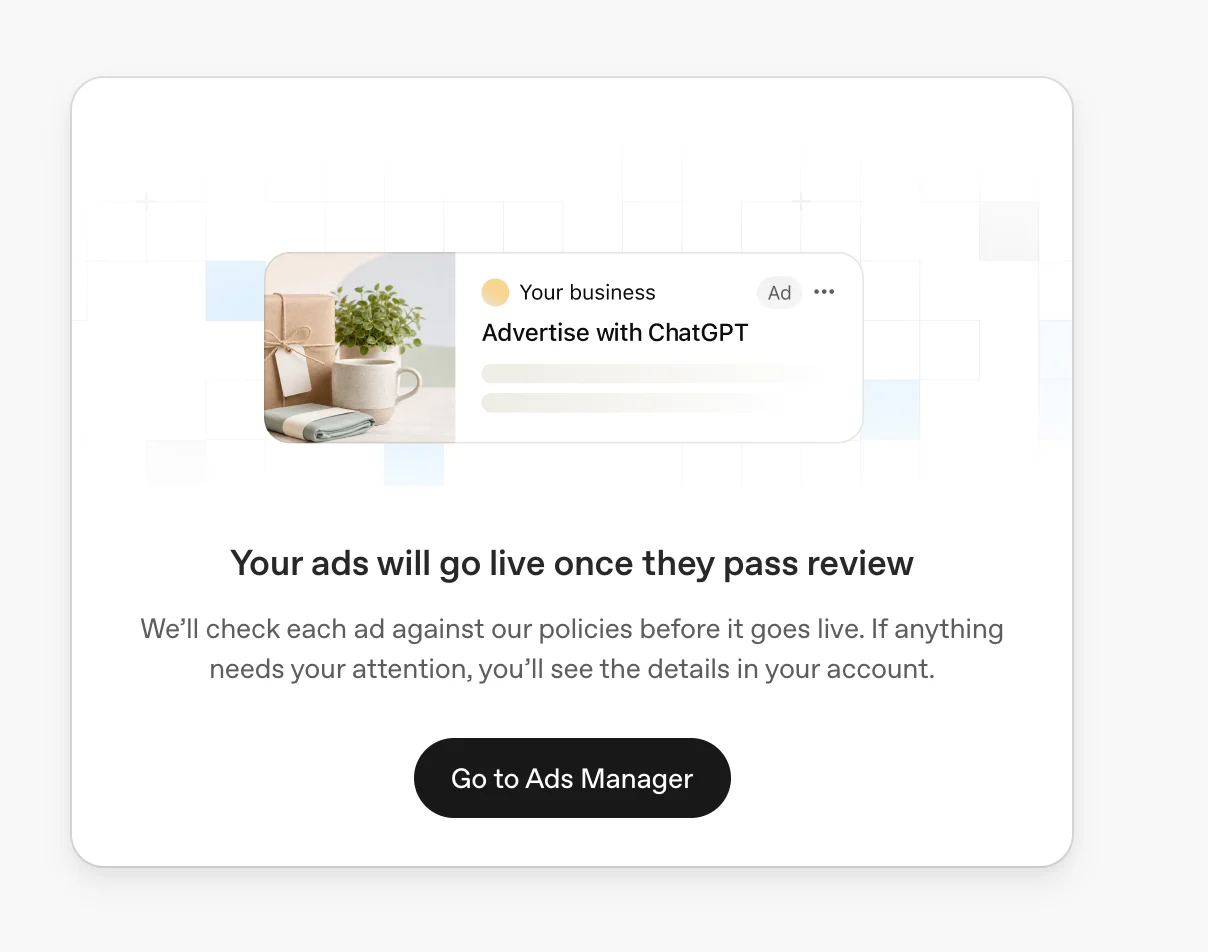
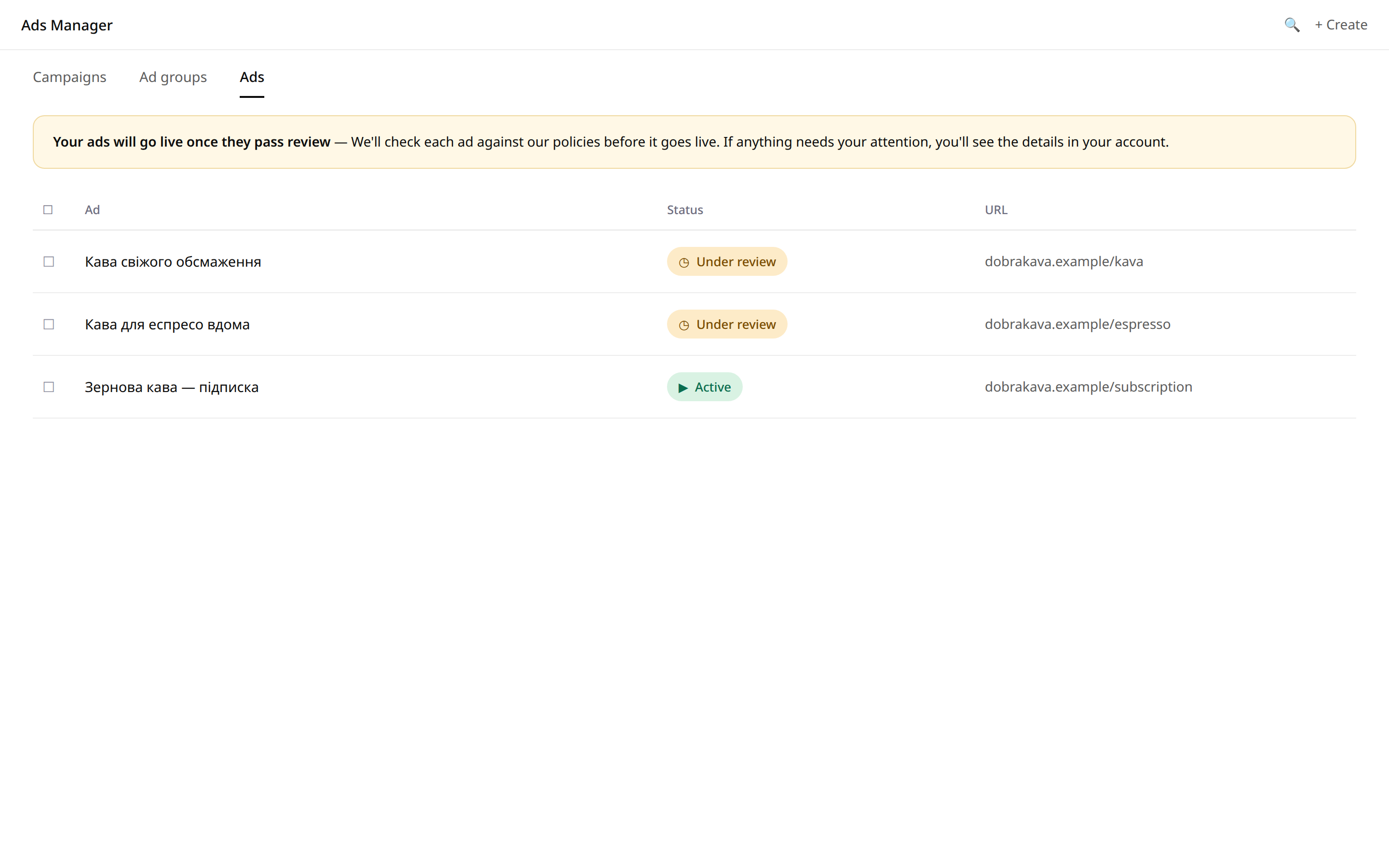
Then comes review. In Guided mode you switch campaigns to Active status, and every ad passes a check against OpenAI's policies. Delivery starts after the review is passed and billing, the account, the budget and the schedule are all ready. The platform's onboarding notice says it word for word: "Your ads will go live once they pass review." Source: OpenAI Help Center — Launch Campaigns.
Keep the account scale calmly in mind: the platform's limits are up to 5,000 campaigns, 5,000 ad groups and 5,000 ads per account. Source: OpenAI Help Center — Launch Campaigns. For a business at the start, that headroom is more than enough.
Step 9. Launch and monitoring: what to watch in the first days
The campaign is active, the ads have passed review. Now your job is reading the numbers in the platform's own rhythm.
The data refresh rhythm, per the official guide, is this. Impressions, clicks and CTR refresh roughly every 15 minutes. Spend refreshes with a 7–8 hour delay. Source: OpenAI Help Center — Launch Campaigns; the same intervals are confirmed by AirOps.
Remember the consequence of this rhythm. Zero spend on the dashboard in the first hours means only a reporting delay. Charges for that time are already accruing on actual impressions and clicks. Look at spend the next day, and make day-one decisions on impressions, clicks and CTR.
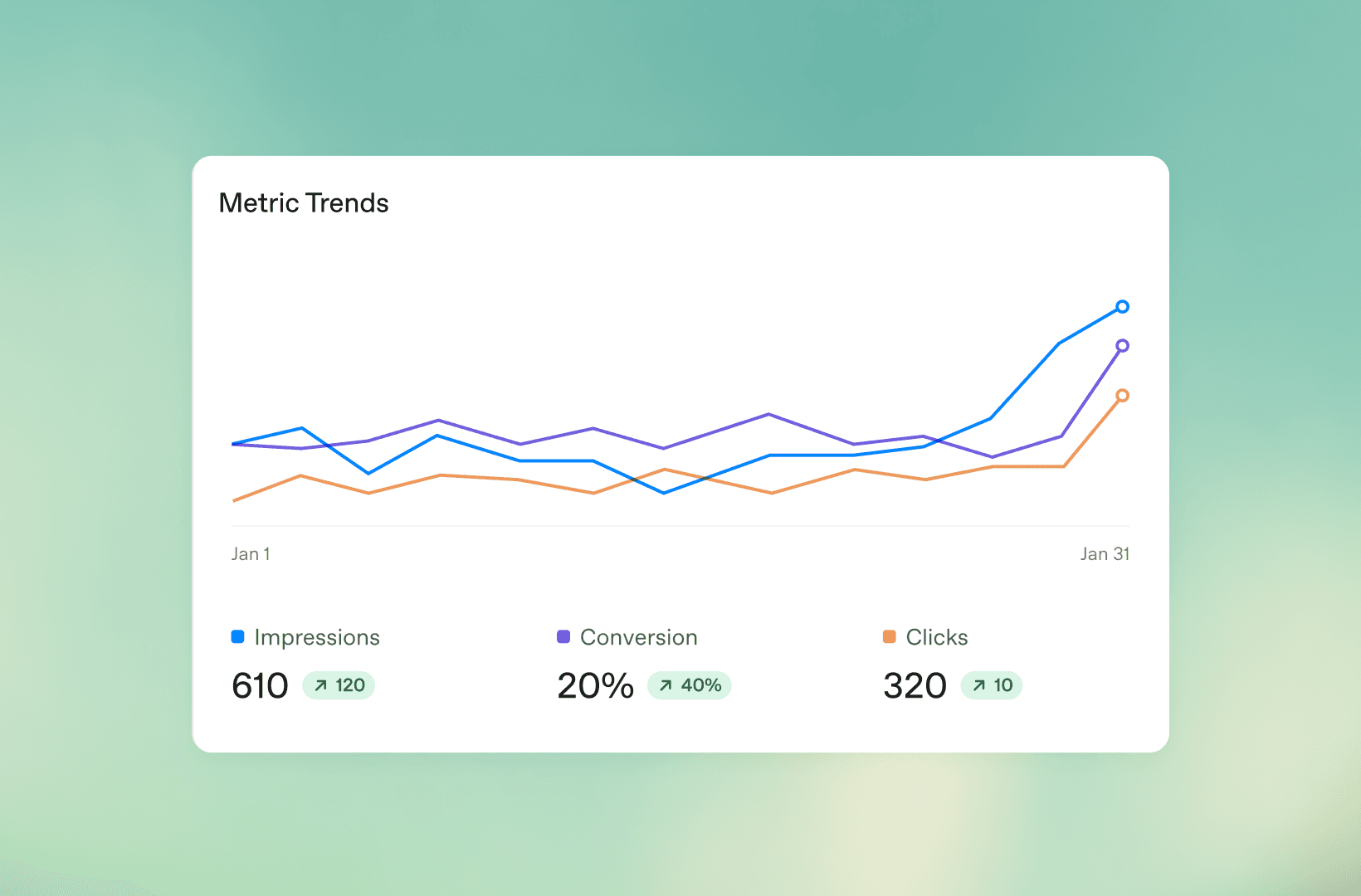
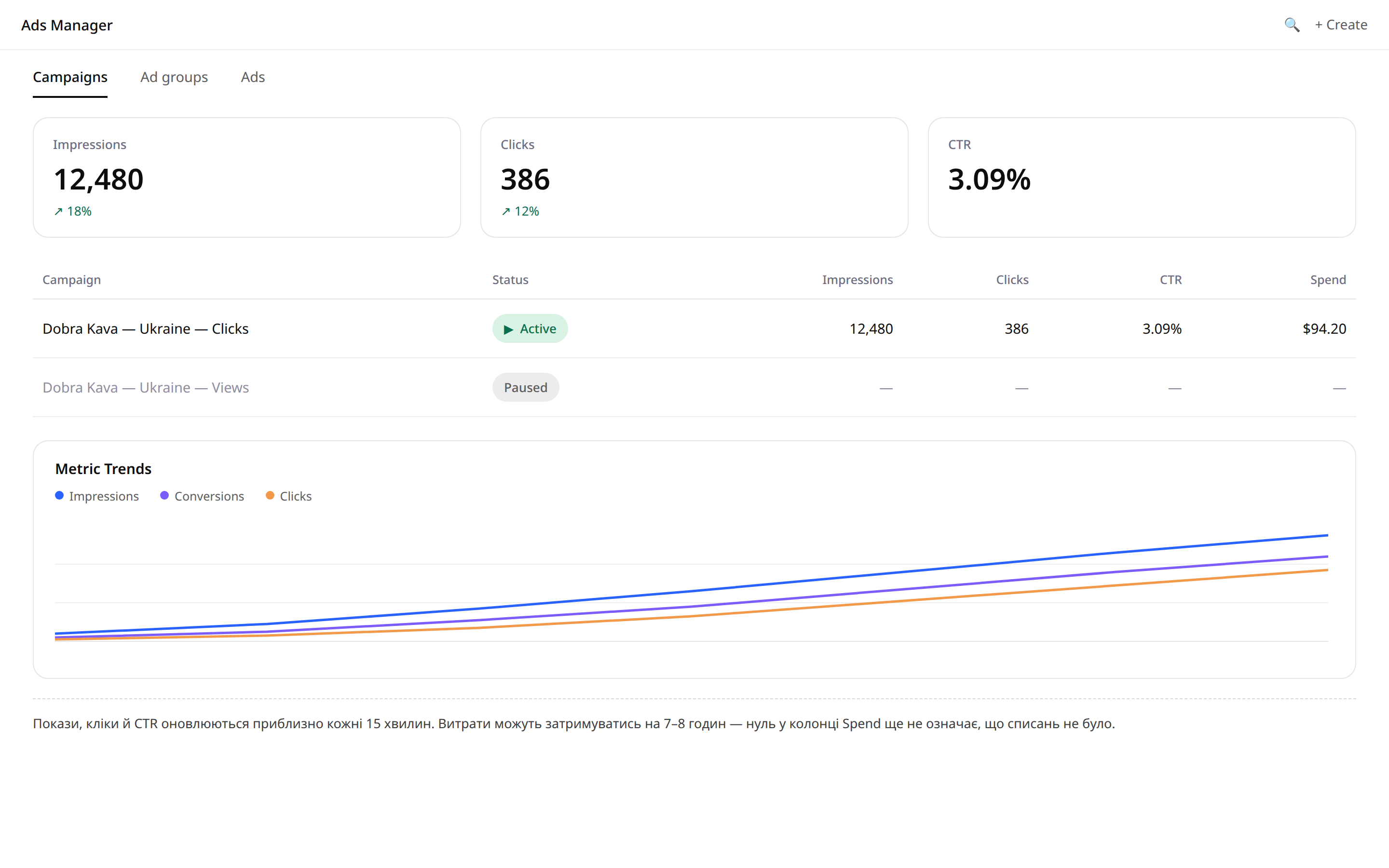
In the first days, watch four things, in exactly this order:
- Statuses. Campaign, groups and ads — Active. Ads after review — delivering.
- Bid warnings. Warnings on ad group bids. The official guide asks you to watch them separately: a bid below the market's working range quietly cuts your impressions.
- CTR by group. Groups differ by their hints, so CTR quickly shows which customer situations the platform matches most precisely. Scale the strong hints, rewrite the weak ones using your real customers' questions.
- Visits and leads on the landing page. Your website analytics is the second source of truth next to the dashboard. Reconcile dashboard clicks with sessions on the page daily during the first week.
And the final frame of this guide — the view through your customer's eyes:
Step 10. Conversion tracking: the pixel, GTM and the Conversion API
Clicks answer "are people seeing the ad". Conversions answer "is the ad selling": leads, purchases and calls on your site, tied back to clicks in ChatGPT. Set tracking up with your first campaign.
The detailed walkthrough of this setup — 60+ screenshots of every screen — was prepared by the ProAnalytics team back in early June 2026: ProAnalytics — Setting up conversion tracking for OpenAI Ads. The guide is in Ukrainian; below is the same process in my words, with every time-sensitive detail dated to June 2026.
10.1. The pixel and the events, inside Ads Manager
The starting point is the dashboard: Tools → Conversions.
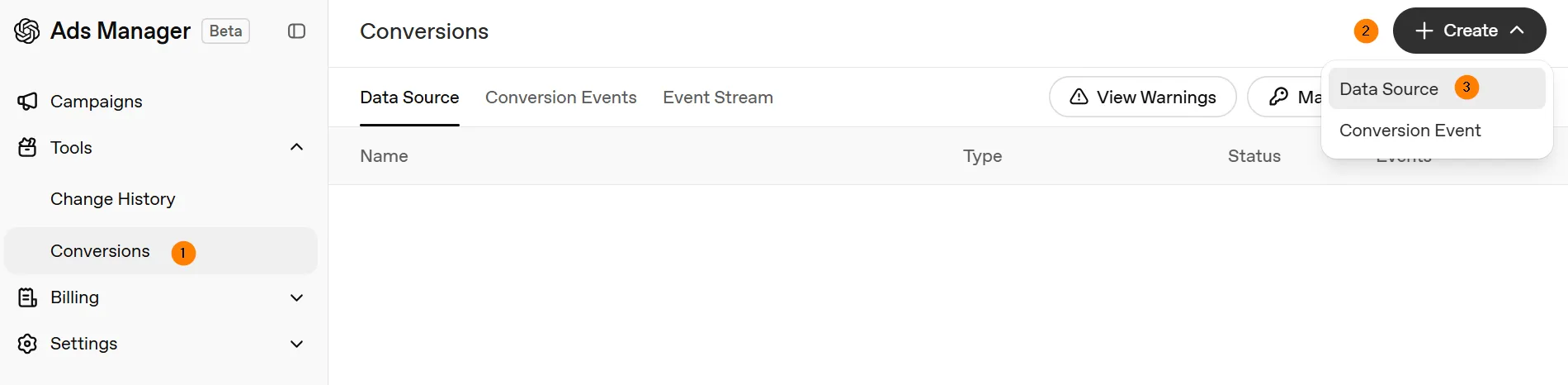
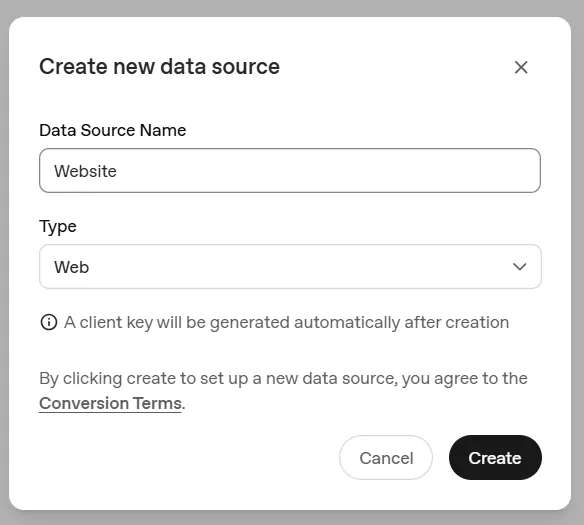
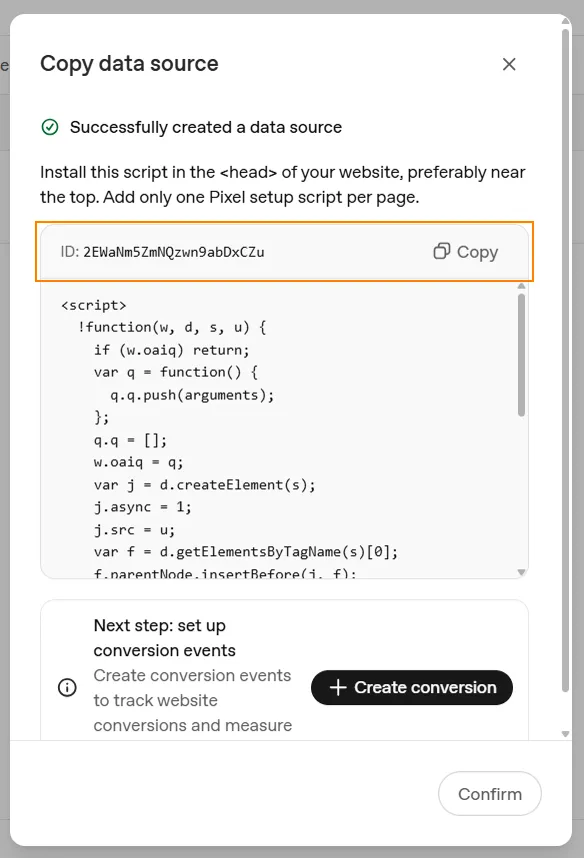
- Click Create → Data Source, give it a name and the Web type. Your pixel is ready — copy its Pixel ID, you will need it everywhere below.
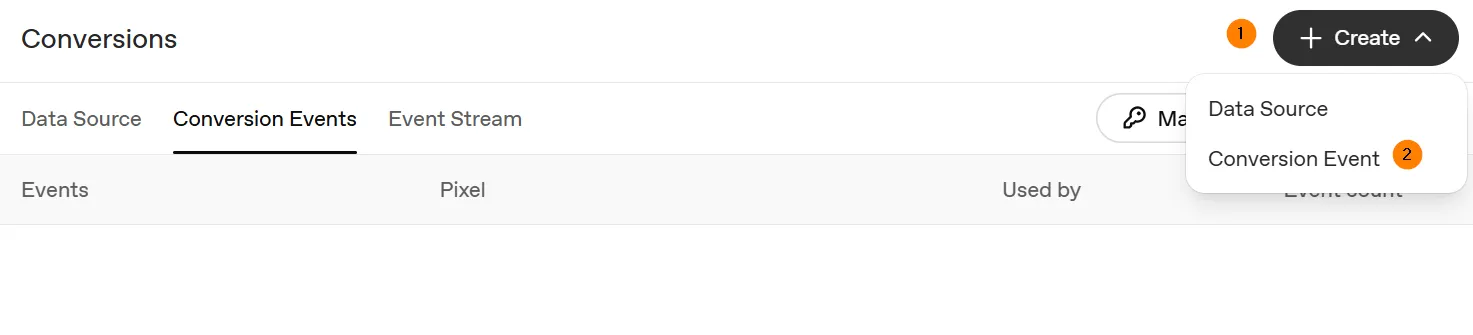
- In the same section, create a Conversion Event for every action on your site: a lead, a purchase, a sign-up. Each event takes a name, a standard event from the list or a custom one, and the same Data source.
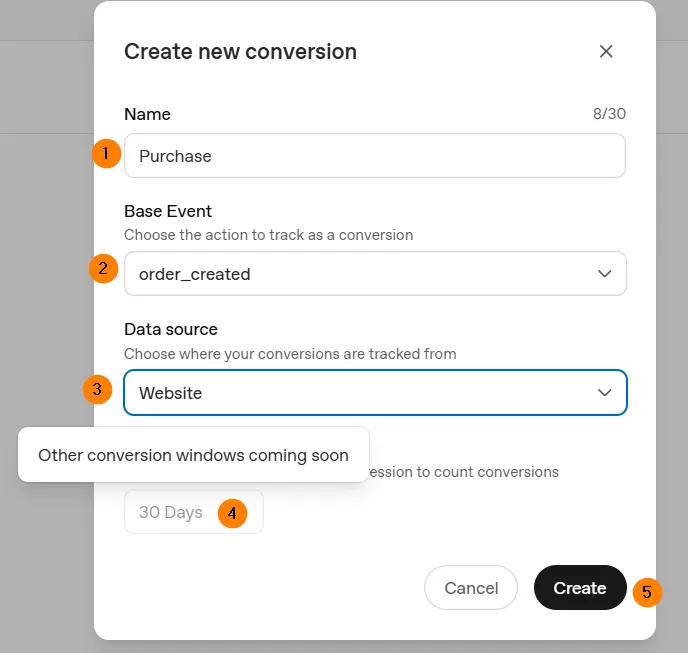
- The conversion window offers a single option — the default 30 days. As of June 2026, the dashboard kept every other choice closed.
Check yourself: a pixel with its ID copied, and events for every target action.
10.2. Browser GTM: the OpenAI tag by Stape
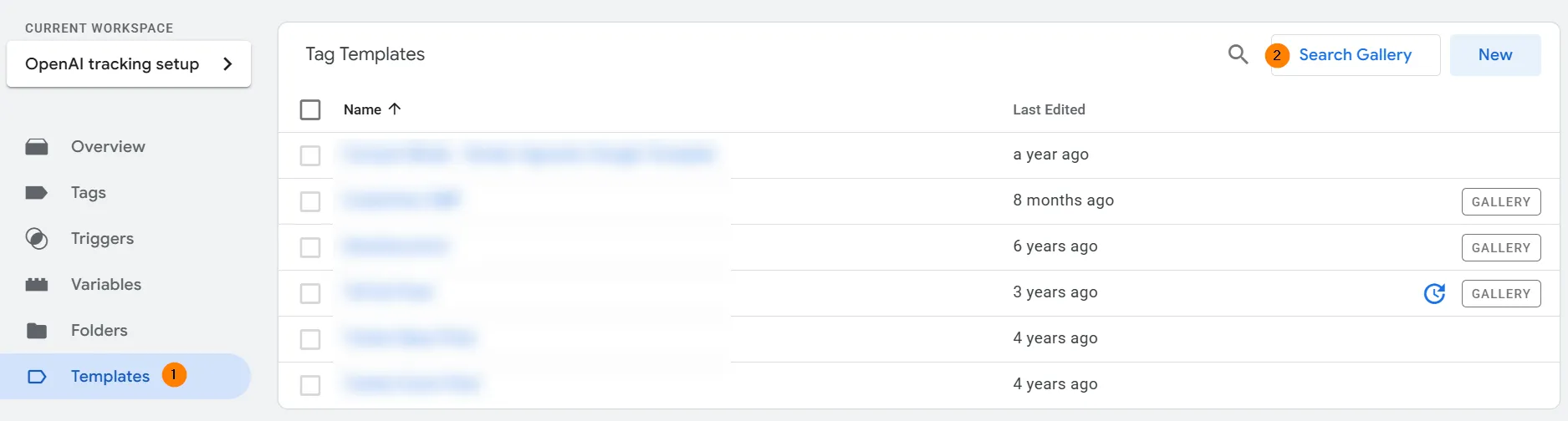
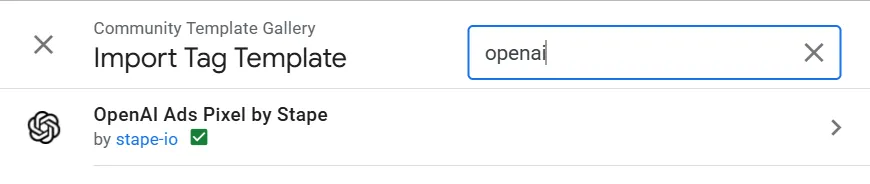
- In GTM, open Templates → Search Gallery, search "openai" and add the OpenAI tag by Stape to your workspace.
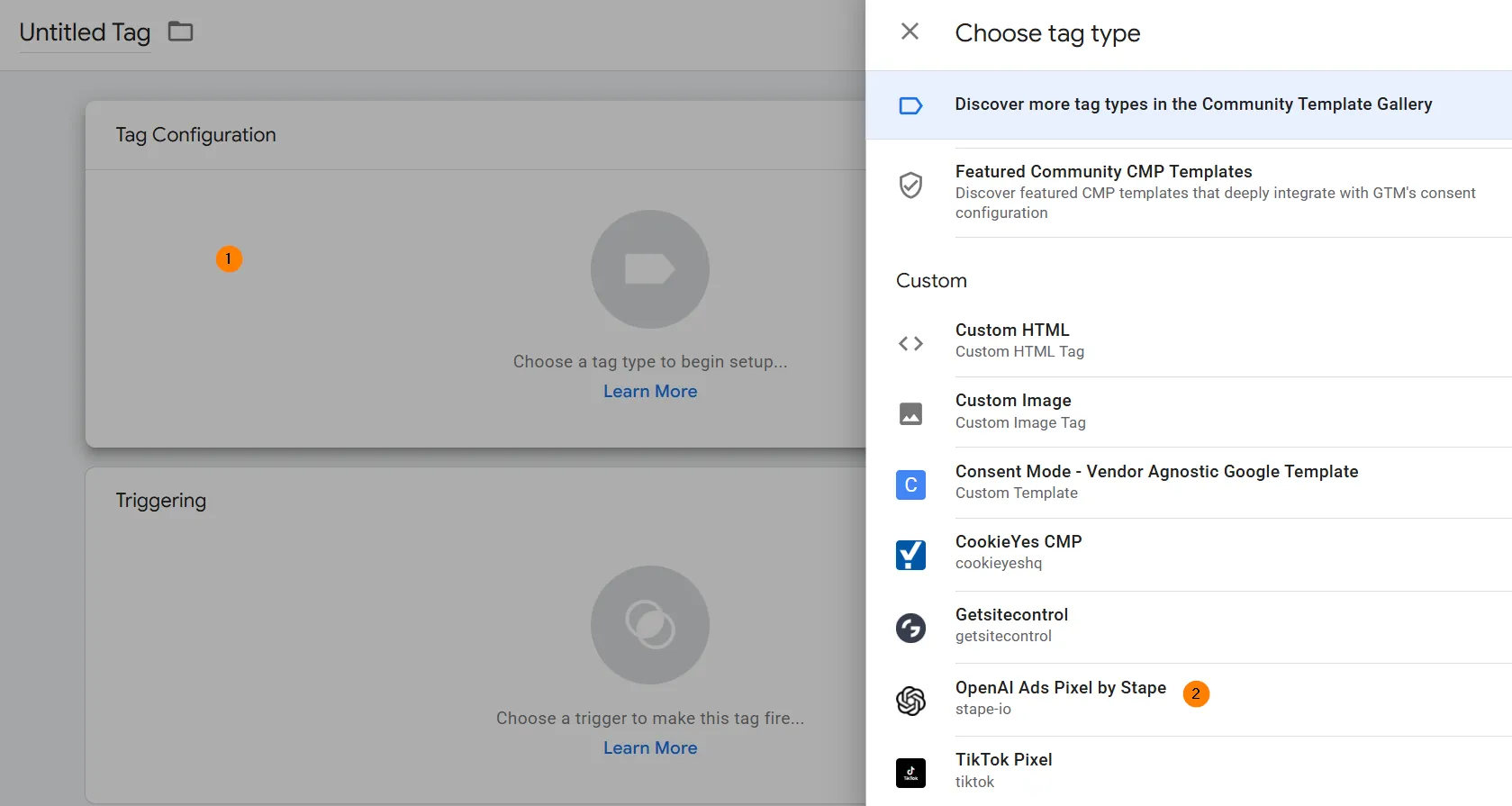
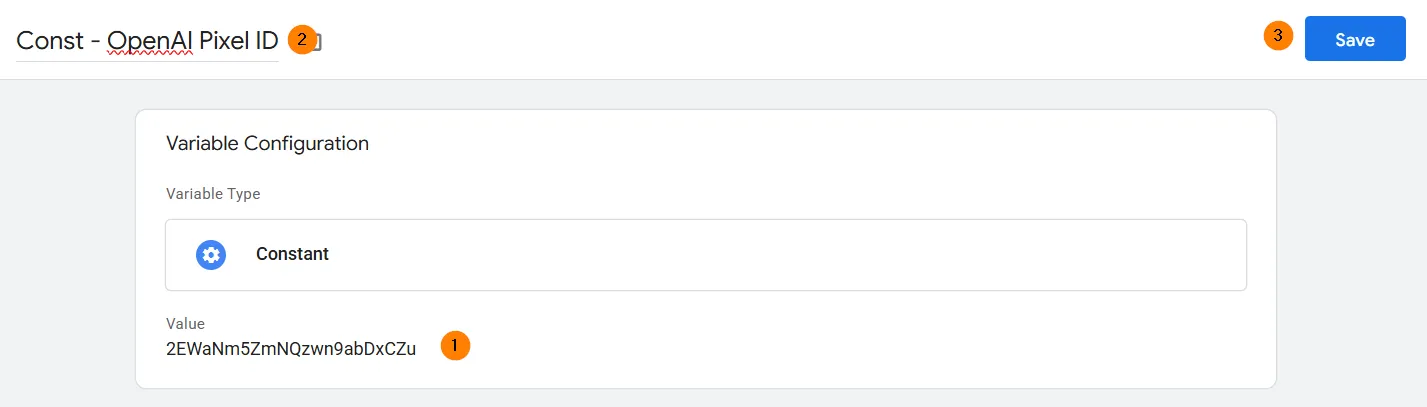
- Tags → New, tag type OpenAI. Drop the Pixel ID into its field — and keep it in a Constant variable: the value lives in one place, and copy-paste errors between tags disappear as a class.
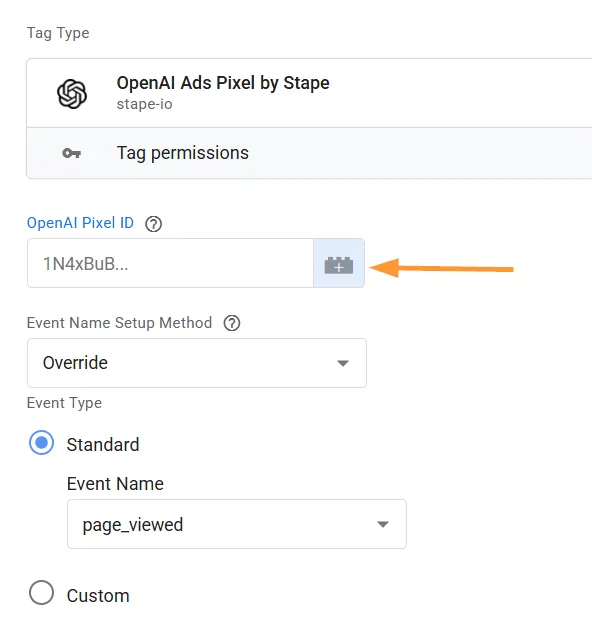
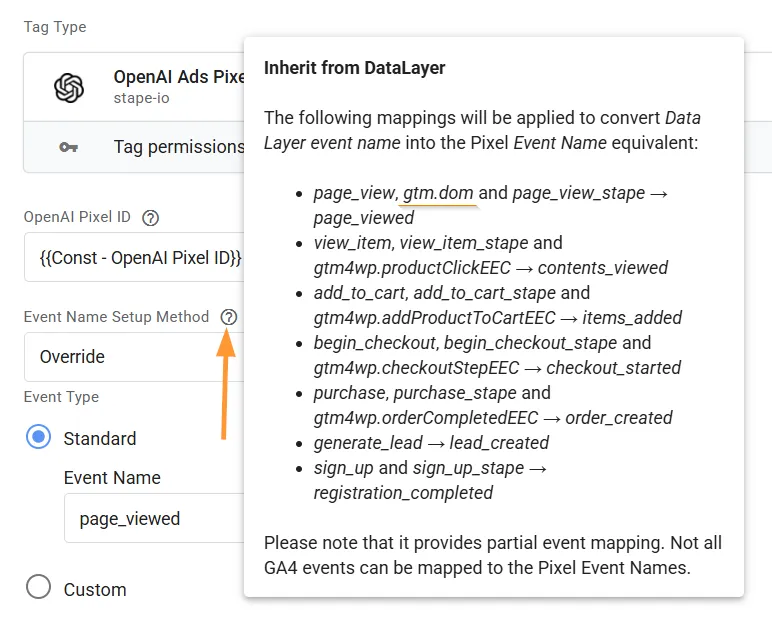
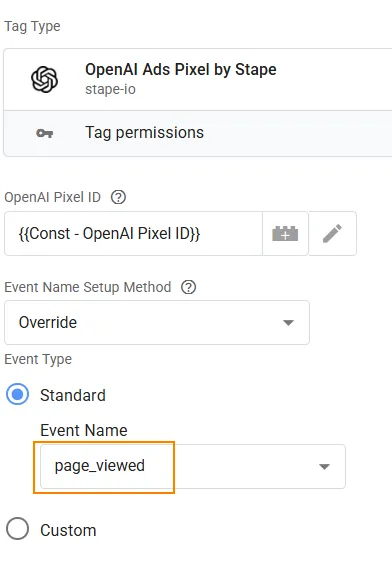
- Under Event Name Setup Method, choose Override — direct control over which event fires. Inherit from Data Layer hides a trap: a page view reaches OpenAI as
page_viewedonly when the dataLayer receivespage_view,page_view_stapeorgtm.dom. A Page View trigger fires ongtm.js— and the event is lost.
- Leave automatic parameter mapping on: with a GA4 schema in place, the tag picks up products from
ecommerce.items, value fromvalue, currency fromcurrency. Add the rest manually under Event parameters. - Consent: by default the tag sends with consent set to
true. With a certified consent platform, enable Google Consent Mode Support and the tag listens toad_storage; with a custom setup, pass your own variable (denial reads asfalse,0,denied; earlier events stay queued). - Add the trigger, give the tag a clear name, save. Repeat for every event.
10.3. A separate page-view tag: the click ID trap
The pixel stores the click ID in cookies on the landing page. A visitor arrives at example.com/?oppref=abc123, moves on to /sign-up — and the parameter is gone from the address bar. The conversion tag initializes the pixel with no click ID, and the conversion stays unattributed.
The fix: a separate page-view event tag on the All Pages trigger — the pixel starts everywhere and catches oppref at entry. With a consent banner, hang this tag on the trigger that loads your ad systems.
10.4. Verification: three points of control
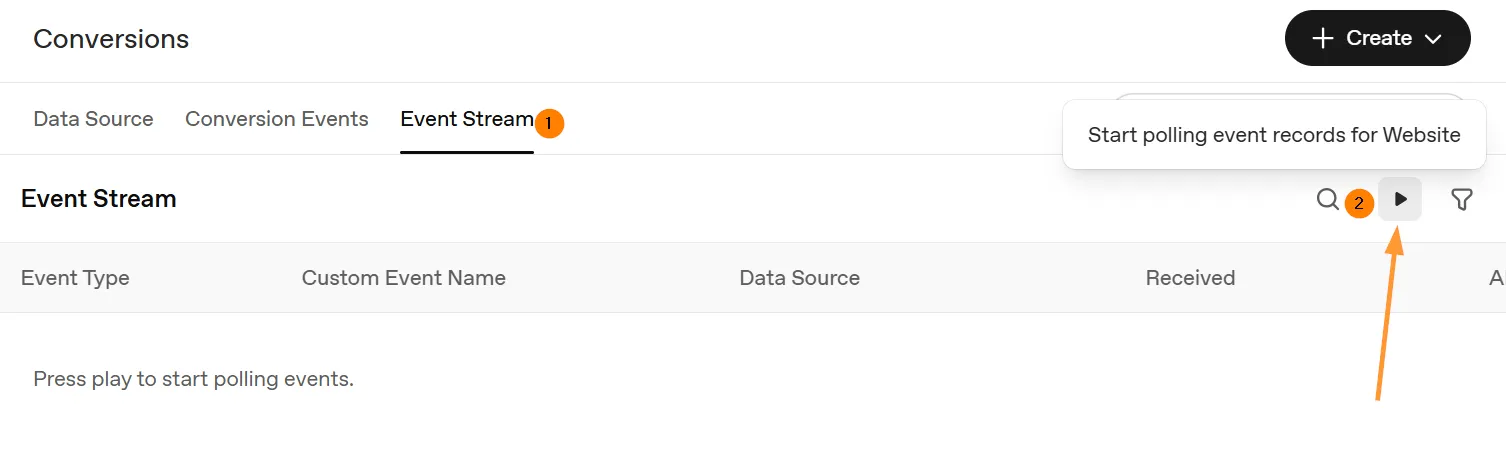
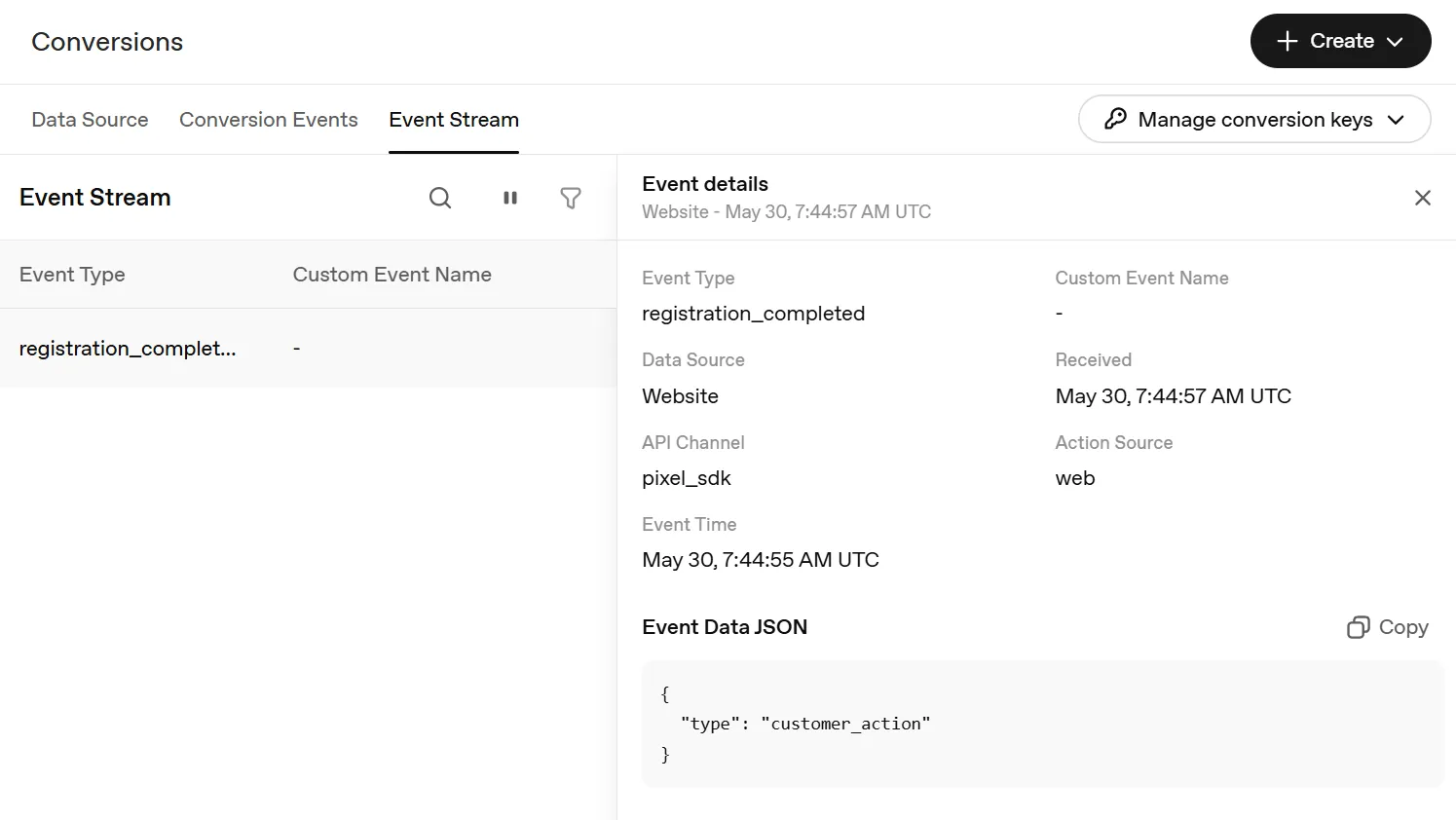
- In the dashboard: Conversions → Event Stream, switch on event listening.
- In GTM: Preview, open your site with the test address
?oppref=test, complete the target action.
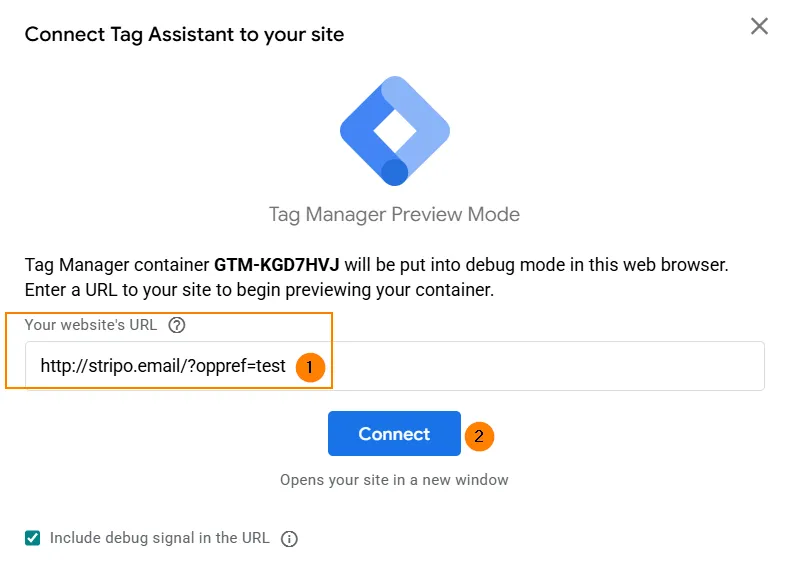
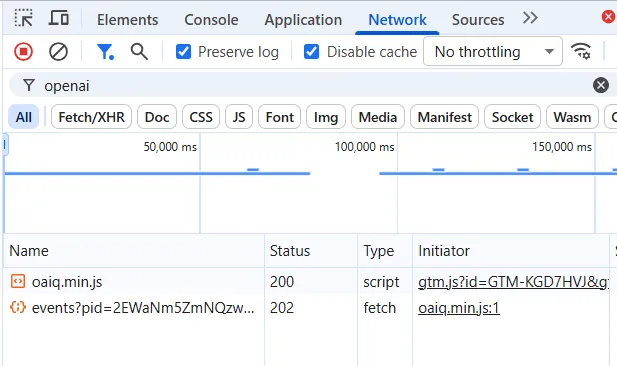
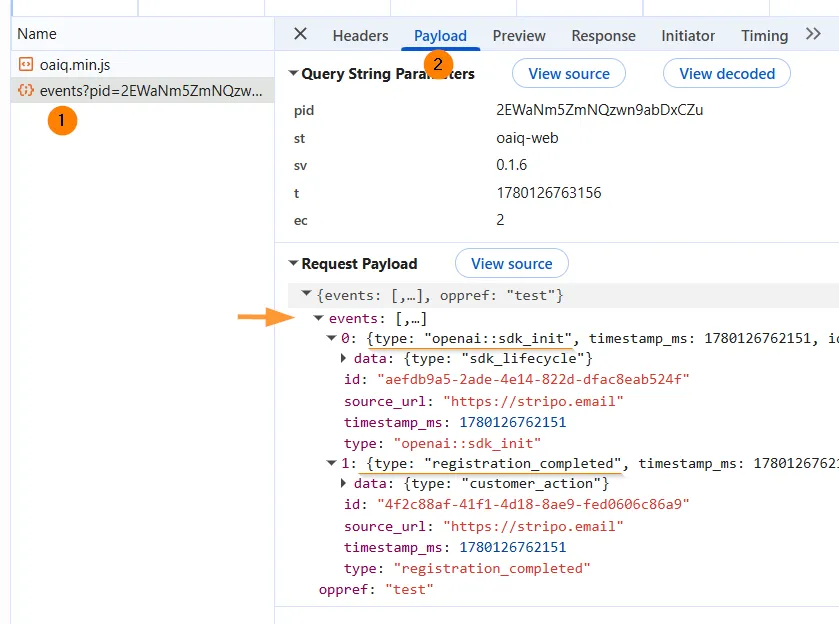
- In DevTools → Network, filter by "openai": two 2XX records — the
sdk_initinitialization and your event; in the event's Payload — its type andoppref.
- Within seconds, the same event appears in the Event Stream.
Everything lines up — publish the GTM container.
10.5. Double tracking: browser plus server-side GTM
The second loop duplicates events from your server — it keeps data complete where a browser trims cookies and blocks scripts. A shared event ID ties both versions of one event together: that is deduplication.
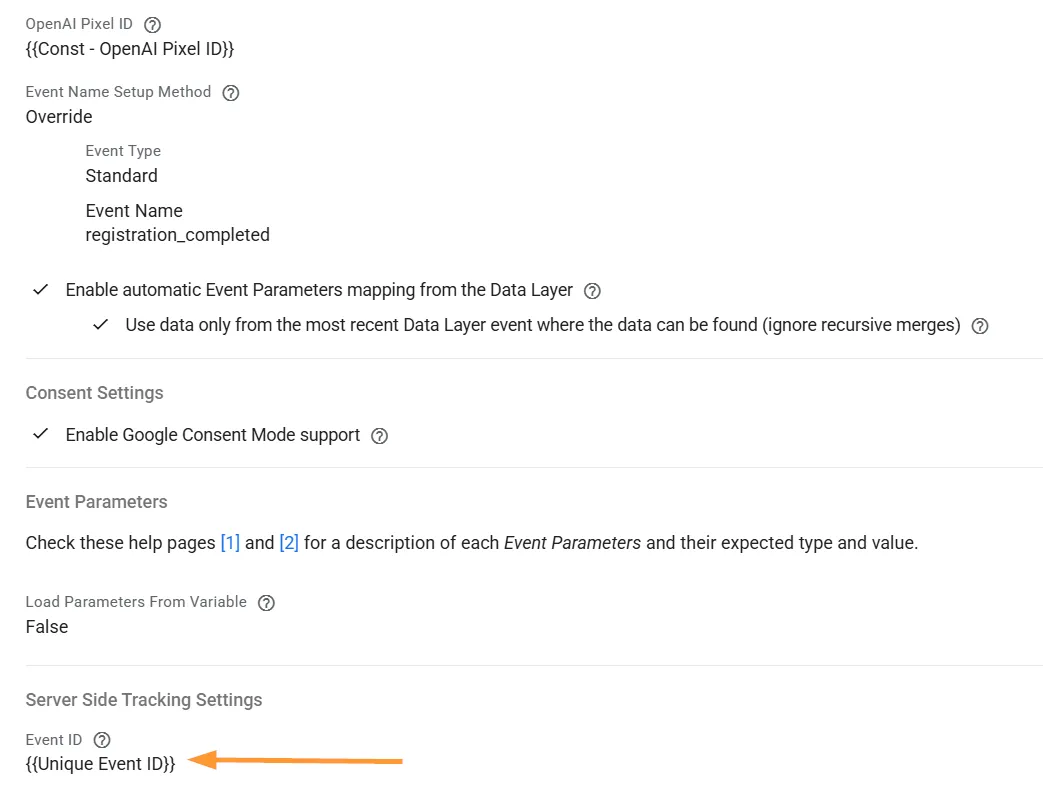
- In browser GTM, add the Unique Event ID variable by Stape under Server Side Tracking Settings, put it into the Event ID field of the OpenAI tag, and as the
event_idparameter into the GA4 event with the same trigger: the variable generates the ID at trigger time, so different triggers produce different IDs.
- In sGTM, add the Conversions API tag by Stape from the Search Gallery. The event name lives under Event Name Setup Method: Standard, Inherit from client (mapping from GA4) or Custom.
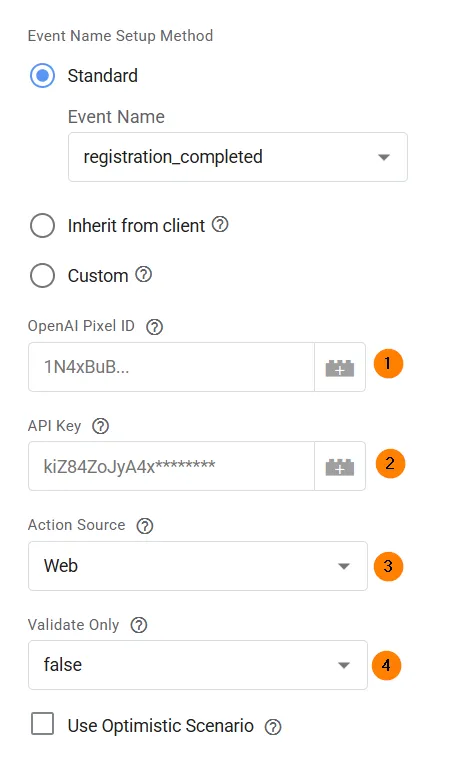
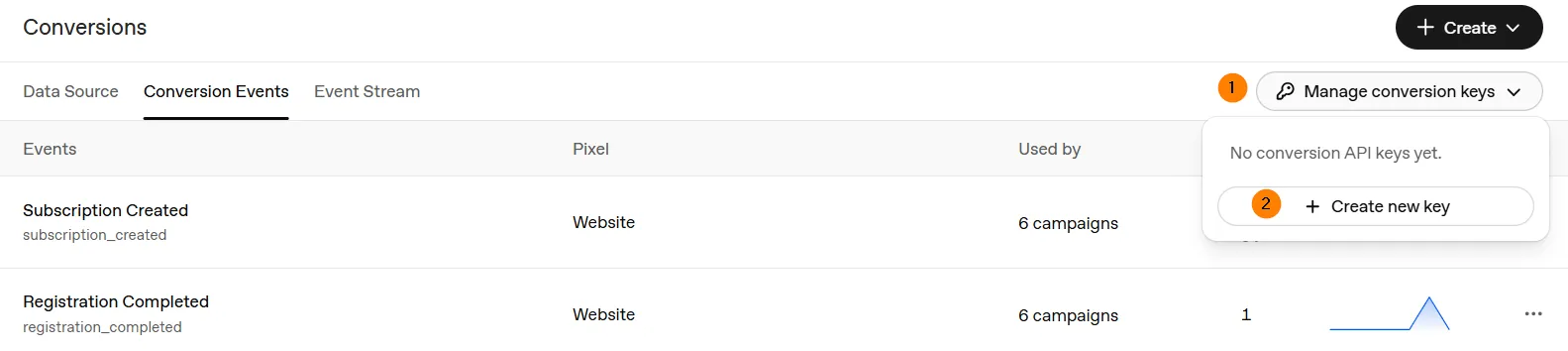
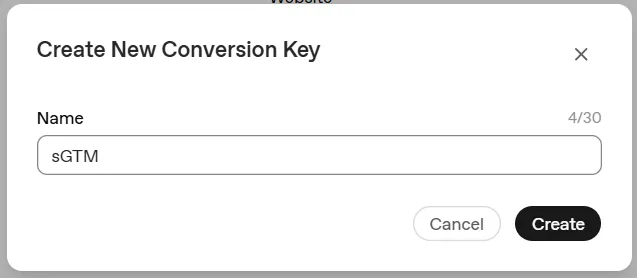
- Pixel ID goes into a constant. A second constant holds the Conversion API Key: generate it in the dashboard, Conversions → Manage conversion keys → Create a new key.
- Keep Action Source on Web, and Validate only on
false: attrue, events go to validation only and pass the statistics by. - Switch on automatic mapping: server event data (event ID and
oppref— from the GET parameter or the__opprefcookie), user data (email, phone, user ID, IP, user agent), event parameters (value, currency, products). - In sGTM only, add a tag that writes the click ID cookie on every page: its lifetime in days lives in its settings, the trigger is
page_view.
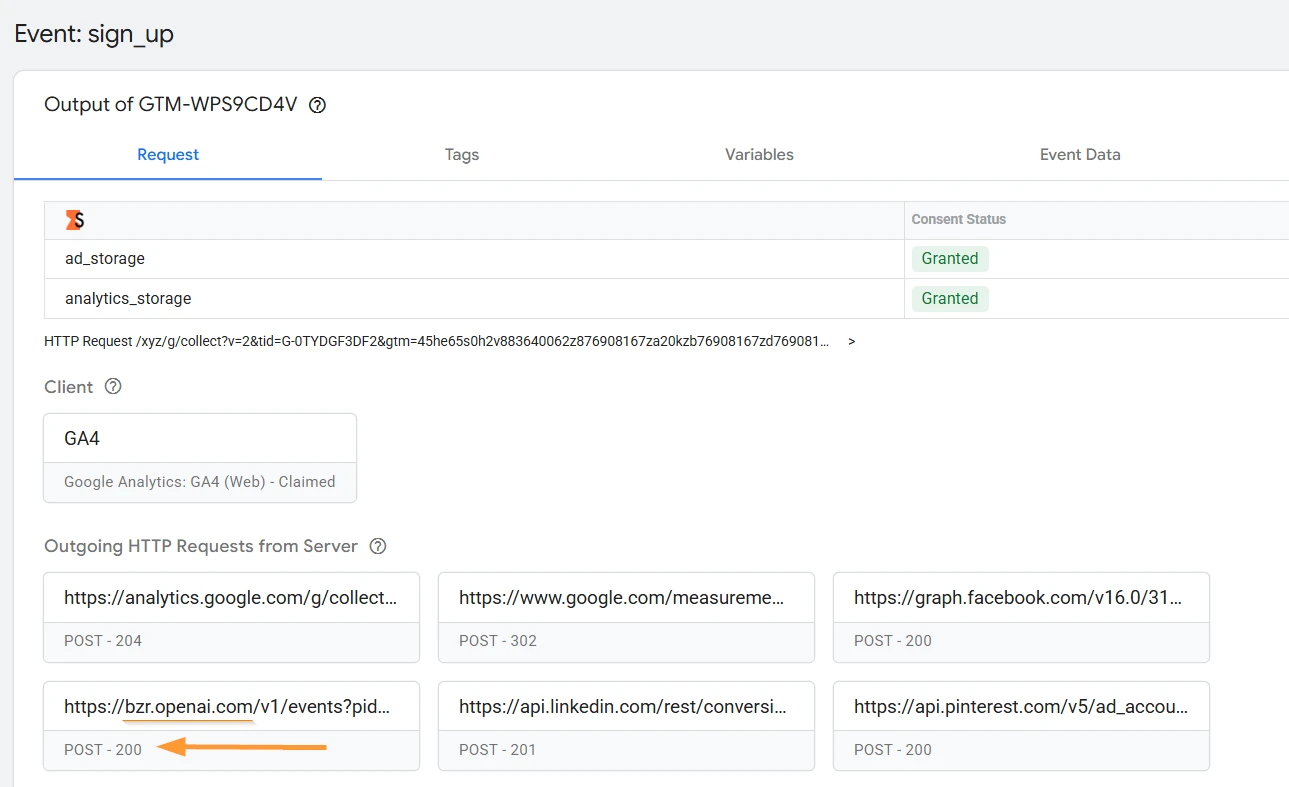
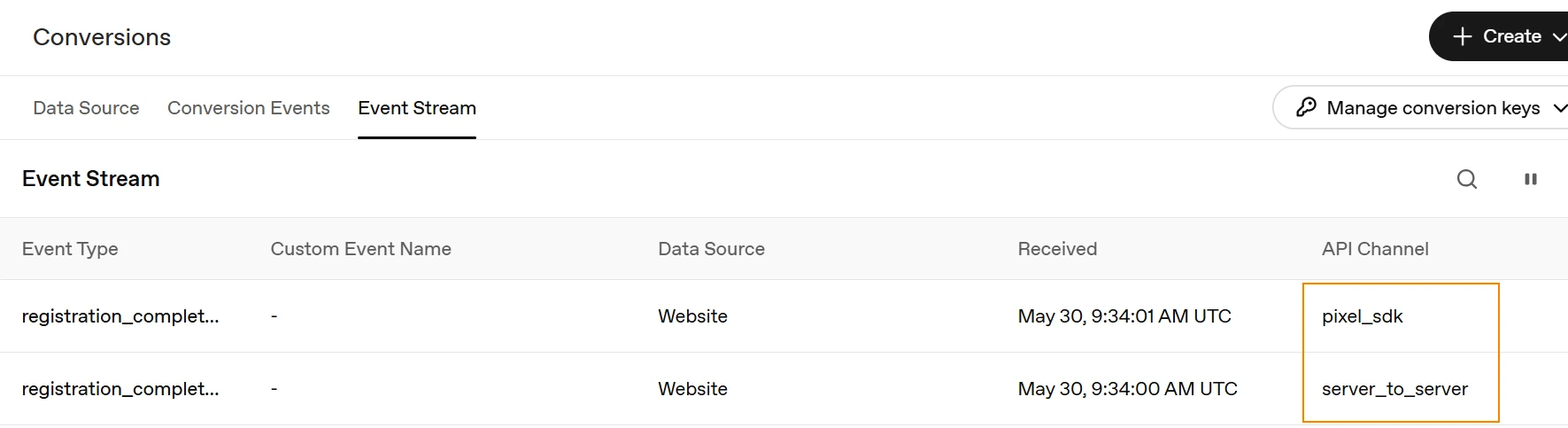
Verification: open the site with ?oppref=test in Preview of both containers; in the browser, under Application → Cookies, __oppref is stored; in the sGTM preview, on the event's Request tab, Outgoing HTTP requests shows a 2XX request to OpenAI; in the Event Stream, the event arrives through two channels, Pixel SDK and Server-to-Server, with the same id (match it in the body of the server request to bzr.openai.com against Network). It matches — publish both.
10.6. Server-side GTM with no library on the site: the ProAnalytics variant
ProAnalytics recommends a cleaner path: server-side GTM exists precisely to keep third-party libraries away from your site. In this variant, web GTM is out of the picture entirely.
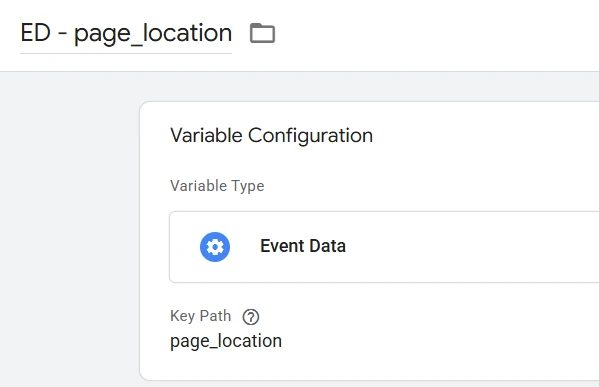
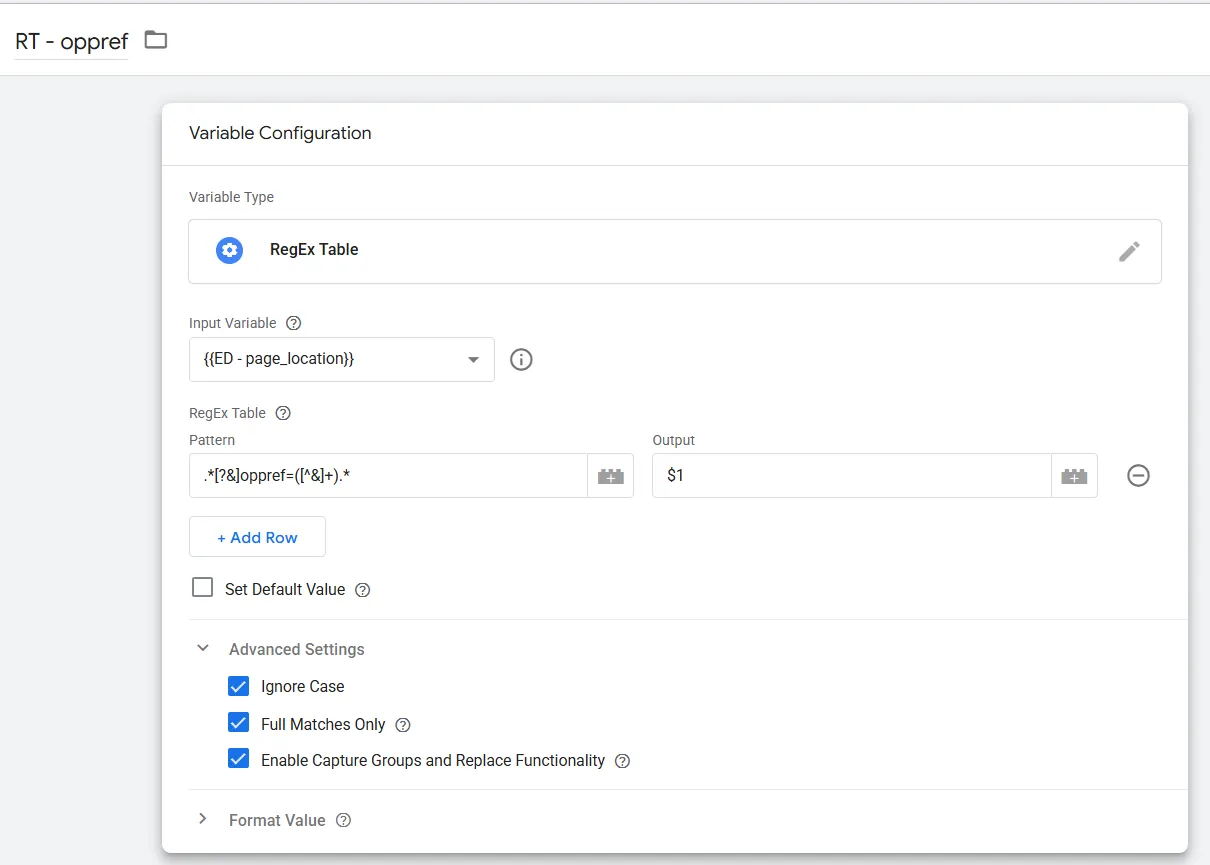
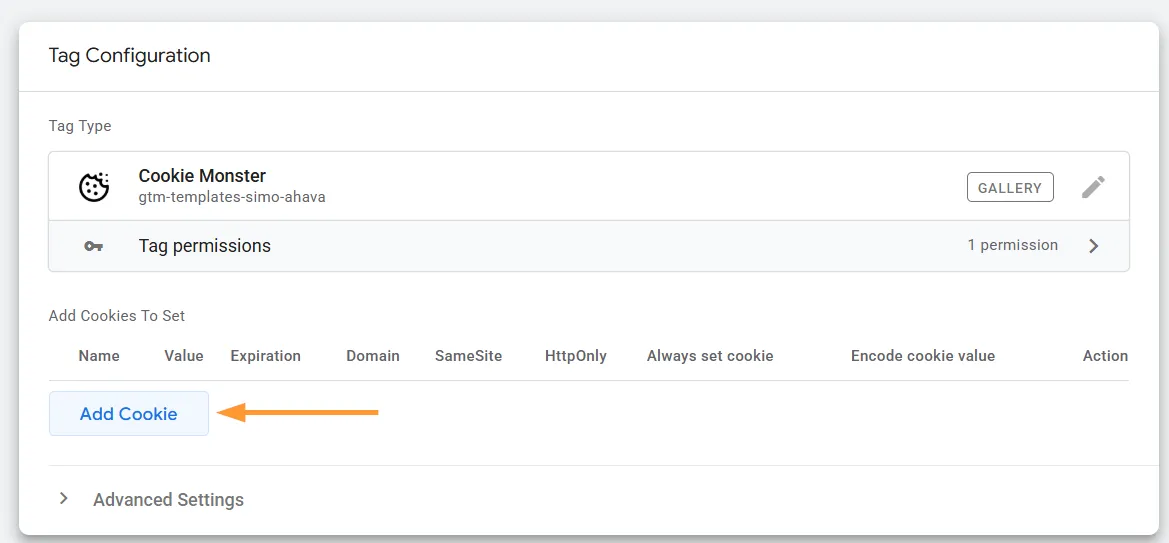
You do everything from 10.5 for the server tag, and skip the "all pages" tag. A three-part construction stores the click ID instead: an Event data variable with the key page_location; a Regex Table variable that extracts oppref from the address (pattern .*[?&]oppref=([^&]+).*, output $1); and the Cookie Monster tag by Simo Ahava, which writes the __oppref cookie with that value on page view — lifetime in the guide's example: two years. Verification is the same, with one difference: the event arrives through the server-to-server channel only.
10.7. Directly from your site's code
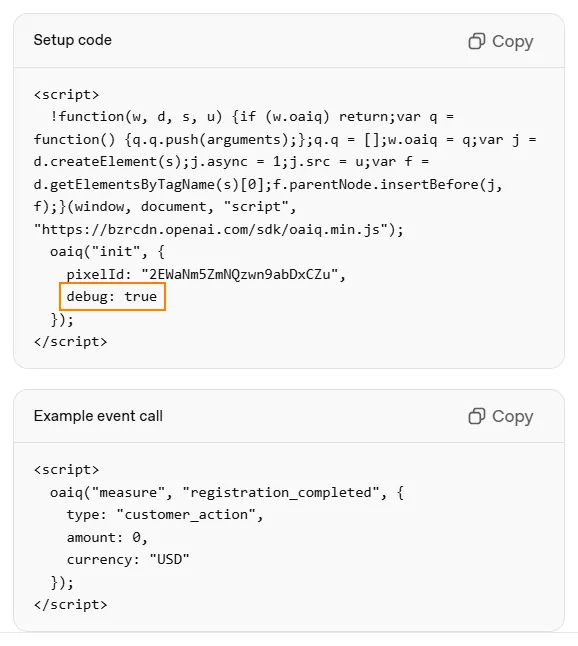
The third path: your developer installs the pixel and the events straight into the code; the documentation lives at developers.openai.com (JavaScript Pixel and Conversion API). Easy-to-miss details: the dashboard issues the pixel with a debug: true line — remove it in production; the event code goes below the pixel code, because events are sent by the oaiq function the pixel creates; every event must carry the type parameter; amount is a whole number in the currency's lowest unit ($99.00 → 9900); oppref is formally optional in the Conversion API, and in practice it is what ties a conversion to an ad click — always include it in the data object; event_id and custom_event_name travel as eventOptions.
10.8. Typical problems and their fixes
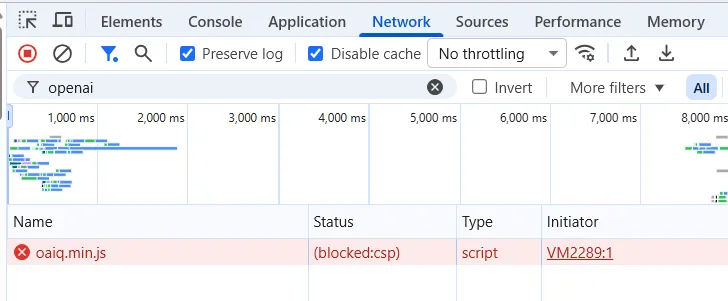
The pixel is blocked by Content Security Policy. Its records sit blocked in Network — add two domains to your CSP: Script Source → https://bzrcdn.openai.com (the SDK) and Connect Source → https://bzr.openai.com (the events).
The event fires, and Network stays empty. Walk the required parameters, and check type first: for a standard event name, it matches that exact event.
Events arrive and campaigns get no attribution. Three checks. Your site keeps oppref in the address bar after entry, and redirects preserve it — a parameter lost at entry is a developer fix. The browser's Cookies hold __oppref; with Advanced Consent Mode, repeat the cookie write when the visitor gives consent. And look in GA4 at conversions from your OpenAI campaigns: campaigns carry UTM tags, and with zero conversions from the placement, attribution has nothing to build on.
An honest note on dates
As of early June 2026, campaigns optimized directly on conversions did not exist in the dashboard yet: tracking worked as attribution for Views and Clicks campaigns, and the window lived at a single value — 30 days. On your launch day, check the objectives and window settings in your own account. The setup itself — pixel, events, GTM, the server loop — stands unchanged.
The second path: Bulk CSV for large launches
If you have one to three campaigns, take the Guided path above. If you have dozens of campaigns, the platform gives you a second route: Bulk CSV upload.
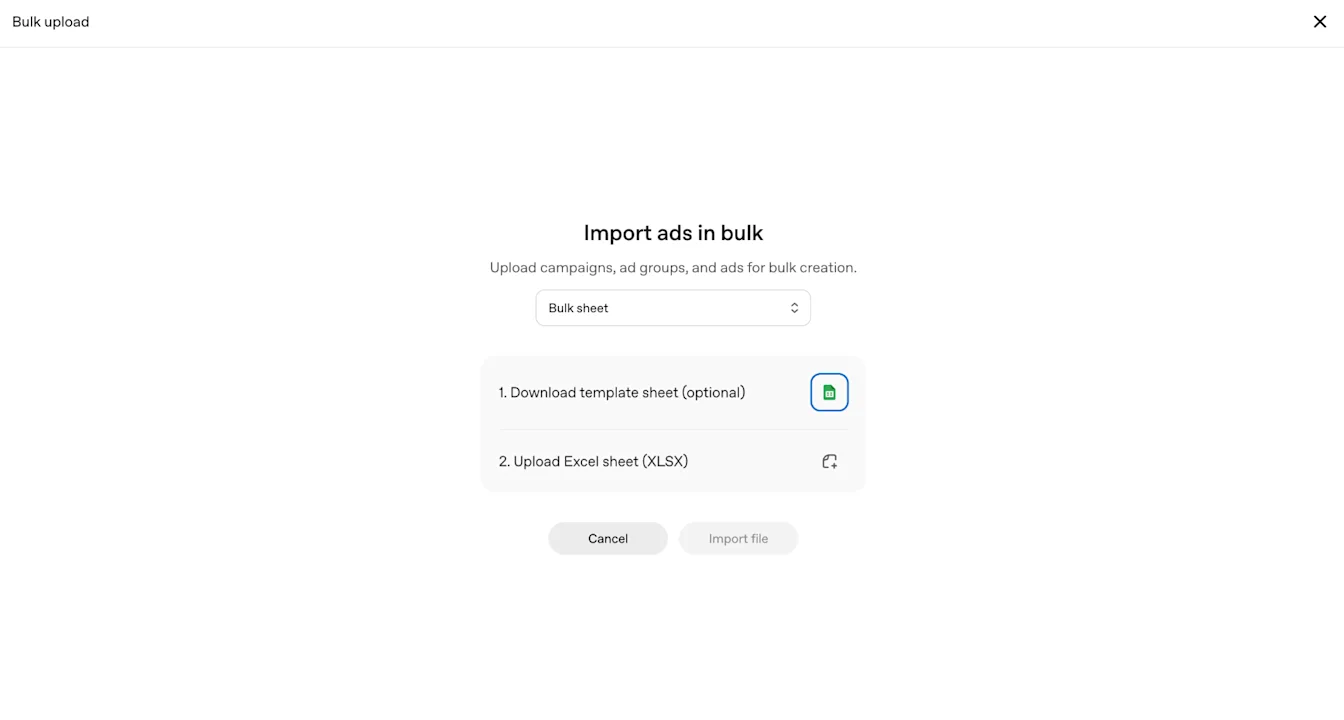
The idea is simple. You upload a filled ad schema template: separate tabs for campaigns, ad groups and ads. The dashboard entry point: Create → Upload bulk. Source: OpenAI Help Center — Launch Campaigns.
Three Bulk rules that protect you from duplicates:
- Campaign and ad group names match character for character across the tabs.
- Context hints in the template are valid JSON.
- After an upload error, you fix the template and re-upload only the rows you are creating now. Re-running rows that already succeeded, with an empty ad_id, creates duplicate ads — the official guide warns about this directly.
Source: OpenAI Help Center — Launch Campaigns. A route limitation: per AirOps, campaigns with product feeds currently stay outside this path. Questions on upload errors go to OpenAI at ads-support@openai.com — the address comes from the official guide.
Who needs Bulk from day one: store chains, businesses with a wide service catalog, and agencies running several brands in parallel. For everyone else, Guided gives a faster first launch and a clearer check of every field.
What it costs: budgets and minimums, confirmed facts only
I start with the main fact. There is currently no minimum total spend as an entry threshold for self-service. The former $50,000 threshold belonged to the managed pilot, and the platform removed it when self-service Ads Manager Beta launched on May 5, 2026. The only floor limit that remains is the campaign's minimum daily budget. Secondary sources: ContextHints, AirOps, TopGrowthMarketing.
Minimum daily budgets by billing currency — the ContextHints table updated on October 20, 2026, with additions from AirOps and Ranketta:
| Currency | Minimum daily budget |
|---|---|
| USD | $25 |
| EUR | €15 |
| GBP | £15 |
| CAD | 25 |
| AUD | 25 |
| NZD | 25 |
| BRL | 40 |
| MXN | 150 |
| JPY | 2,500 |
| KRW | 25,000 |
| INR | 725 |
I mark this table honestly and in full: it is secondary data from operator guides. The official Launch Campaigns guide keeps the minimums table closed.
And now the main practical point. The minimum daily budget depends on your account's billing currency, and the table above does not cover every currency in the world: if yours is missing, OpenAI shows your minimum right inside the account. So plan your first campaign budget like this: enter your account, look at your currency and your minimum on the billing screen, and build the test from that figure. The reference point from the currencies in the table: a daily test budget at the $25 or €15 level already gives the platform material for its first conclusions on impressions and CTR.
Through technology partners or agencies, minimums live by the specific partner's rules. The self-service path of this guide stays clear of those partner thresholds: Reuters records both buying paths for the new countries — partners and self-service Ads Manager.
Errors and limitations: what to account for before the first budget
Targeting stands on country and context. The platform's base logic: geography at country level, plus context hints instead of demographics and interests. That is how the HyperFX overview describes the platform as of May 2026: country, hints, CPM and CPC formats, aggregated reporting.
The platform has grown noticeably since May — check feature availability for your market inside your own account. Per the secondary guides of October 2026 — AirOps from October 14, 2026 and ContextHints from October 20, 2026 — mature markets already run a Conversions objective with the oCPC model, the Pixel and the Conversions API, custom audiences from 25,000 matched users, geo below country level — states, cities, postal codes where the feature is available — platform targeting across iOS, Android and Web, the Advertiser API and an Ads Manager plugin inside ChatGPT. The default attribution per the same guides, from September 30, 2026, is 30 days post-click and 1 day post-view. As of now, OpenAI keeps closed which of these features a self-service account in your country receives from day one. Your reference point is your own dashboard's menu on launch day.
Categories with special rules. Ads are seen only by adult users, 18+. Under OpenAI's January principles, advertising stays away from sensitive topics: health, mental health, politics. The October 21 post restates that list more briefly, so businesses in adjacent categories should check the current policies in the Help Center before launch and allow extra time for review. Sources: AI Rank Lab, PPC Land.
Ad language is an open question for every market. As of now, OpenAI keeps closed how exactly ads and hints in each specific language are accepted and moderated. Prepare the main version in your audience's language — Ukrainian in this article's examples — keep English duplicates of the key hints nearby for testing, and record the result of your first review — it becomes your answer.
Public efficiency benchmarks by industry are still missing. OpenAI states directly that the platform keeps industry benchmarks closed for now. And a placement inside ChatGPT's answer itself is something the platform offers only as the separate block below the answer — that is exactly how the format works. Sources: AirOps, Castle.
A new format on the horizon. OpenAI has announced a test of image ads during image generation in ChatGPT for Free and Go: the advertising is clearly labeled and separated from the generated picture. The test starts at the end of October 2026 in the US with an initial group of advertisers. For other markets, this format is still awaiting its announcement as of now. Source: OpenAI — Building advertising for the way people use AI.
Typical first-launch mistakes, as a short list:
- country, currency or time zone of the account chosen in a hurry — fixed only with a new account, see the checklist;
- the business name in the account differs from the name on the website — a verification delay;
- the landing page is closed to OpenAI's crawlers or opens slowly — a rejection at validation;
- hints written as a product list instead of customer situations — weak contextual matching;
- conclusions drawn from spend in the first hours — spend arrives with a 7–8 hour delay, watch impressions and clicks;
- re-uploading successful Bulk rows — duplicate ads.
Conclusion
Let me sum it up as a single line of action.
Today, a legal entity in a country on the availability list opens Ads Manager, passes verification, connects billing, assembles a campaign targeting its own country, sets context hints as its customers' situations, writes an ad inside the platform's strict and honest limits, passes review, reads the first metrics within 15 minutes of the first impressions — and tracks conversions through the pixel and GTM, so every unit of budget answers to a real action on the site.
The channel is young. That is exactly why entering it now costs your business only attention to detail: the right account country, a clean landing page, precise hints, a short ad text, working tracking. Your competitors in your niche are still only reading these steps.
If you want to walk this launch as a system — from preparing the website and the landing page to the campaign, the creatives, the tracking and the analytics — come over, we will break down your task and assemble a plan for your business. I help businesses launch advertising and build AI systems that take the routine on themselves: websites and advertising since 2009, and for the last 3 years — artificial intelligence and full multi-agent systems that replace entire departments. Start with the service page at ikovalevskyi.com.
Sources
Official OpenAI sources:
- OpenAI — ChatGPT Ads expands to 26 new countries, 21.10.2026
- OpenAI Help Center — Ads Manager Availability
- OpenAI Help Center — Launch Campaigns
- OpenAI — Building advertising for the way people use AI
The expansion news of 21.10.2026:
- Reuters — OpenAI expands ChatGPT ads to 26 more countries
- PPC Land — Advertisers in 26 more countries gain ChatGPT ads, 21.10.2026
- AdExchanger — ChatGPT Ads Is Expanding to New Markets, 21.10.2026
Conversion tracking:
Operator guides and secondary sources, marked as secondary data inside the article:
- ContextHints — Ads Manager Setup Guide, updated 20.10.2026
- AirOps — ChatGPT Ads Manager, 14.10.2026
- HyperFX — OpenAI Ads Manager Walkthrough, May 2026
- AI Rank Lab — ChatGPT Ads Guide
- Castle — The Complete Guide to ChatGPT Ads
- Addesu — What You Need to Know Before You Set Up OpenAI Ads
- Ranketta — ChatGPT Ads Explained
- Maccus / Search Engine Roundtable — ChatGPT Ads Creative Enhancements, 20–21.10.2026
About the author
Ievgen Kovalevskyi — I have been building websites and running advertising since 2009, and for the last 3 years working with artificial intelligence. I build full multi-agent systems that replace entire departments in businesses and for experts.
*By Ievgen Kovalevskyi, AI automation architect.*