
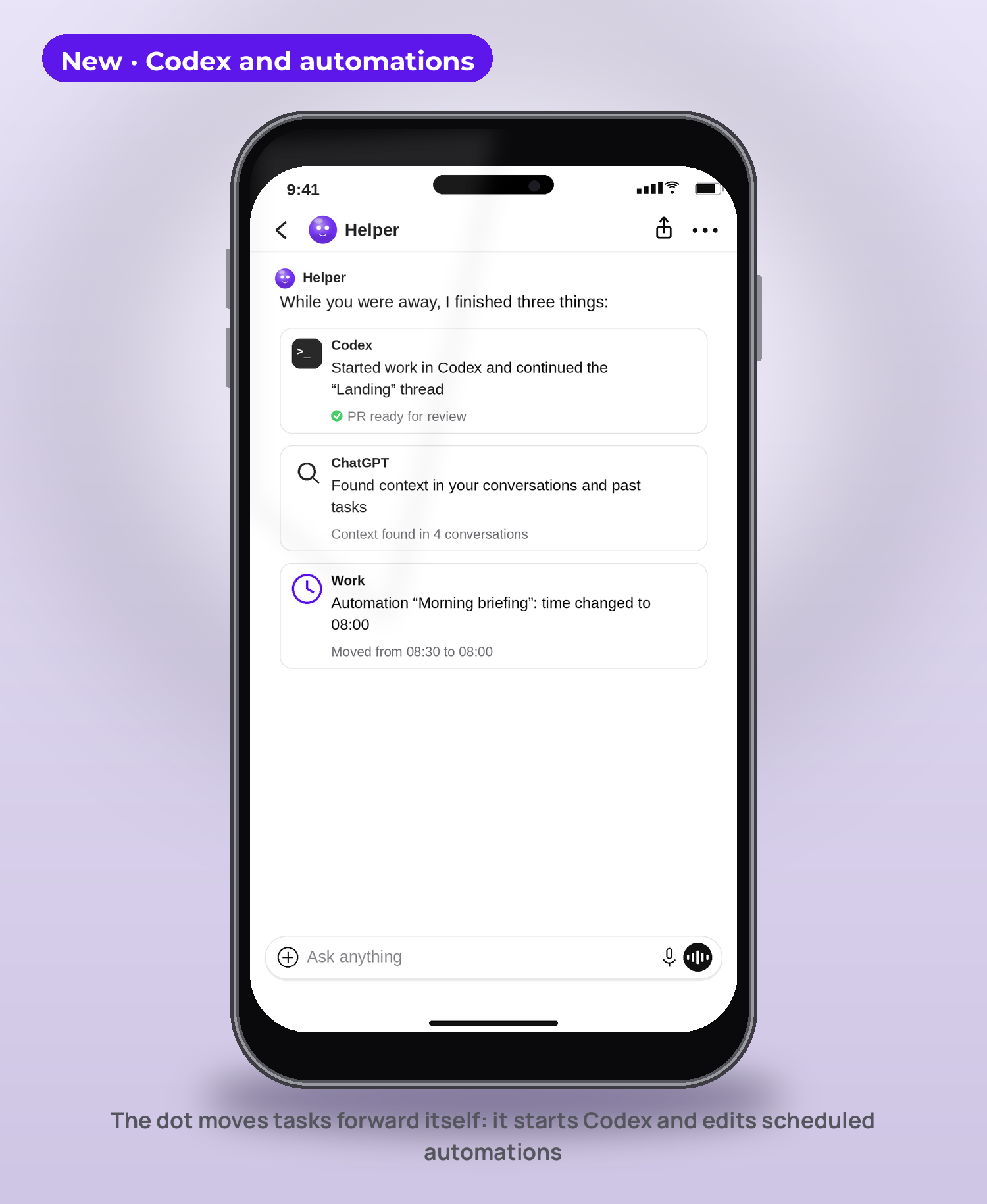
News of the day. On October 9, OpenAI updated dots — the always-on agents inside ChatGPT. In short: a dot is now created right in the mobile app, starts work in Codex by itself, and edits your scheduled automations. The agent is no longer a chat you type into. It is an employee who lives on your phone and works between your messages.
The short version
- Created from your phone. Name, appearance and plugins are set up in the ChatGPT app on iOS and Android. No computer needed to start anymore.
- The dot delegates to Codex itself. It starts new work, follows up on existing threads, and decides on its own whether to continue a thread or open a new one.
- The dot edits automations. It reviews and changes scheduled tasks in ChatGPT Work: you ask, it rebuilds the schedule for you.
What a dot is, in plain words
Regular ChatGPT waits for you to type. A dot is the opposite: it has its own job, its own access through plugins, and its own recurring work. You give it a role once — from then on it closes that role every day and comes back only with a result or a question.
So test a dot the way you would test an employee: give it one job, give it time, watch for consistency.
How to set up your dot in 10 minutes
Step 1. Open dots in the ChatGPT app
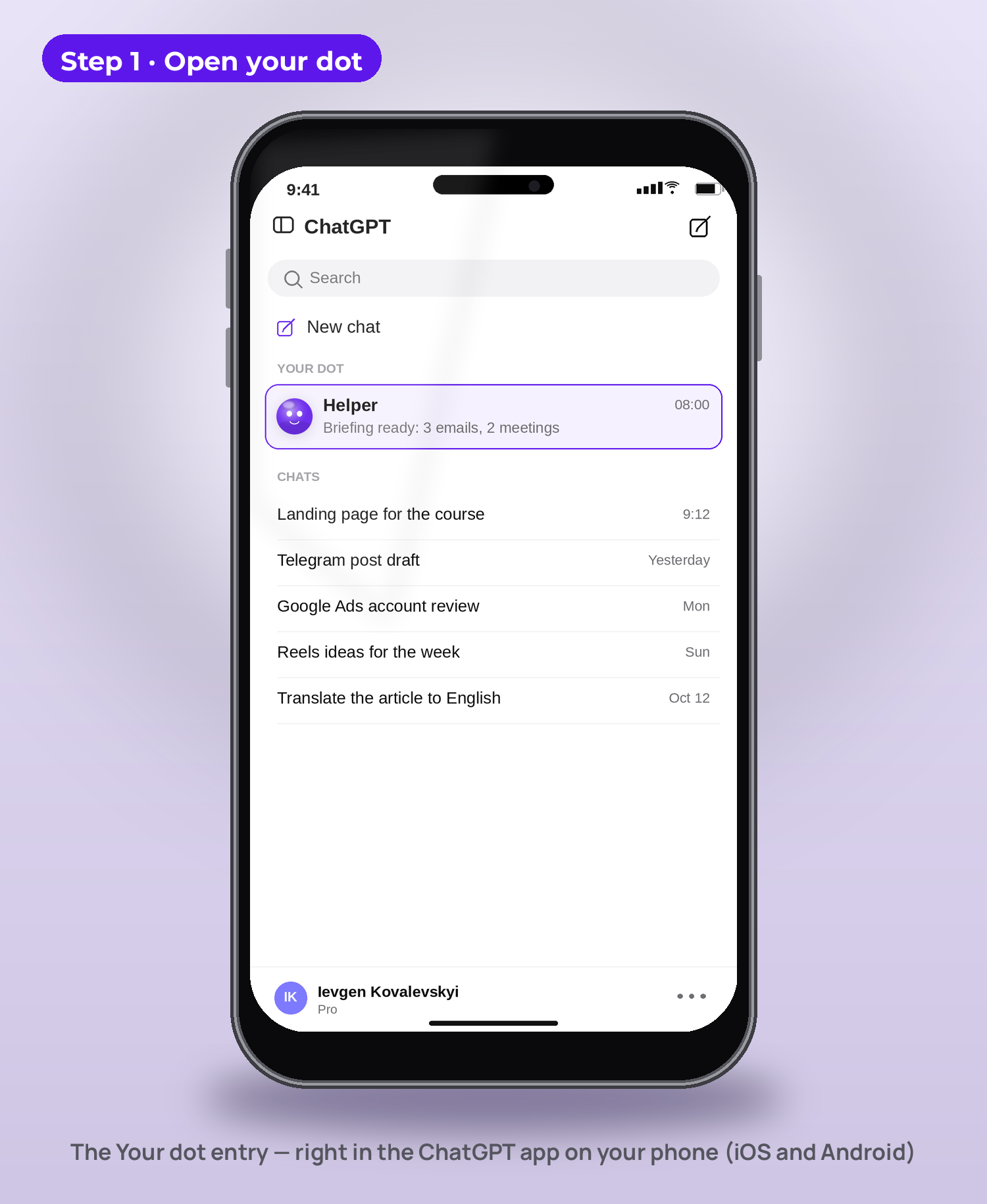
Update the ChatGPT app and find the Your dot entry. A dot cannot be created in a mobile browser — only in the app (iOS or Android).
Step 2. Give it a name and a look
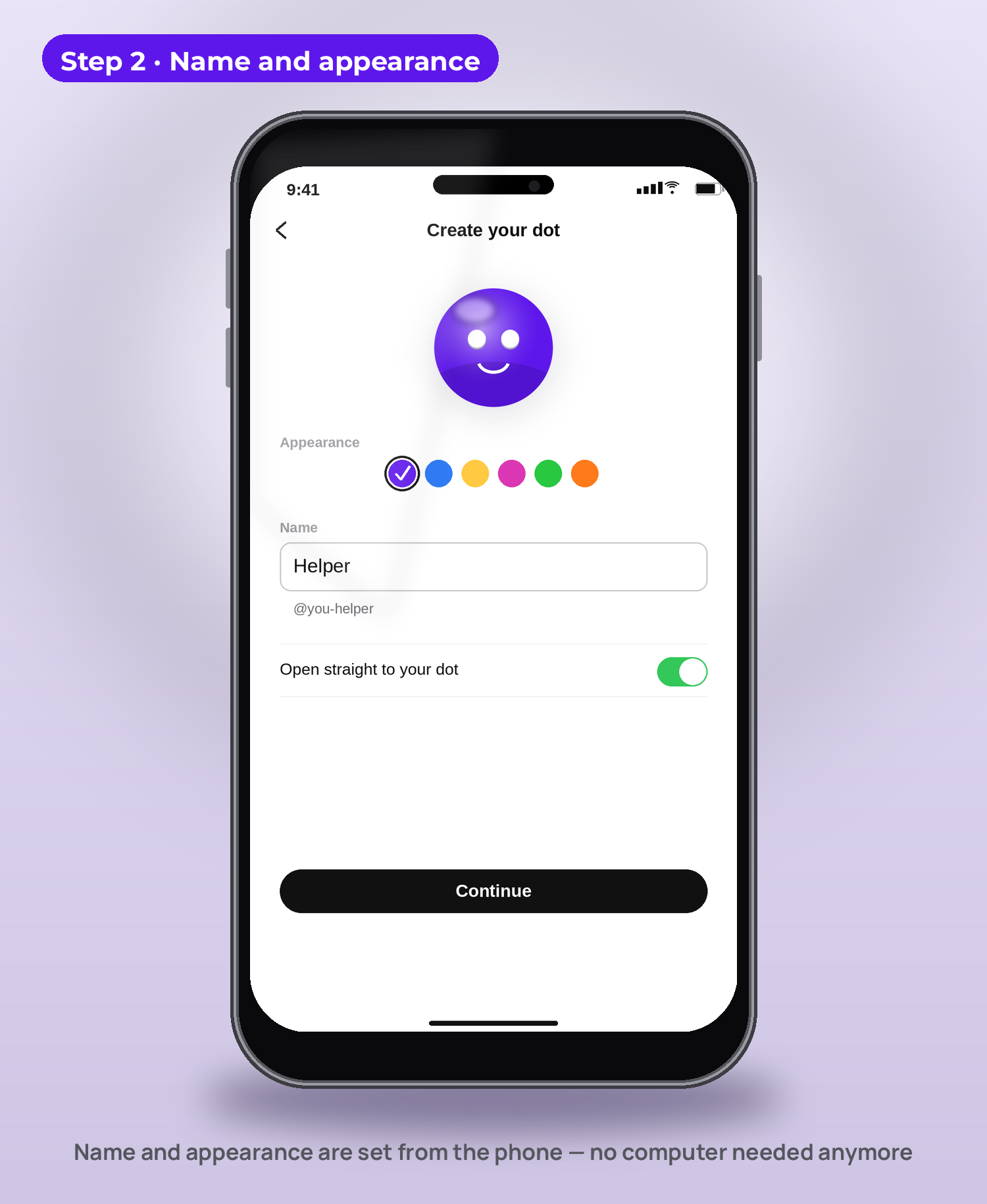
Name, shape, color — all set from the phone. You can also make ChatGPT open straight into your dot's conversation instead of a blank chat.
Step 3. Connect plugins — only what the task needs
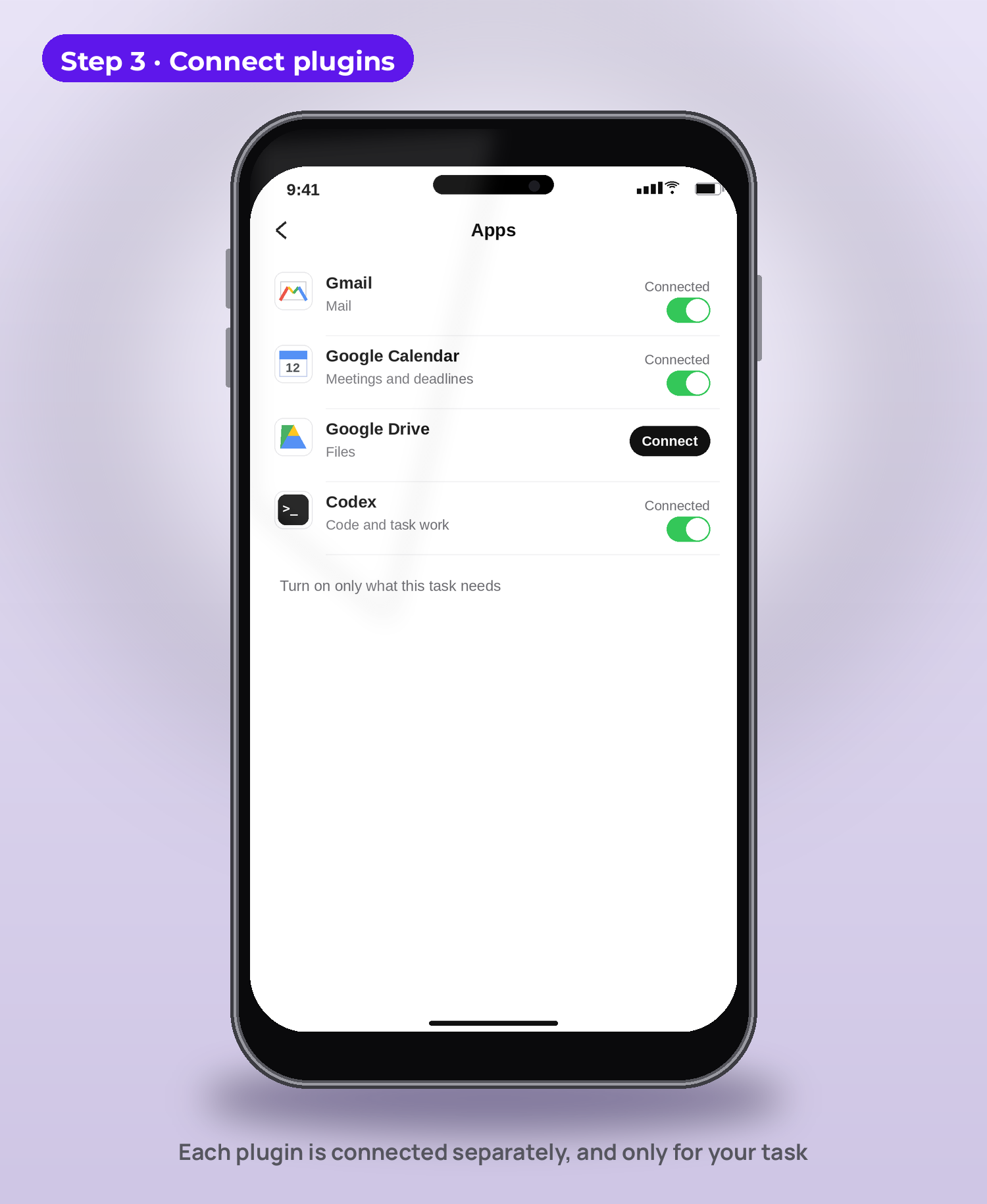
Each plugin is connected separately and gives access only to its own service: mail, calendar, files, Codex. Do not switch everything on "just in case": one dot — one task — the minimum access that task needs.
Step 4. Give it one repeating task
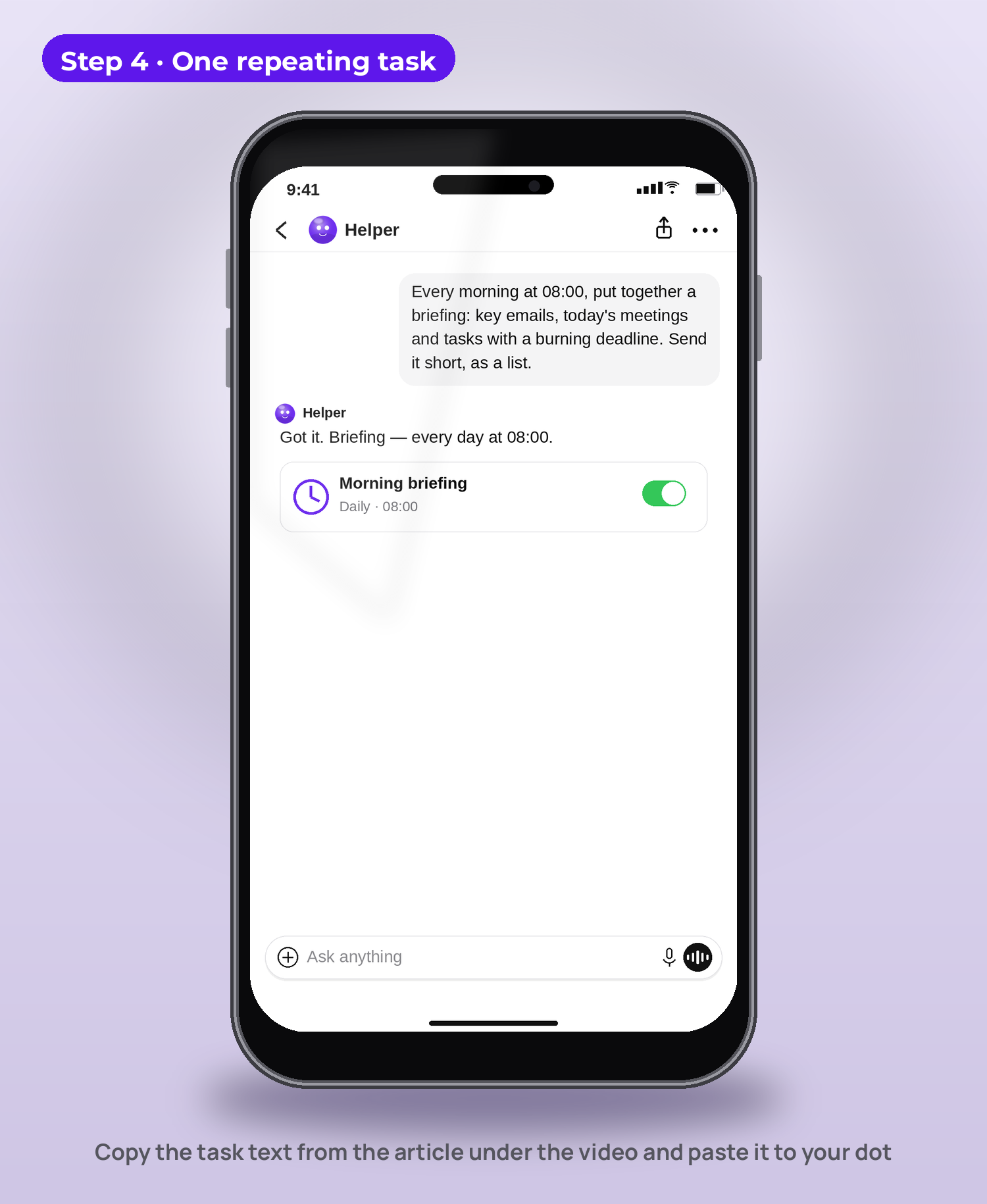
Not ten. One. Here are three ready-made texts — copy one and paste it to your dot:
Morning briefing:
Every morning at 08:00, put together a briefing: key emails, today's meetings and tasks with a burning deadline. Send it short, as a list.
Inbox review:
Every weekday at 09:00, sort my incoming email: urgent items as a separate list on top, draft replies for the rest. Do not send anything without my approval.
Deadline control:
Every day at 18:00, check my tasks and calendar: what must be done tomorrow and where a deadline is at risk. Send only the risks, no fluff.
Step 5. Give it a week and check one criterion
A week is a fair test. The criterion is single: the agent closes the task consistently, without your reminders. If it does — that is no longer a toy, it is a role in your system. If it does not — the problem is almost always the task wording or the extra access, not a "bad agent".
What the dot can now do in Codex and automations
This is the second half of the update, and it matters more than the mobile part:
- it starts work in Codex and follows up on existing threads — without you;
- it searches context across your ChatGPT conversations, Codex threads and automations, so you do not have to explain the task from zero every time;
- it is better at deciding whether to continue an old thread or open a new one — related work does not fall apart across chats;
- it reads and edits scheduled tasks in ChatGPT Work: "show me what is scheduled" or "move the briefing to 07:30" — and it changes the schedule itself.
Three mistakes at the start
- Ten tasks for one dot. The role blurs, the result gets unstable. One dot — one repeating task.
- All plugins at once. Access "just in case" is risk and noise. Only what this task needs.
- No check criterion. "Played with it for a week" does not count. Decide up front what "task closed" means: time, format, completeness.
Who gets access
OpenAI is rolling dots out gradually, so on some accounts the Your dot entry may appear later — check your app. Conversations with a dot do not count toward ChatGPT usage limits, while tasks the dot starts in Codex and Work count toward those products' limits. Actions in connected services run under your permissions: where an approval is needed, the dot will ask.
FAQ
Does this replace regular ChatGPT? No. A regular chat is for one-off questions. A dot is for recurring work you describe once and then only check.
Can I create a dot entirely from my phone now? Yes, with this update: name, appearance and plugins — in the mobile app. A dot cannot be created in a mobile browser.
What should the first task be? The one that repeats every day and eats your morning: a briefing, an inbox review, or deadline control. The texts are in step 4 above.
Will the dot email a client by itself? Only within the permissions you gave the plugin. At the start, keep this rule: drafts — on its own; sending — only after your approval.
How is this different from automations in ChatGPT Work? An automation is a schedule. A dot is the performer: it starts work, continues threads, finds context, and can edit the automations themselves.
I do not write code. Is the Codex part useless for me? No. Mobile creation and automation editing apply to any dot. Codex is just one plugin — connect it if you have code or website tasks.
Sources
- OpenAI Developer Community, "Fresh dots updates: Create in the mobile app, delegate to Codex", Oct 9, 2026 — https://community.openai.com/t/fresh-dots-updates-create-in-the-mobile-app-delegate-to-codex/1404834
- Overview of the update and OpenAI's dots guide (NeoTeo) — https://www.neoteo.com/en/openai-adds-mobile-setup-codex-and-work-tools-to-dots
- Step-by-step mobile dot setup (NerdSchalk) — https://nerdschalk.com/chatgpt-dots-phone-setup-codex-tasks/
---
What comes next
One dot on one task is a one-week test. After that, roles like these are assembled into a system for a business: briefings, inbox review, task control, code and content work — each agent on its own role, together covering a whole department.
I have been building websites and advertising since 2009, and for the last 3 years — artificial intelligence. I build full multi-agent systems that replace entire departments for businesses and experts. If you want such a system for your tasks, start with the service page:
[AI agent systems for business →](https://ikovalevskyi.com/ai-department)
*By Ievgen Kovalevskyi, AI automation architect.*