Short answer. To add a site to Bing Webmaster Tools, open bing.com/webmasters, sign in with Microsoft, Google or Facebook and choose how to add the site. The fastest way is import from Google Search Console: the site is added already verified. The other way is to add the address manually and prove ownership (meta tag, XML file or CNAME record). To give a specialist access, open "User management", click "Add user", type their email and choose a role. For daily work Read-Write usually fits. No password has to be shared.
Below are 16 steps, each with a screenshot. If your site is already added and verified in Bing, jump to "Part 4. How to give a specialist access".
What you need before you start
- A Microsoft, Google or Facebook account to sign in to Bing Webmaster Tools.
- Your website address.
- The specialist's email address. Per Bing's help, they must sign up once in Bing Webmaster Tools with a Microsoft, Facebook or Gmail account: only then can you add them as a user.
- For way A (import): a site verified in Google Search Console, Google's free service for site owners.
Part 1. How to sign in to Bing Webmaster Tools
Step 1. Open bing.com/webmasters and click "Sign In"
The button is at the top right. You can change the page language next to it, in the list with the EN, UK, RU labels.
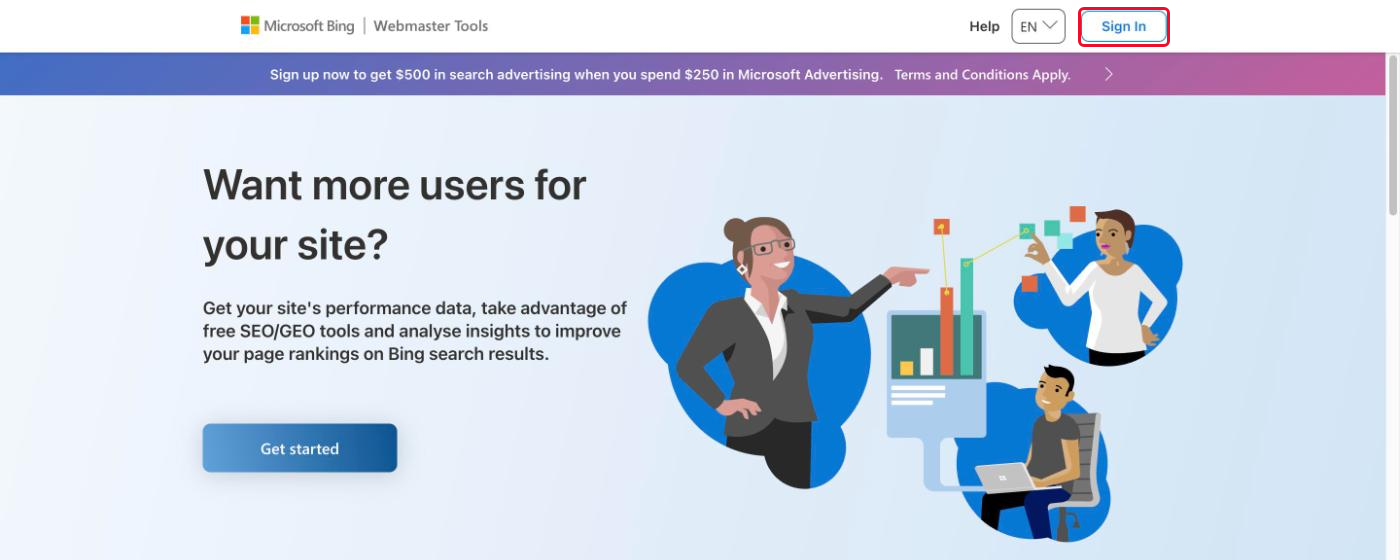
Link: bing.com/webmasters
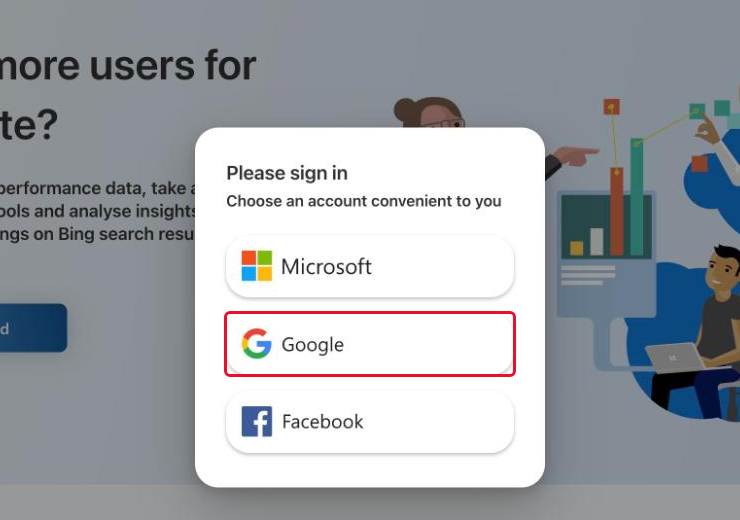
Step 2. Choose the "Google" sign-in
You can also sign in with Microsoft or Facebook. For import from Search Console, choose the same Google account you use in Search Console.
Part 2. How to add your site
There are two ways, choose one. Way A is faster: it works if the site is already verified in Google Search Console. Way B works for everyone. Per Bing's help, there are four ways to verify a site: automatic DNS verification (Domain Connect), an XML file, a meta tag and a CNAME record. The steps below show the meta tag.
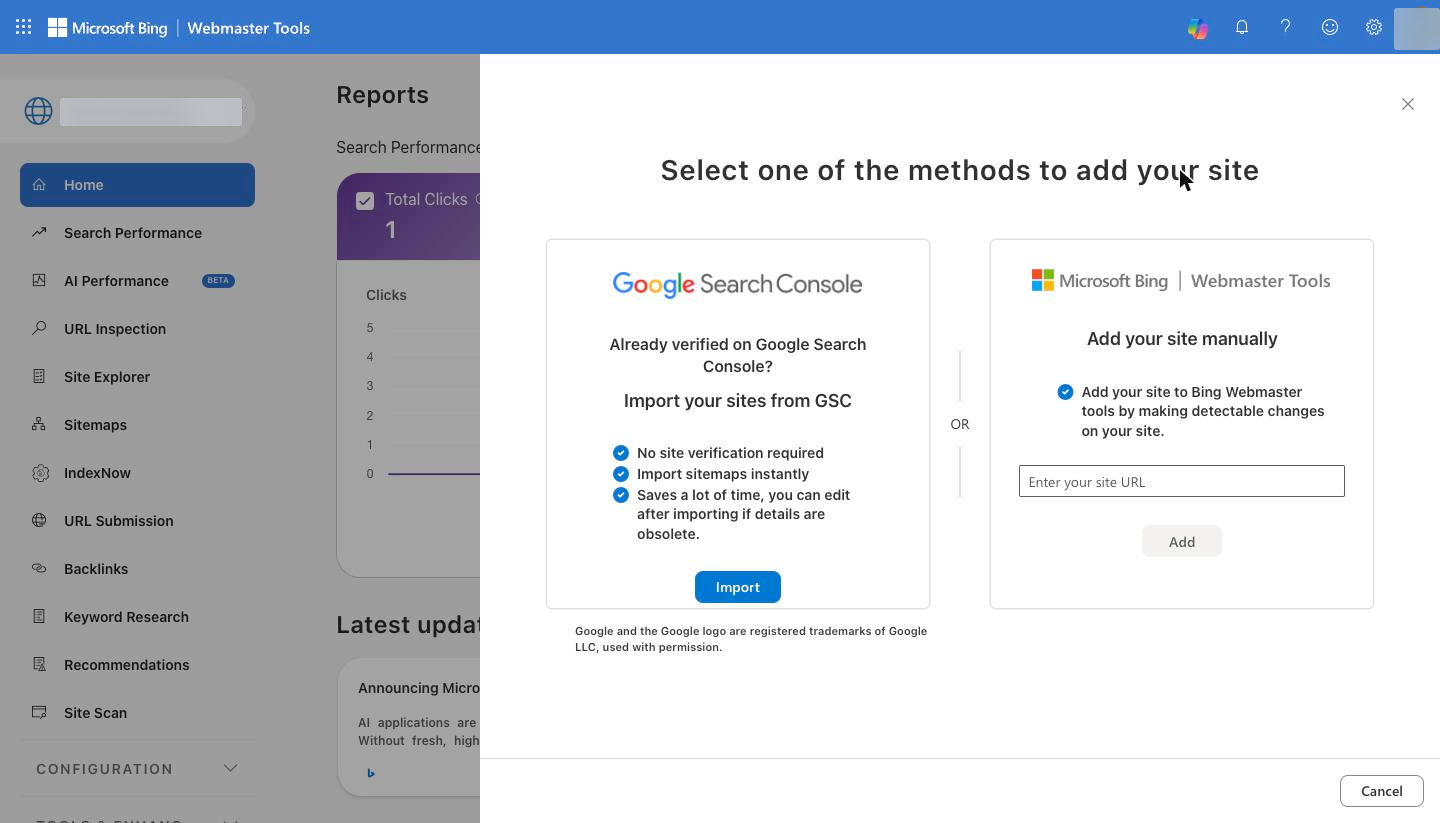
Step 3. Open the add-site window
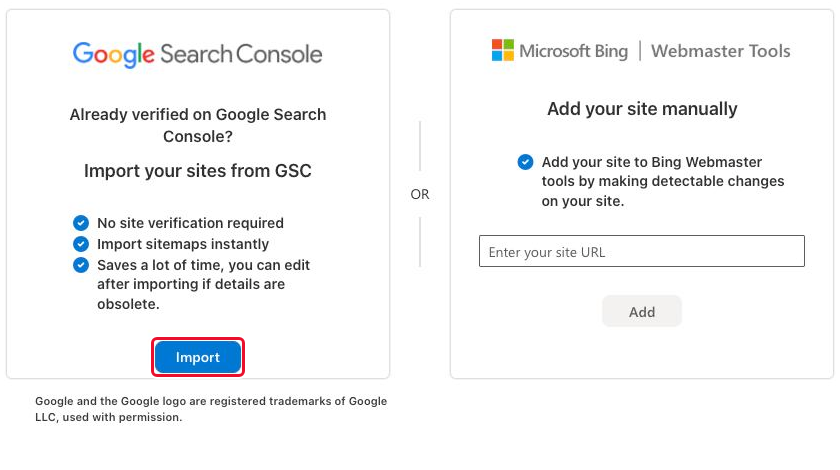
After you sign in, Bing shows the window "Select one of the methods to add your site". If you already have other sites, add the new one from the site list at the top left: per Bing's help, a site is added from the dropdown in the left navigation. The left card in the window is way A (import from Google Search Console), the right card is way B (add manually).
Step 4. Way A: click "Import"
Google asks for permission to see the list of your sites in Search Console: this is a standard Google window. Choose your account and click "Allow".
Step 5. Way A: tick your site
Bing shows the verified sites from Search Console with their sitemaps and your role. Tick yours and click Import. The site appears in Bing already verified. If the import worked, skip steps 6-8 and go to part 3.
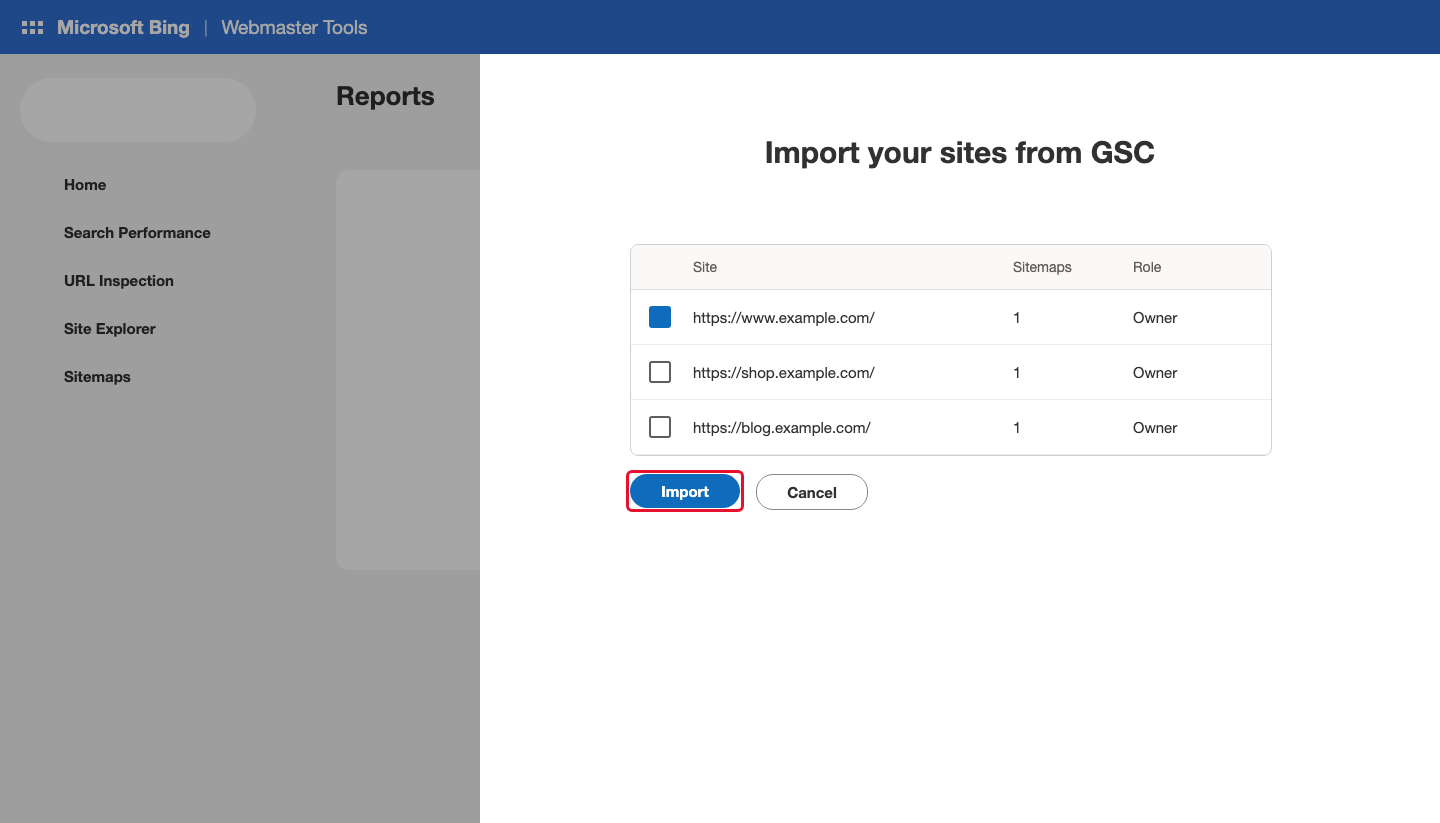
Schematic example of the screen. Yours may look slightly different.
Step 6. Way B: type the site address and click "Add"
In "Enter your site URL", copy the home page address from the browser address bar in full, including https://. You can add a whole domain (example.com) or just one branch (example.com/clothing/).
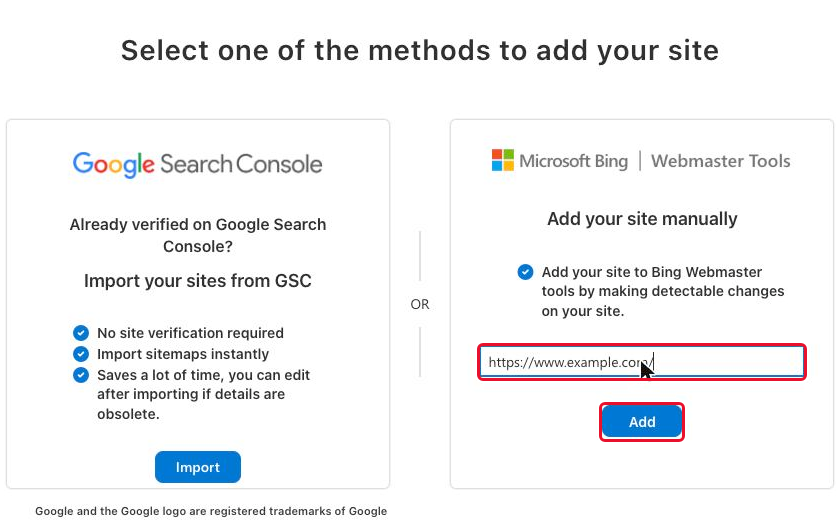
Step 7. Way B: copy the meta tag and add it to your site
Bing shows the ownership verification screen and a ready-made <meta ...> line. A meta tag is a line of service code that lets Bing confirm the site is yours. Copy it in full. Per Bing's help, it goes at the end of the <head> section of your home page. Do not close this screen and do not click "Verify" yet: the tag must appear on the site first.
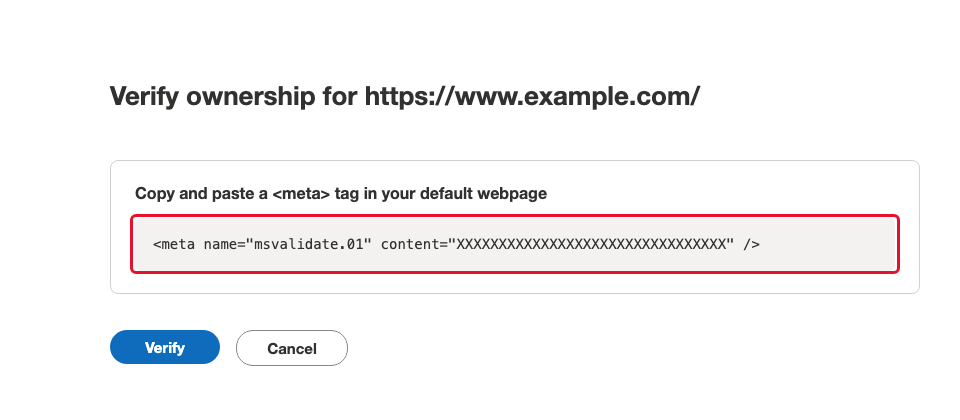
Schematic example of the screen. Your code will be different. If a developer adds the tag, forward this message, replacing the text in square brackets with the copied line:
Hello! I need the site verified in Bing Webmaster Tools.
Please add this line to the <head> section of the home page:

[PASTE THE META TAG COPIED FROM BING HERE]

Please let me know when it is on the site.
Step 8. Way B: when the tag is on the site, click "Verify"
Do not click it earlier: Bing will not find the tag and verification will fail. Until the tag is on the site, stop here: parts 3 and 4 work only for a verified site.
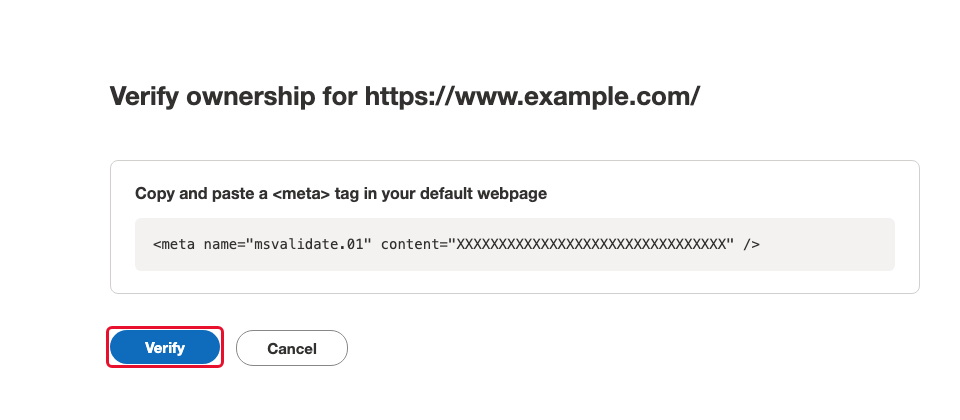
Schematic example of the screen.
Part 3. How to submit a sitemap
A sitemap is a file with a list of all pages of your site. If you already see a sitemap in the list, skip steps 9-11.
Step 9. Open "Sitemaps"
The section is in the left menu. At the top left, check that the right site is selected.
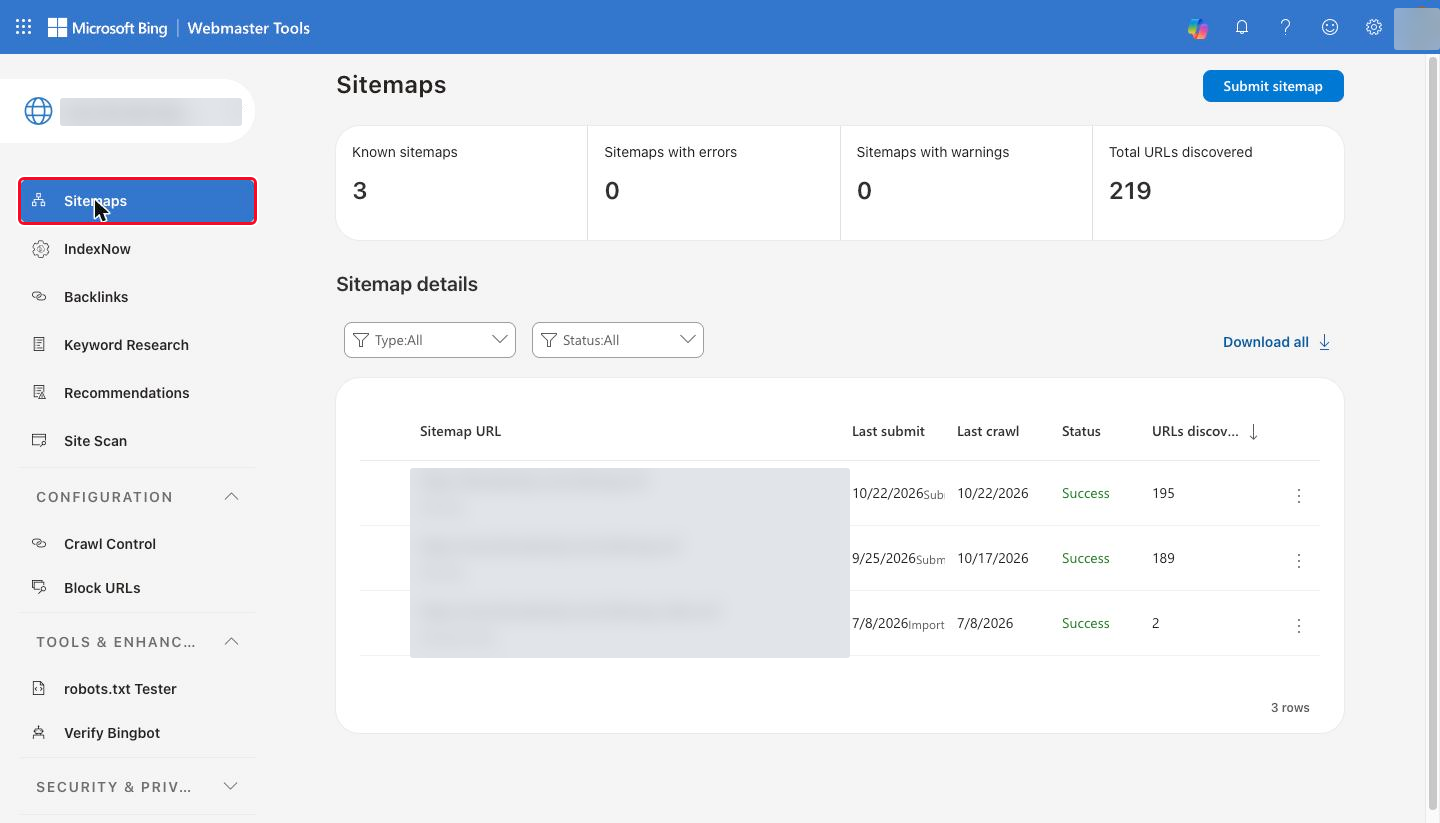
Link: bing.com/webmasters/sitemaps
Step 10. Click "Submit sitemap"
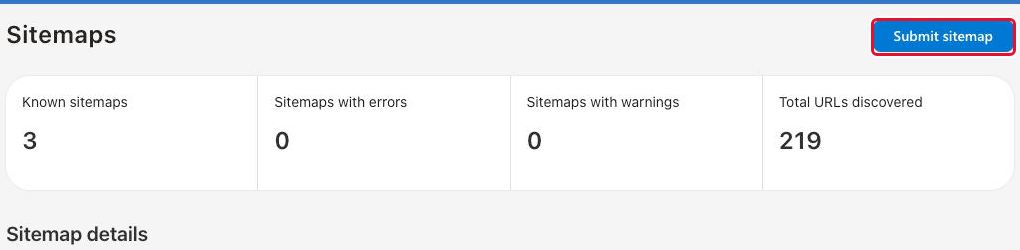
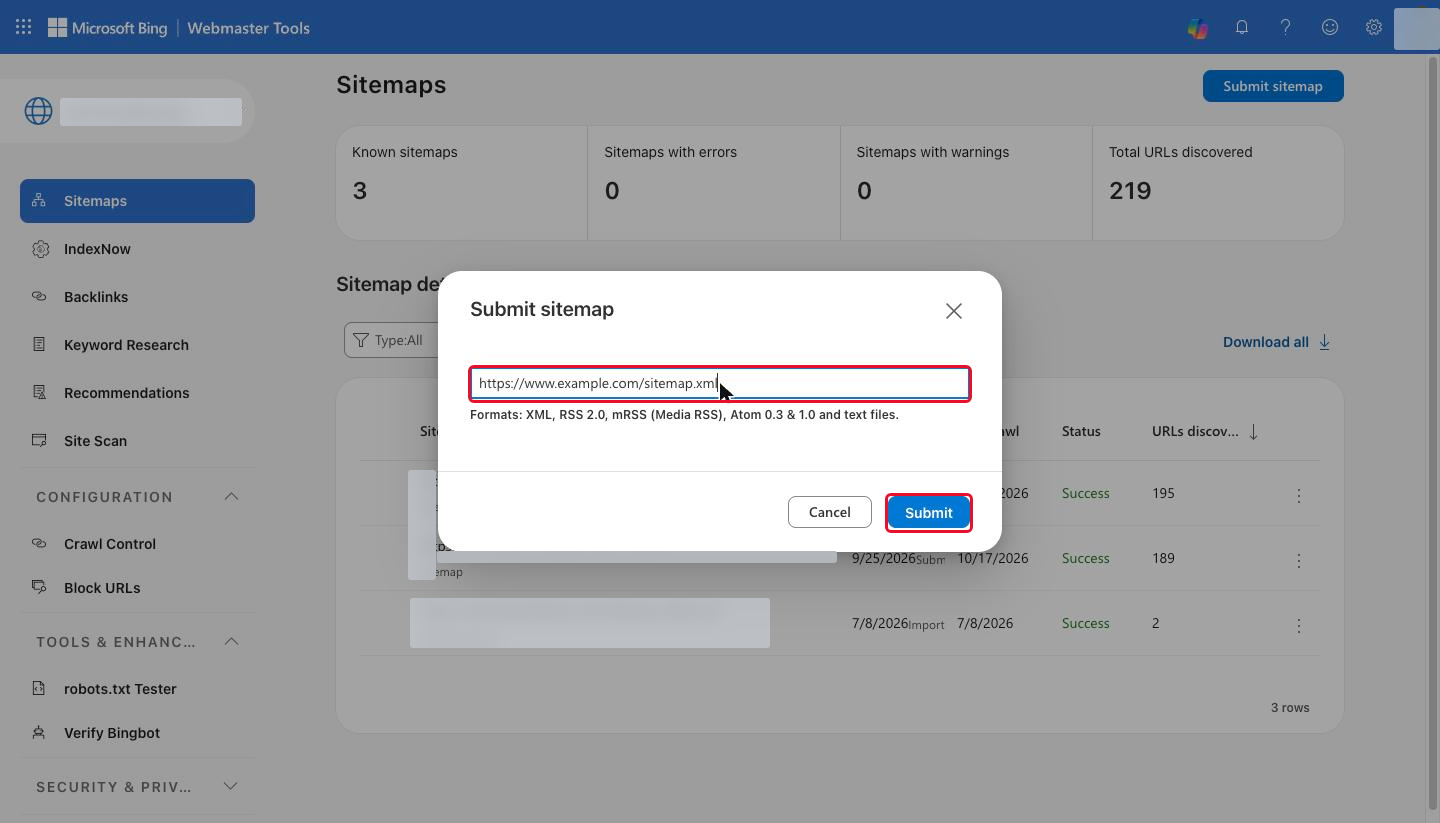
Step 11. Type the sitemap address and click "Submit"
Usually it is https://your-site/sitemap.xml: replace "your-site" with your site address. Open this address in the browser: if you see a list of links, type it into Bing. If the browser shows an error, skip this step.
Part 4. How to give a specialist access
These are steps 12-16. The result: the specialist sees your site in their own Bing Webmaster Tools with the role you chose.
Step 12. Open "User management"
The easiest way is to open the link below. In the menu, this item sits in the last collapsed group at the bottom of the left column: scroll the menu down and expand it. At the top of the page you should see "You are a verified administrator". If you do not, the site is not verified yet: go back to part 2.
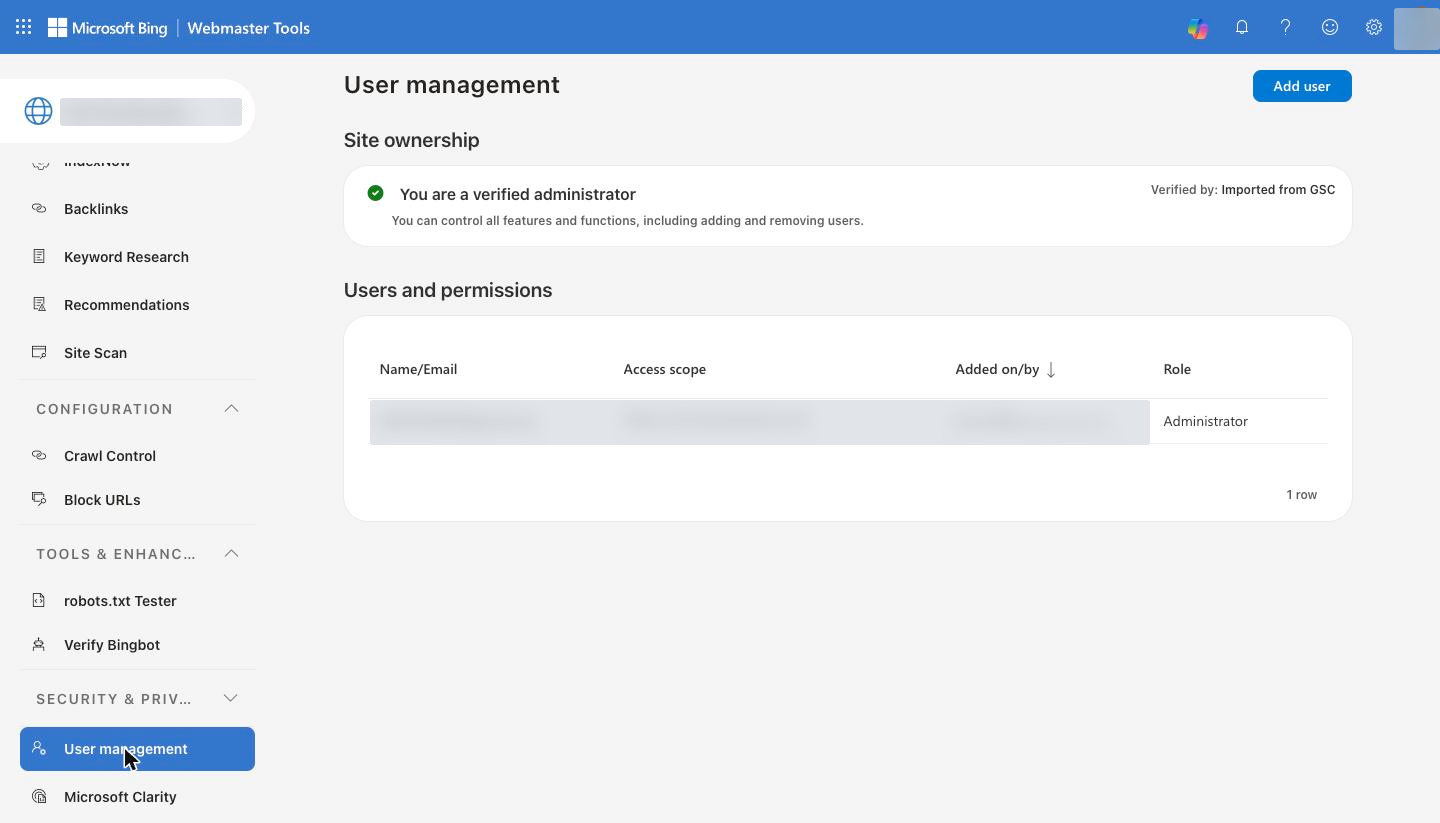
Link: bing.com/webmasters/usermgmt
Step 13. Click "Add user"
If you do not see the button, you do not have administrator rights: only an administrator can add users.

Step 14. Type the specialist's email in "Email"
Type the Microsoft or Gmail address, or the address linked to a Facebook account, that the specialist used to sign up in Bing Webmaster Tools.
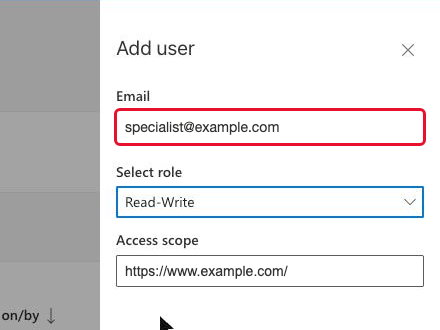
Step 15. Choose a role
Open the "Select role" list and click the right row: "Administrator", "Read only" or "Read-Write". For daily work Read-Write usually fits. The differences are in the table below. You can leave "Access scope" as it is.
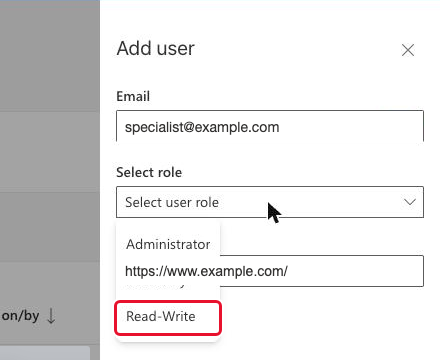
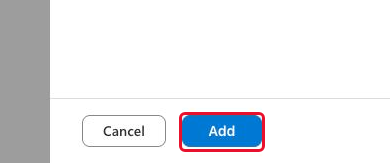
Step 16. Click "Add"
The button is at the bottom right. A new row appears in the users table.
Which Bing Webmaster Tools role to give a specialist
Bing describes three roles:
| Role | What it allows (per Bing's help) | Whom to give it to |
|---|---|---|
| Read only | See all features and reports, but not change settings or add users. | Someone who only needs reports. |
| Read/Write (Read-Write in the interface) | Access and control of almost all features, but no right to add users. | A specialist who works with the site every day. |
| Administrator | Control of all features, including adding users and delegating control. | Someone you trust to manage access. |
The Read/Write role lets a user, among other things, block crawling and indexing of your site, so give it to someone you trust. For corporate accounts Bing advises having several administrators, so you do not lose control when one of them leaves the company.
The "Access scope" field: the whole site or a part
In the add-user form, the "Access scope" field holds the URL path the person gets access to. By default it holds the site address. Narrow it to a section of the site if the specialist should work only with that section.
When this guide does not fit
- The site is not verified yet. Only a verified administrator can add users, so finish part 2 first.
- The specialist needs to add other users. Then Read/Write is not enough: per Bing's help, that role does not allow adding users. You need Administrator.
- You only need to view reports. The Read only role is enough.
- The specialist has not signed up in Bing Webmaster Tools. They must first sign in there with Microsoft, Facebook or Gmail: otherwise they cannot be added.
Frequently asked questions
Do I need to verify the site if I import it from Google Search Console? No. Per Bing's help, imported sites are added already verified.
Which role should I give a specialist? For daily work Read/Write, for viewing Read only, for managing access Administrator.
Does the specialist need an account in Bing Webmaster Tools? Yes. They must sign up once with Microsoft, Facebook or Gmail.
What is "Access scope"? The URL path the user gets access to. Leave it as it is or narrow it to part of the site.
How soon does data appear? Per Bing's help, usually about 48 hours.
How many sites can I import at once? Up to 100. The overall limit for a Bing Webmaster Tools account is 1000 sites.
Sources
- Bing, "How to add users to your site in Webmaster Tools": bing.com/webmasters/help/how-to-add-users-to-your-site-account-d5d00364 (three roles, sign-up requirement for a new user, "Access scope").
- Bing, "Add and Verify site": bing.com/webmasters/help/add-and-verify-site-12184f8b (import from Google Search Console, verification methods, limits, 48 hours).
- Bing Webmaster Blog, "Import sites from Search Console to Bing Webmaster Tools": blogs.bing.com/webmaster/september-2019/Import-sites-from-Search-Console-to-Bing-Webmaster-Tools (import steps).
Button and menu names in this guide were checked against screenshots of the Bing Webmaster Tools interface in English on October 22, 2026. Three images (the import list and the ownership verification screen) are shown as schematics because they cannot be reproduced without changing an account. Bing changes its interface: if an item is named differently, look for the one with a similar meaning.
About the author
Ievgen Kovalevskyi: AI Automation Architect, co-founder of Digital Agency WebCet. He has been building websites and setting up advertising since 2009, Google Partner.
Need help with Bing Webmaster Tools or giving access to it? Message me on Telegram: t.me/ikovalevskyi.