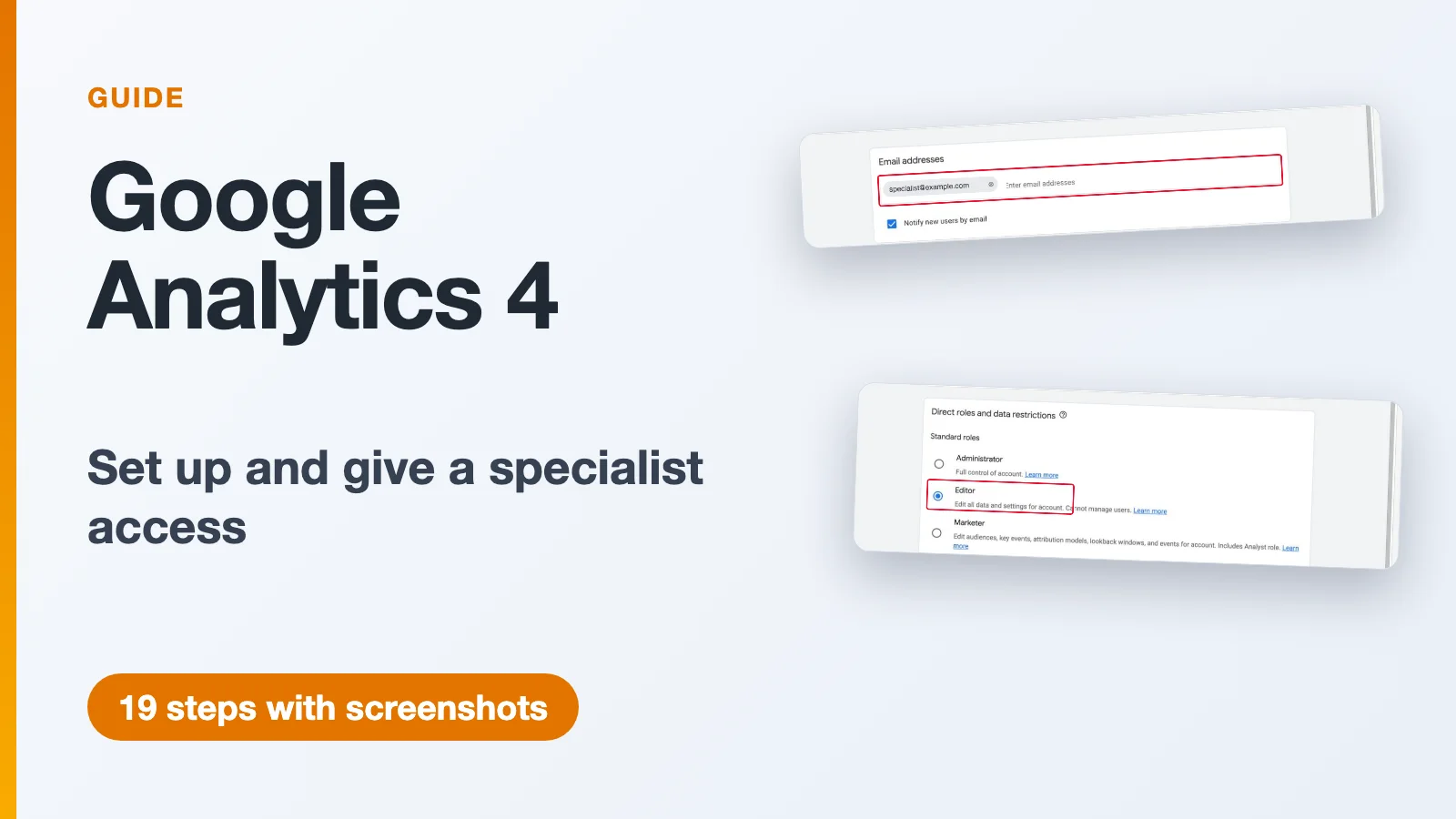
Short answer. To set up Google Analytics 4 (GA4), open analytics.google.com, click "Start measuring" and create an account, a property and a web data stream for your website. Then copy the Measurement ID: it starts with "G-". To give a specialist access, open "Admin", then "Account access management", click "+", choose "Add users", type their email address and choose a role. For configuration work the Editor role usually fits. No password has to be shared.
Below are 19 steps, each with a screenshot. If you already have Google Analytics, jump straight to "Part 3. How to give a specialist access".
What you need before you start
- A Google account to create Analytics in (Gmail or a work email on Google).
- Your website address.
- The specialist's email address, the one they use to sign in to Google. Access is granted to it.
- The Administrator role on your Analytics account: users in Analytics are managed by an administrator. If you create the account yourself, you have this role automatically.
You do not have to install the code yourself: a developer can add it, and there is a ready-made message for that below.
Part 1. How to create Google Analytics 4
These are steps 1-9. The result: you have an account, a property and a web data stream for your site.
Step 1. Open analytics.google.com and click "Start measuring"
Sign in to your Google account if asked. If you see a dashboard with data instead of the welcome page, you already have an Analytics account: go to part 3.
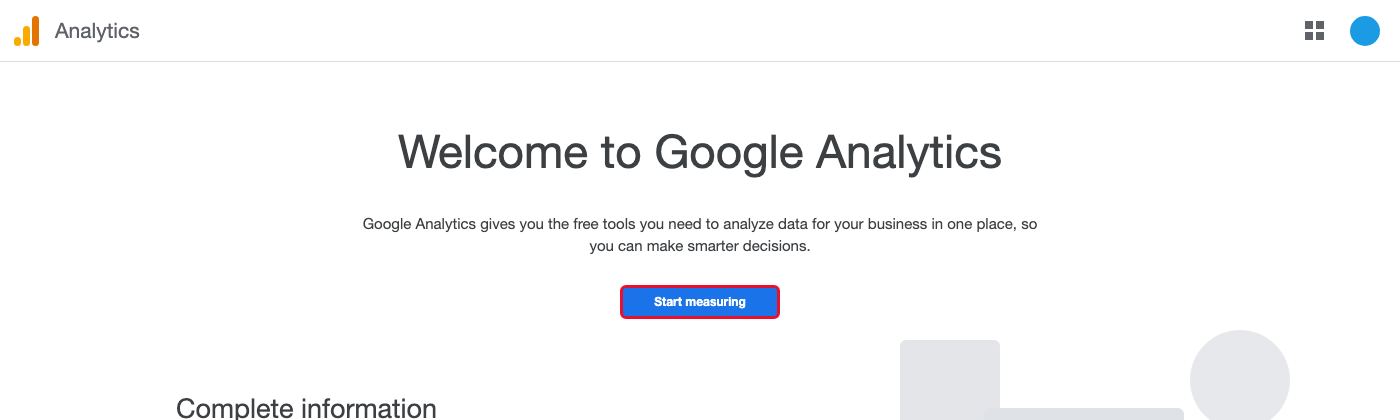
Schematic example of the welcome page. Link: analytics.google.com
Step 2. Type the account name
In the "Account name" field, type your company or website name. An account groups all your Analytics properties, so the name matters only to you.
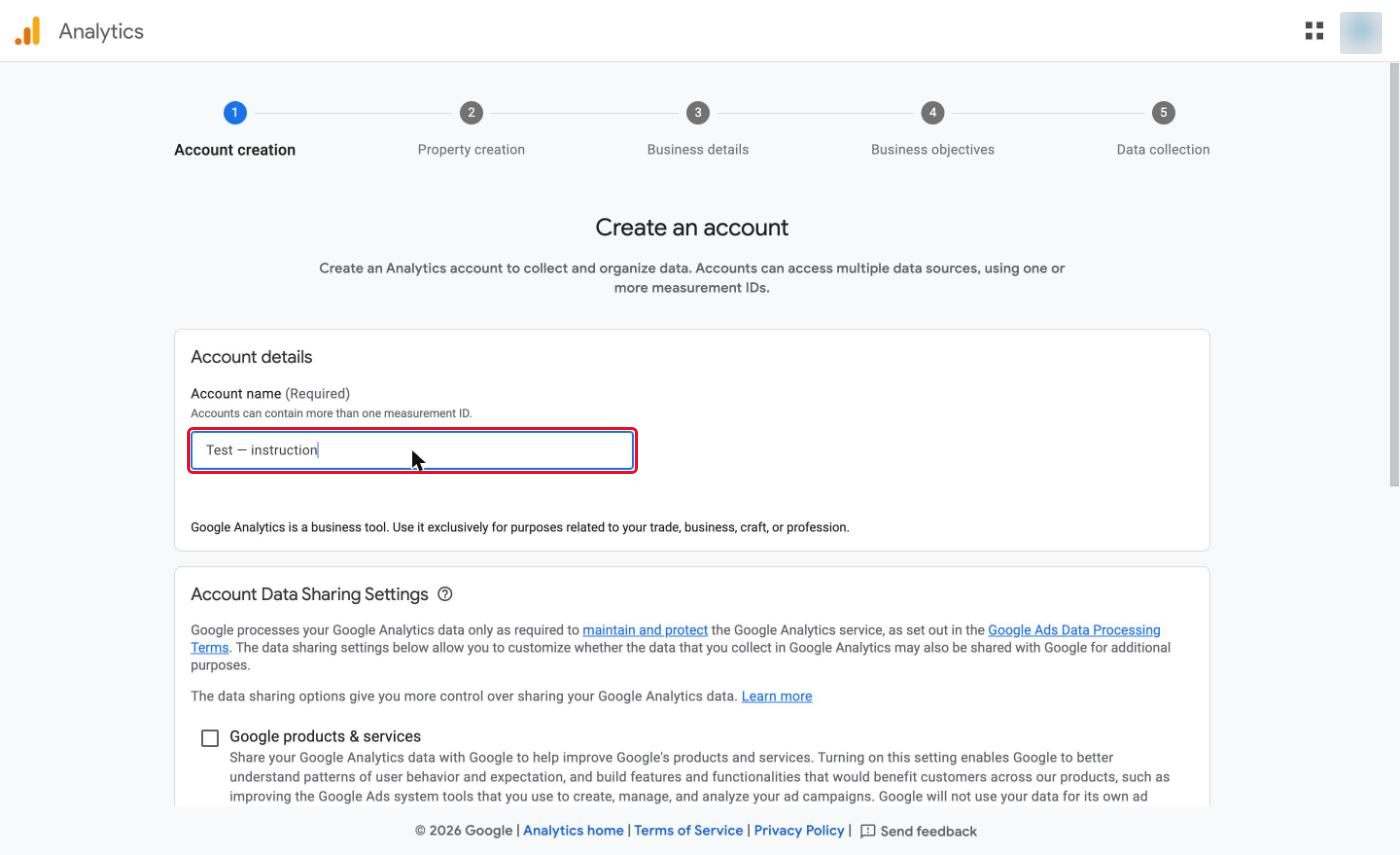
If this window closed, open it again: create an account.
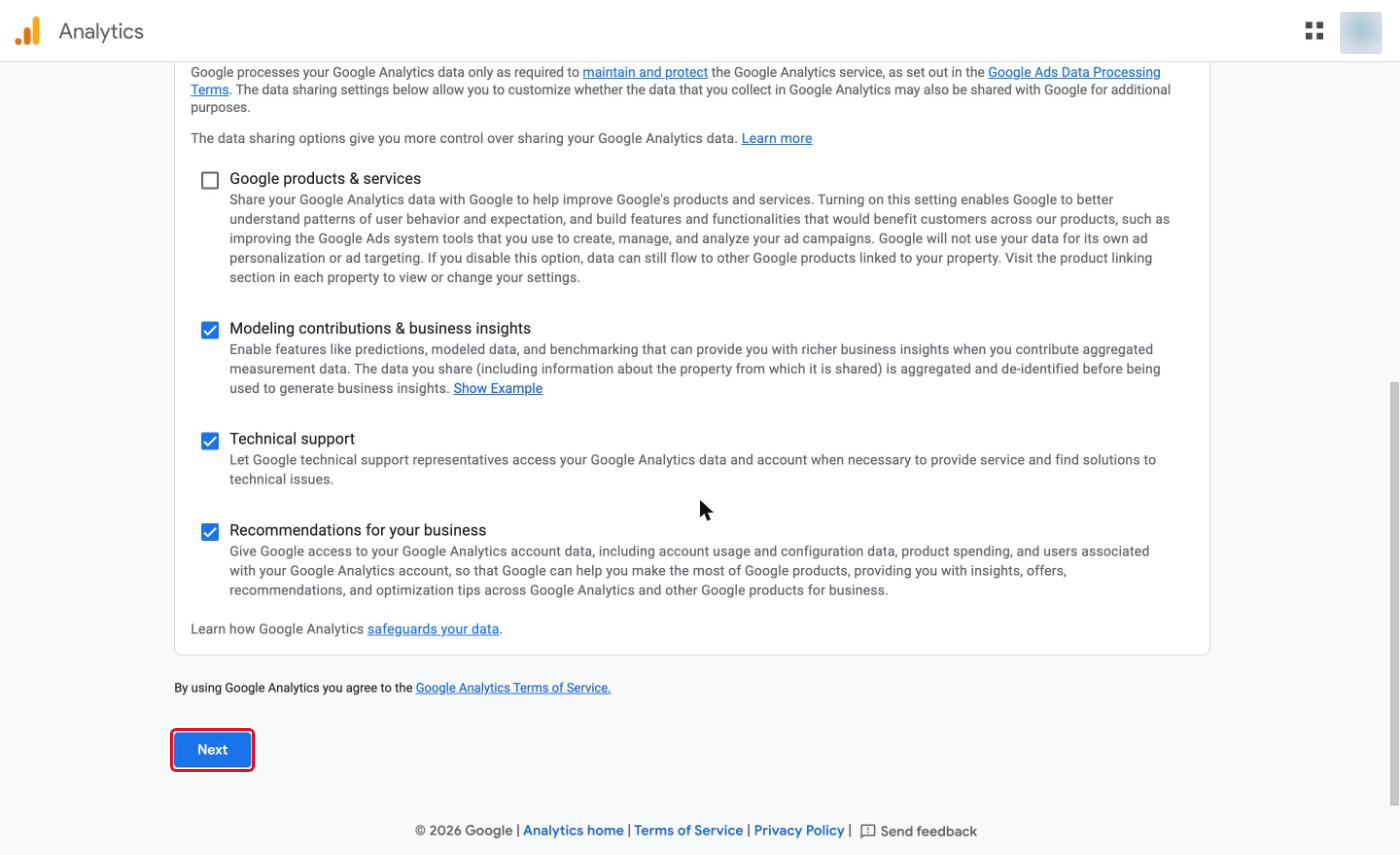
Step 3. Scroll down and click "Next"
You can leave the data sharing settings as they are.
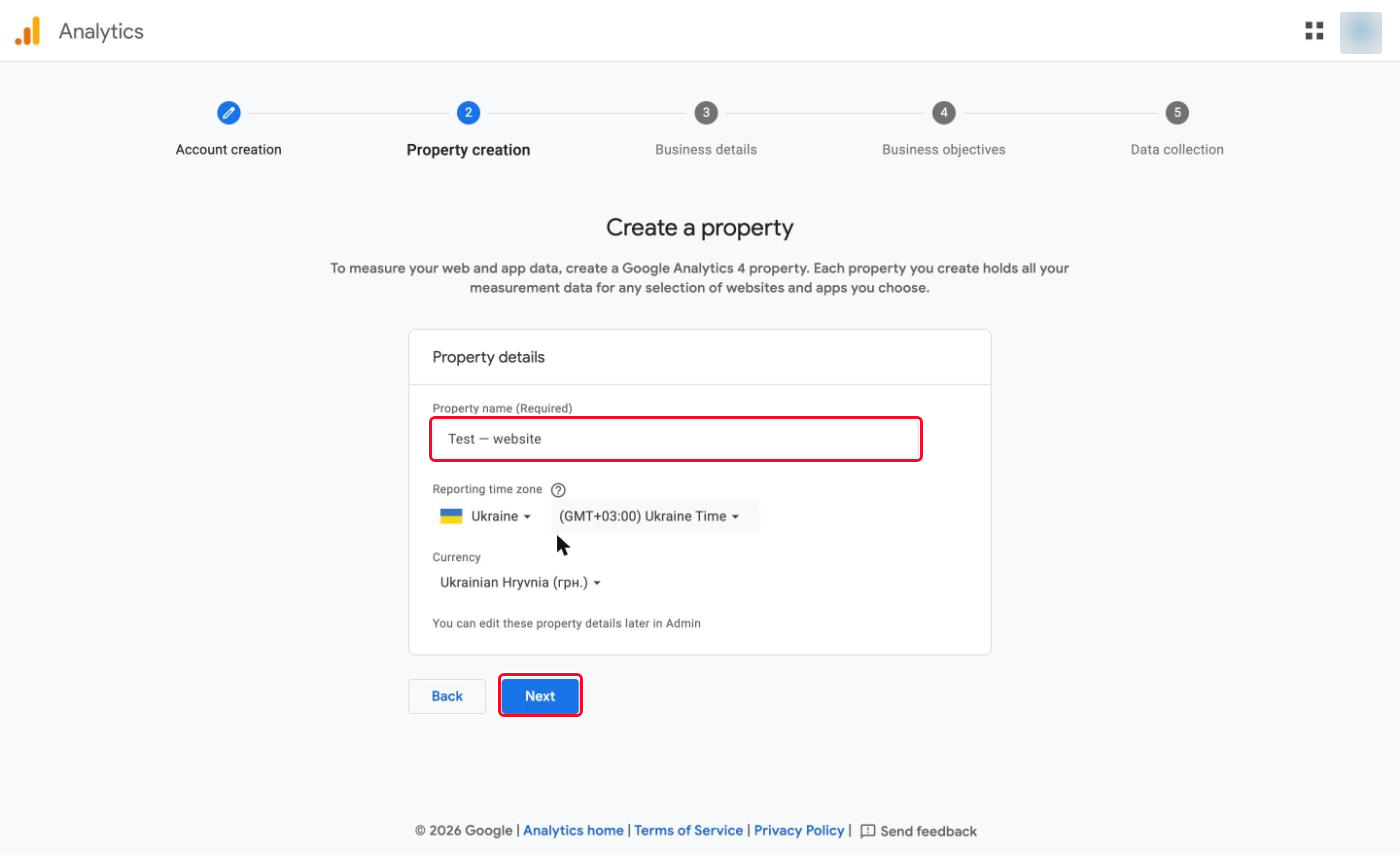
Step 4. Fill in the property details
A property means your website inside Analytics. In "Property name", type your website name. In "Reporting time zone" and "Currency", choose your country and currency. Click "Next".
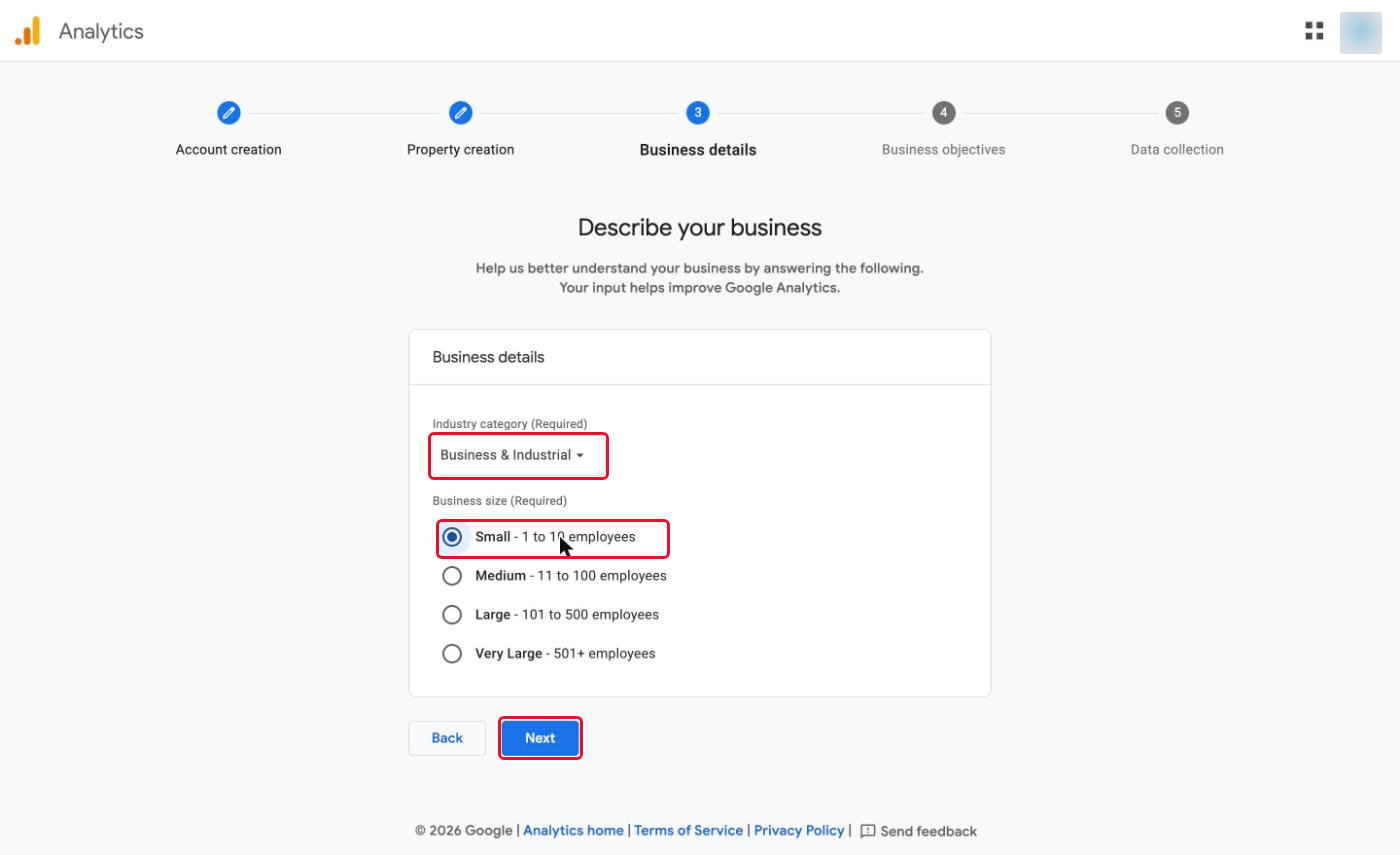
Step 5. Choose your industry and company size
In "Industry category", pick the closest option (if there is no exact match, choose a similar one). In "Business size", tick the one that fits and click "Next".
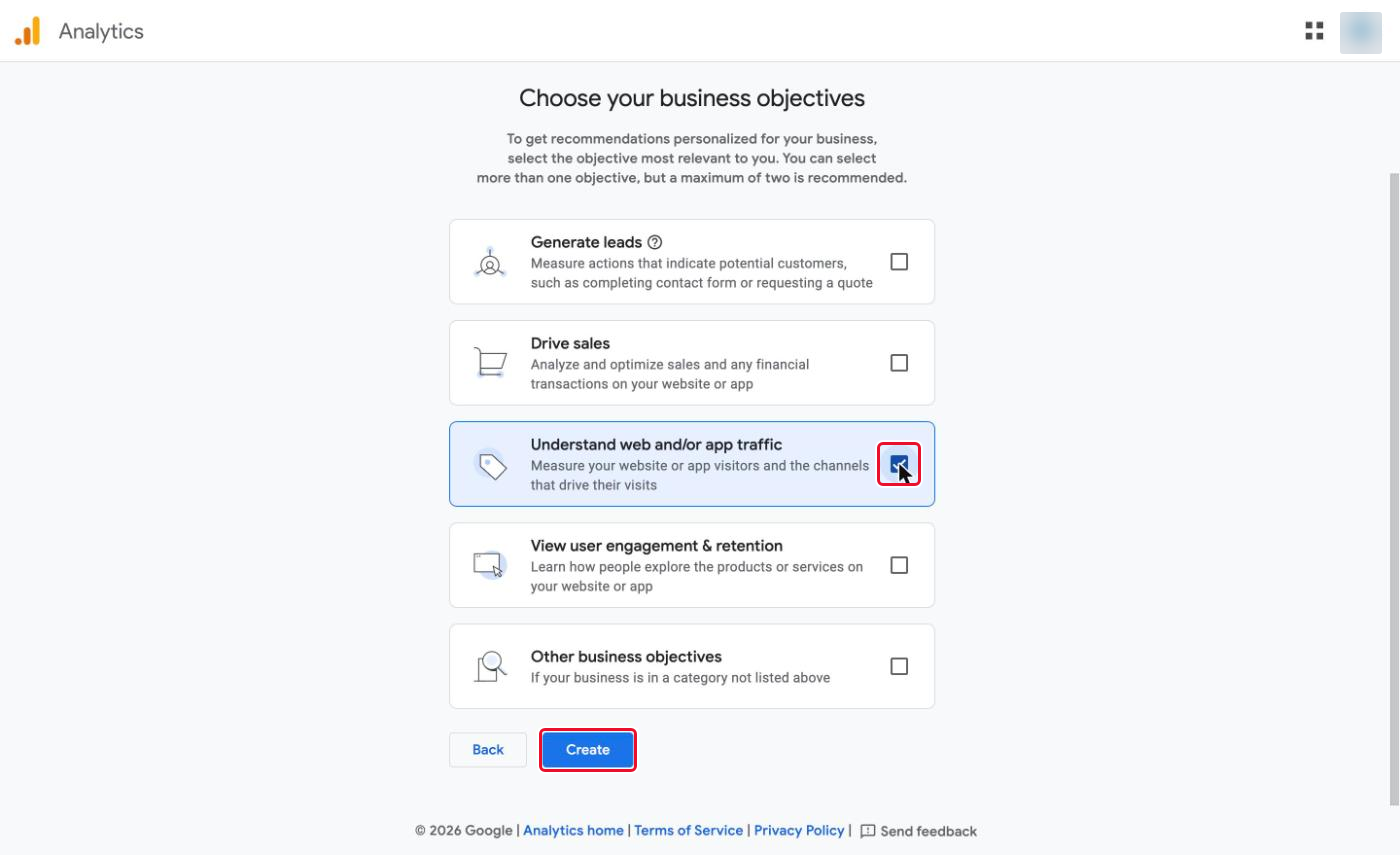
Step 6. Tick a business objective and click "Create"
One objective is enough, for example "Understand web and/or app traffic". It is only a hint for Google and does not affect access.
Step 7. Accept the agreement if it appears
The "Google Analytics Terms of Service" window appears when you create your first account. Choose your country, tick the checkbox for the data processing terms (GDPR) if it is not ticked yet, and click "I Accept". If you do not see this window, go to the next step.
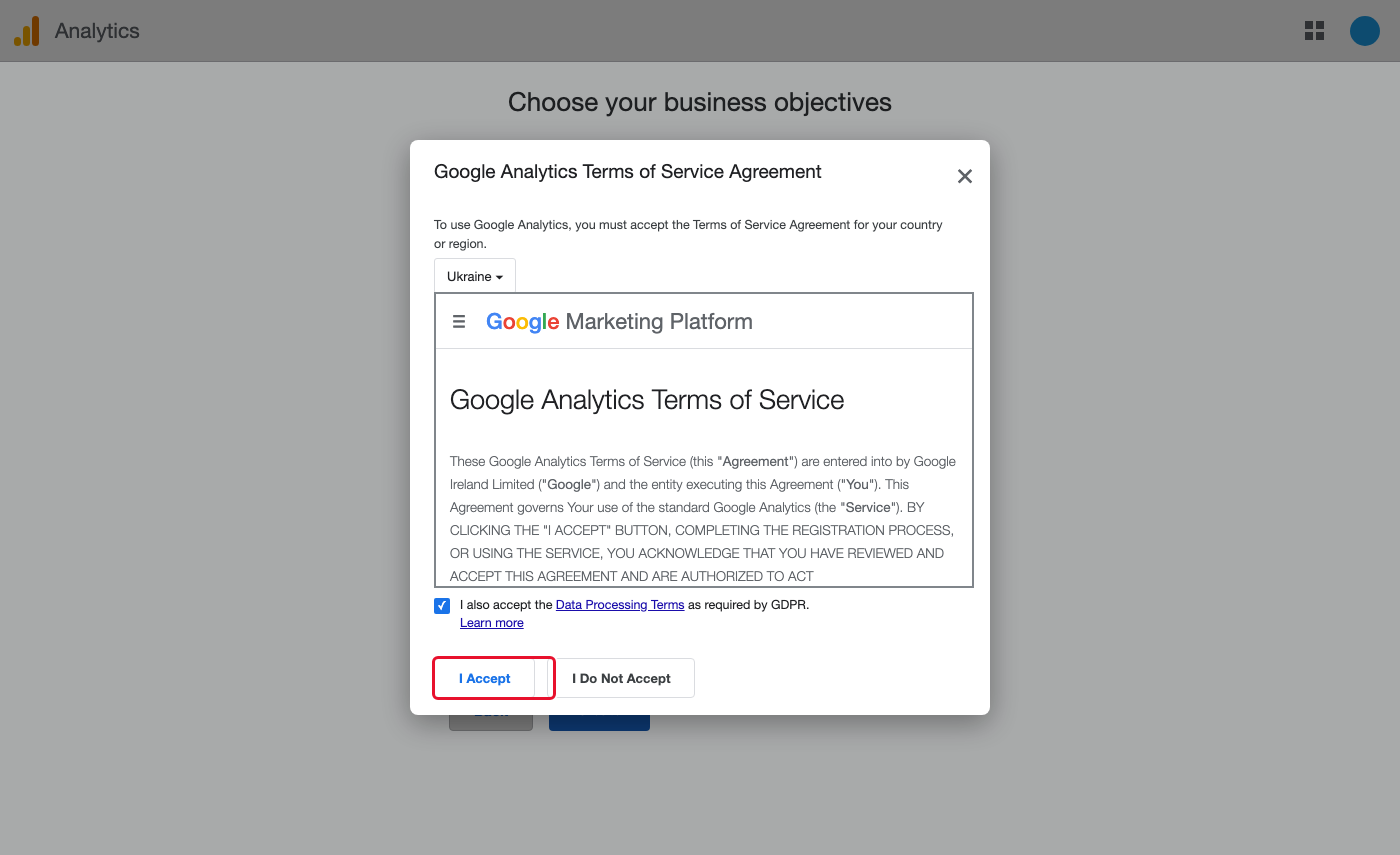
Schematic example of the window. Your wording may differ slightly.
Step 8. Choose the "Web" platform
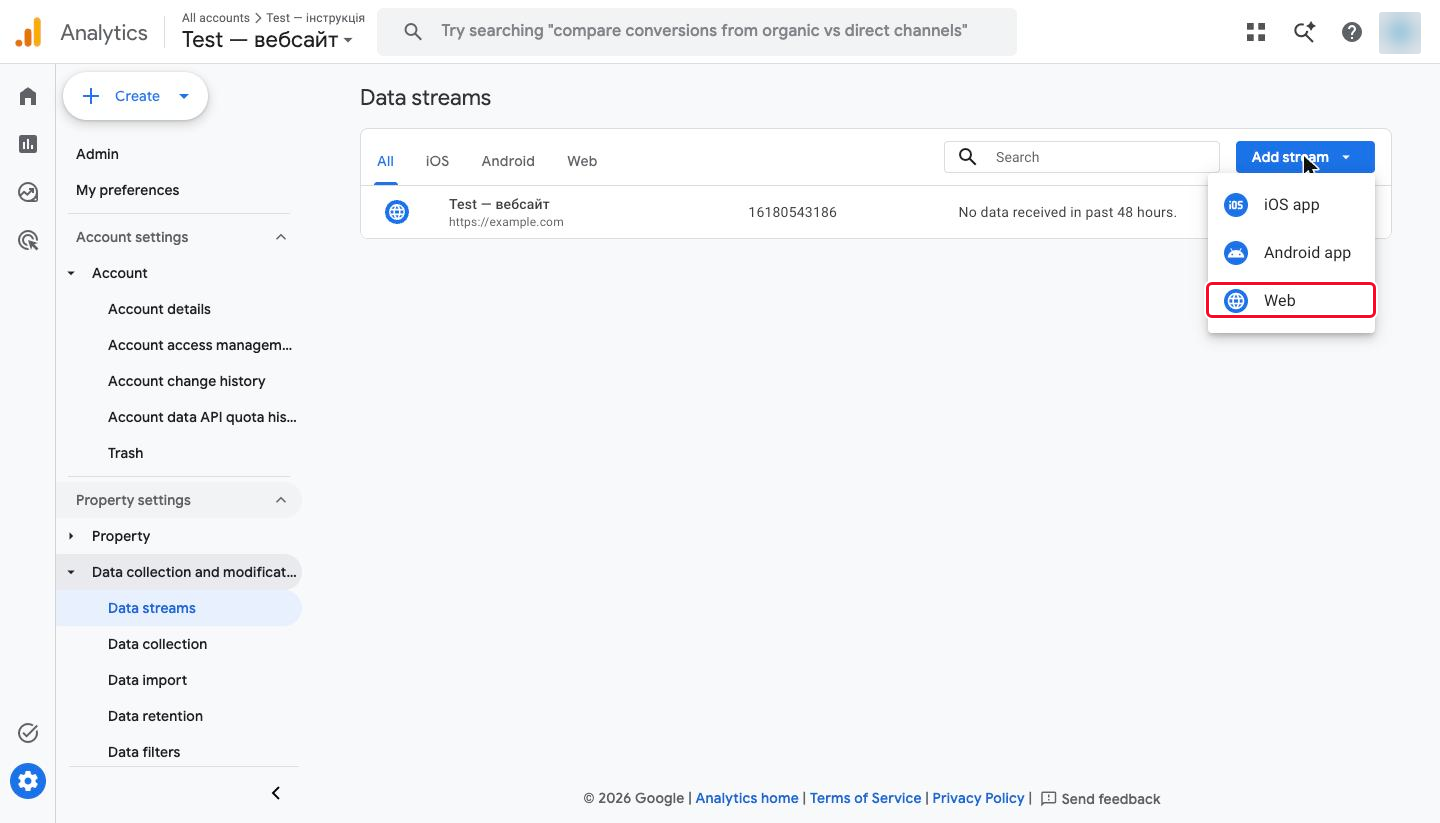
In your account the platforms may look like large buttons instead of a list. You need "Web".
Step 9. Type the website address and the stream name
A stream means the connection between your website and the property. In "Website URL", type the domain only, without https:// and without a page path (no "/" and nothing after it), for example example.com or www.example.com. In "Stream name", type your website name. Click "Create & continue".
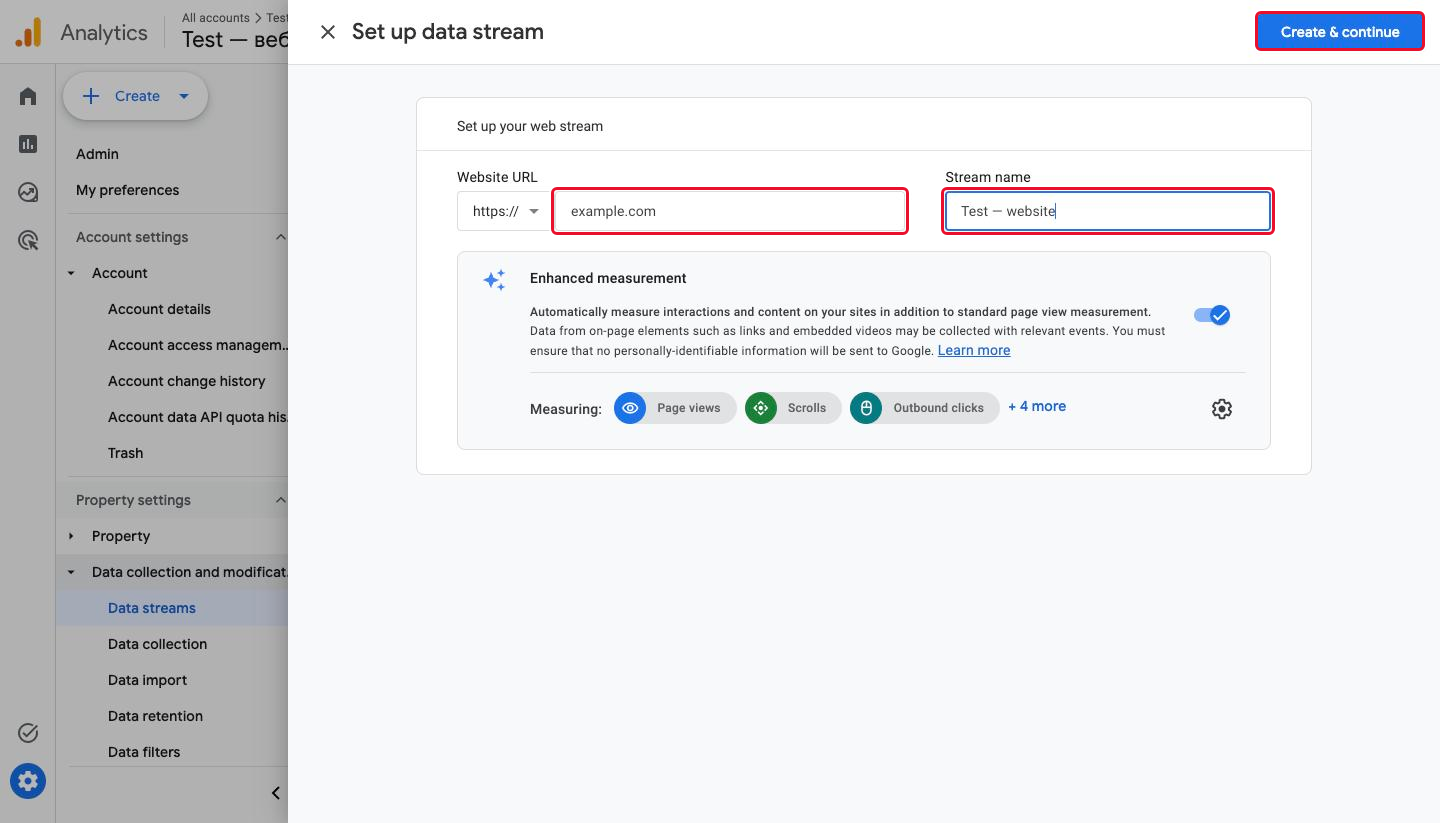
If one more panel with the tag code opens, close it with the cross: you can add the code later, using part 2.
Part 2. How to find the Measurement ID and connect it to your site
These are steps 10-11 and the code connection. The result: your site sends data to Google Analytics.
Step 10. Open "Admin" and choose "Data streams"
Click the gear icon at the bottom left ("Admin"). In the "Data collection and modification" block, click "Data streams", then your stream. It is the only row in the list.
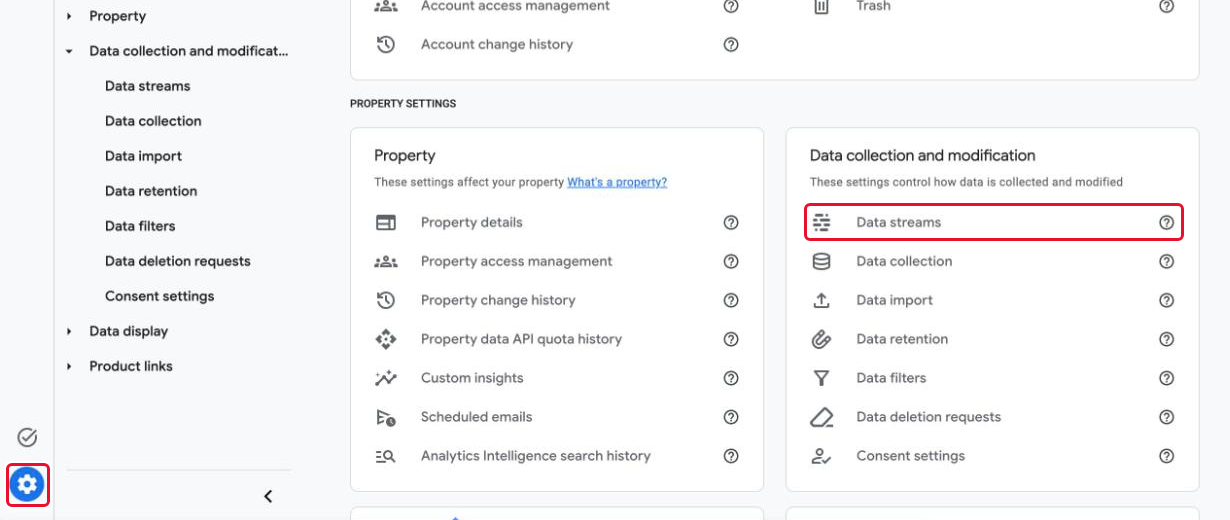
Step 11. Copy the "Measurement ID"
On the stream page find the "Measurement ID" label: below it is a value starting with "G-". Click the copy icon next to it. The Stream ID, which is only digits, is not needed.
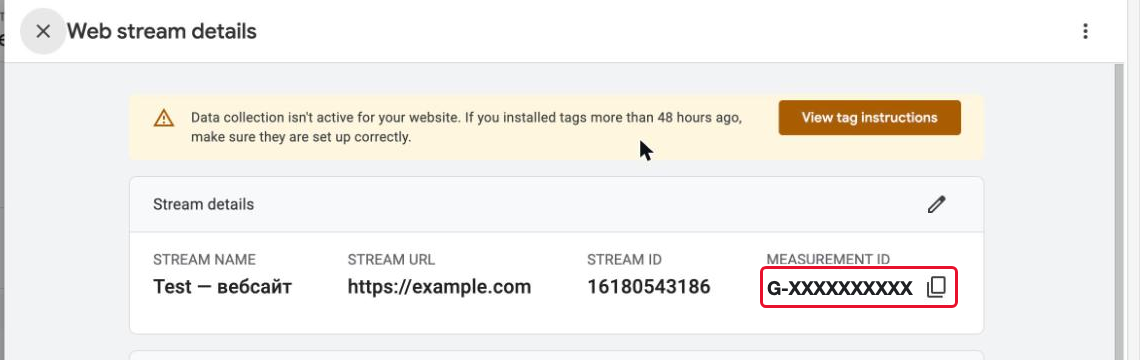
The screenshot shows the placeholder G-XXXXXXXXXX instead of a real ID. The yellow "data collection is not active" warning on this page is normal until the code is added to the site.
How to connect the ID to your site
Google describes four ways. Choose one:
- A site builder or CMS with a built-in integration (Google names Shopify, Wix, Squarespace and WordPress plugins as examples): paste the ID into the Google Analytics field in your site settings.
- Another builder or CMS: in the stream, find the Google tag block, click View tag instructions, choose Install manually, copy the code and paste it through the custom HTML feature.
- Directly in the page code: paste the same snippet right after
<head>on every page. This usually needs a developer. - Google Tag Manager: add the "Google Analytics: Google Analytics Configuration" tag following the Tag Manager instructions.
If a developer adds the code, forward this message. Replace G-XXXXXXXXXX with your ID in all three places:
Hello! I need Google Analytics 4 connected to the website.
Measurement ID: G-XXXXXXXXXX

What to do: paste this code into the <head> section of every page of the site.
If you use Google Tag Manager, you can add the ID there instead.

<!-- Google tag (gtag.js) -->
<script async
  src="https://www.googletagmanager.com/gtag/js?id=G-XXXXXXXXXX"></script>
<script>
  window.dataLayer = window.dataLayer || [];
  function gtag(){dataLayer.push(arguments);}
  gtag('js', new Date());
  gtag('config', 'G-XXXXXXXXXX');
</script>

How to check: open the real-time report in Google Analytics and visit the site.
The visit should appear within a few minutes. Please let me know when the code is live.
To check the result, open the real-time report (Realtime) and visit your site. Google says data collection can take up to 30 minutes to start. You do not need to wait to give a specialist access: the next part does not depend on the code.
Part 3. How to give a specialist access
These are steps 12-19. The result: the specialist sees your Analytics account from their own email and works with the role you chose.
Step 12. Open "Admin" and check the account
Click the gear icon at the bottom left. At the top left, check the account and property names. If they are wrong, click the name and choose the right ones.
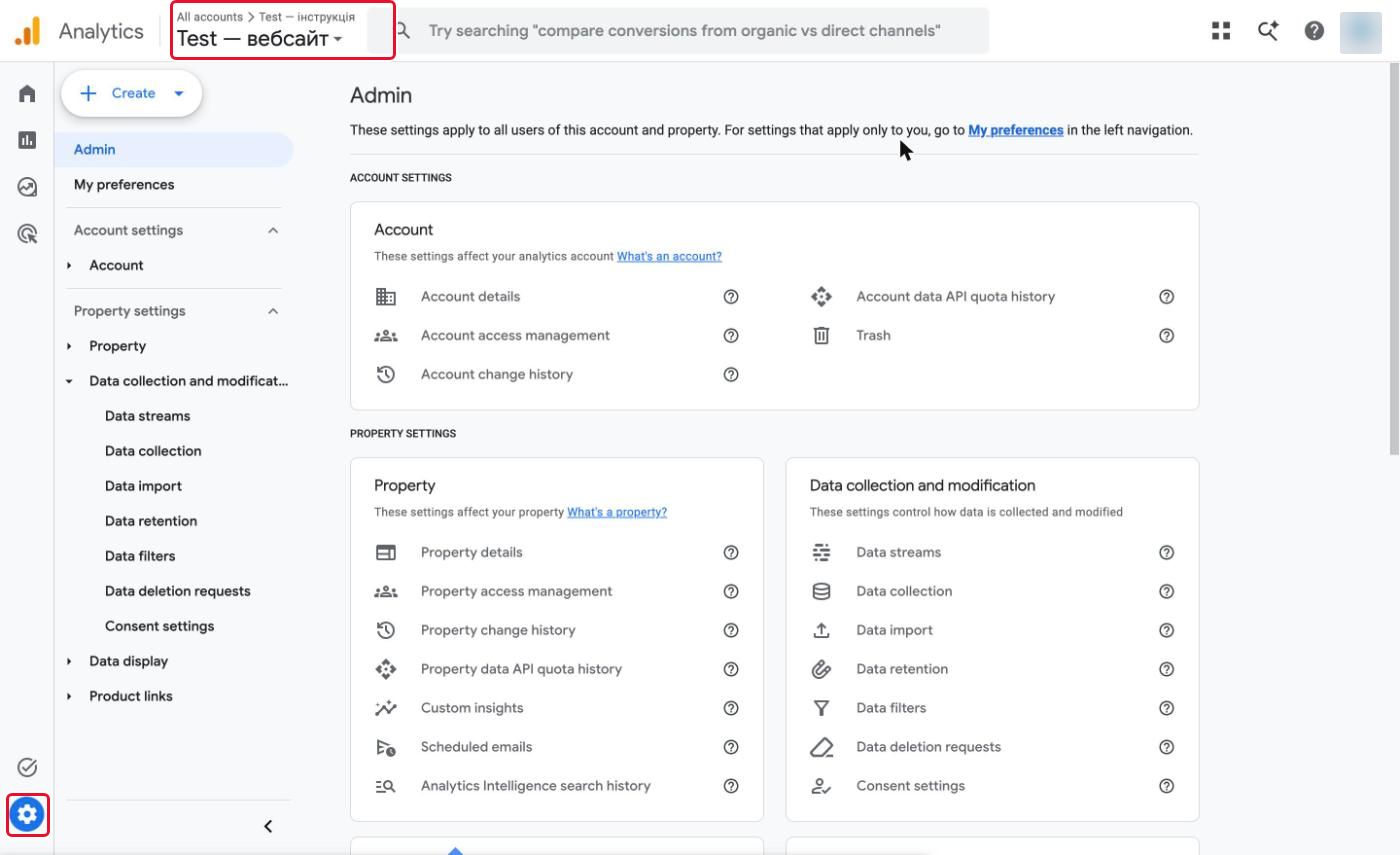
Step 13. Click "Account access management"
Choose the account, not the property. Access at the account level applies to every property in it (see the section on levels below).
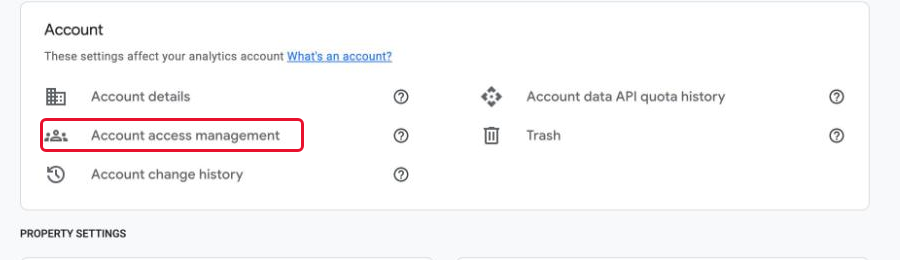
Step 14. Click the blue "+" button
If there is no "+" button, you do not have the Administrator role in this account: ask the account owner.

Step 15. Choose "Add users"

Step 16. Type the specialist's email address
In the "Email addresses" field, type the address the specialist uses to sign in to Google. After you type it, click an empty spot below the field: the address turns into a grey oval with a cross. Google may change the capital letters in the address, and that is normal. Keep "Notify new users by email" ticked so the specialist sees the invitation right away.

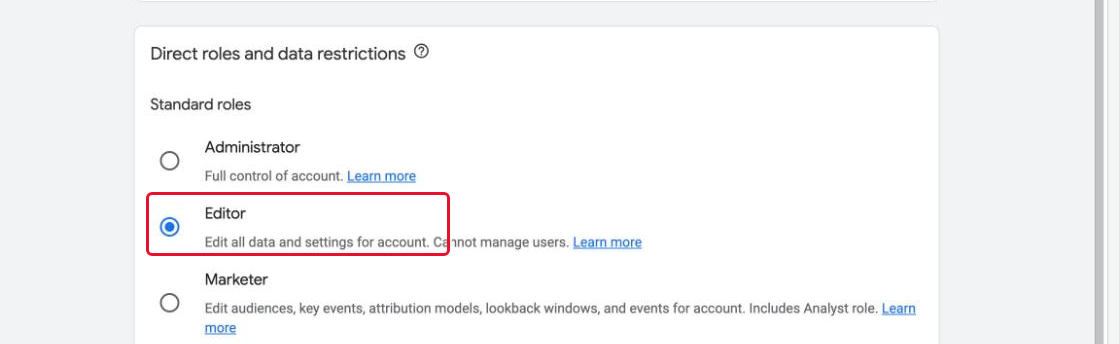
Step 17. Choose a role
For configuring Analytics the Editor role usually fits. The roles and what they allow are in the table below.
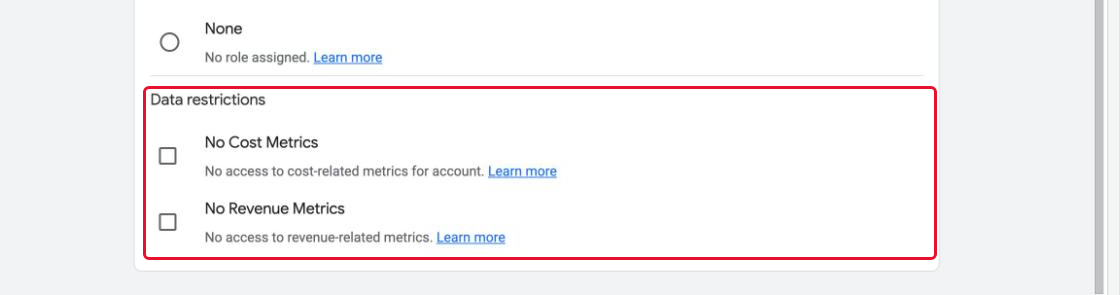
Step 18. Leave the data restrictions unticked
Scroll the window down. The "Data restrictions" block has "No Cost Metrics" and "No Revenue Metrics". If the specialist needs advertising cost and revenue data, leave both unticked. Tick them when you need to hide these metrics.
Step 19. Click "Add"
The button is at the top right. The specialist appears in the account's users list.

Which GA4 role to give a specialist
Google describes five roles, and their permissions stack: Administrator includes Editor permissions, Editor and Marketer include Analyst permissions, and Analyst includes viewing permissions.
| Role | What it allows (per Google's help) | Whom to give it to |
|---|---|---|
| Administrator | Full control of Analytics, managing users and roles. | Only someone you trust to manage access. |
| Editor | Full control of settings at the property level, without managing users. | A specialist who configures Analytics. |
| Marketer | Create, edit and delete audiences, events and key events; import key events into Google Ads as conversions. | An advertising specialist. |
| Analyst | Can share created explorations with other users of the property. | Someone who analyses the data. |
| Viewer | Sees settings and data, can create their own explorations. | Someone who only needs reports. |
Access level: account or property
Google distinguishes two levels. A user added at the account level has access to all properties of that account with the same permissions. A user at the property level sees only that property. Permissions can be raised at a lower level but cannot be reduced below what was granted above. If the specialist works with several sites, grant access at the account level, as in the steps above.
When this guide does not fit
- You only have Universal Analytics. Standard Universal Analytics properties stopped processing data on July 1, 2023, and new data goes only into Google Analytics 4. Create a GA4 property following part 1.
- You are not the account administrator. Administrators add users. Ask yours to do part 3 or to raise your role.
- Your site runs on a builder with a built-in integration. Pasting the ID into the builder's field is enough, with no code and no developer.
- The specialist has no Google account. GA4 access is granted to the email address a person uses to sign in to Google, so they need such an account first.
Frequently asked questions
Do I need to give a specialist the password to my Google account? No. Access is granted by invitation to their email (steps 14-19), no password needed.
Which GA4 role should I give a specialist? For configuration, usually Editor: it controls property settings but does not manage users. For reports, Analyst or Viewer is enough.
Account level or property level? For several sites in one account, grant at the account level. For one site, the property level works.
Why is there no data in the reports after setup? Per Google, collection can take up to 30 minutes to start. Check the Realtime report and whether the code is really on the site.
What is the difference between the Measurement ID and the Stream ID? The Measurement ID starts with "G-" and connects your site. The Stream ID is only digits and is not needed for the connection.
Why is there no "+" button? An administrator manages users: without the Administrator role the button does not appear.
Sources
- Google, "Set up Analytics for a website and/or app": support.google.com/analytics/answer/9304153 (setup steps, finding the Measurement ID, ways to connect, up to 30 minutes before data collection starts).
- Google, "Access and data-restriction management": support.google.com/analytics/answer/9305587 (roles and data restrictions).
- Google, "Add or remove users": support.google.com/analytics/answer/9305788 (account and property levels, administrator rights).
- Google, "GA4 and Universal Analytics": support.google.com/analytics/answer/10089681 (standard Universal Analytics properties stopped processing data on July 1, 2023).
Button and menu names in this guide were checked against screenshots of the Google Analytics interface in English on October 22, 2026. Google changes its interface: if an item is named differently, look for the one with a similar meaning.
About the author
Ievgen Kovalevskyi: AI Automation Architect, co-founder of Digital Agency WebCet. He has been building websites and setting up advertising since 2009, Google Partner.
Need help setting up Google Analytics or giving access to it? Message me on Telegram: t.me/ikovalevskyi.